

Actions: Interactions
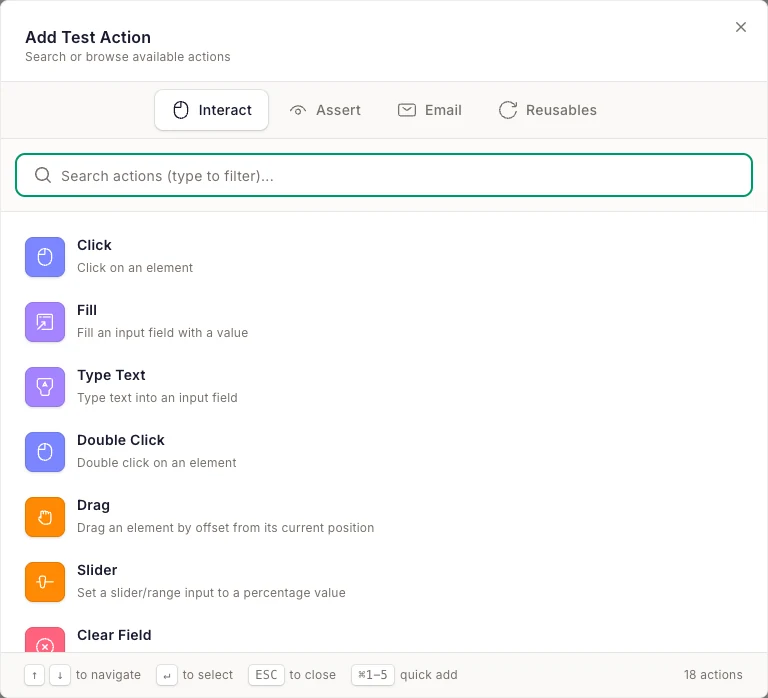
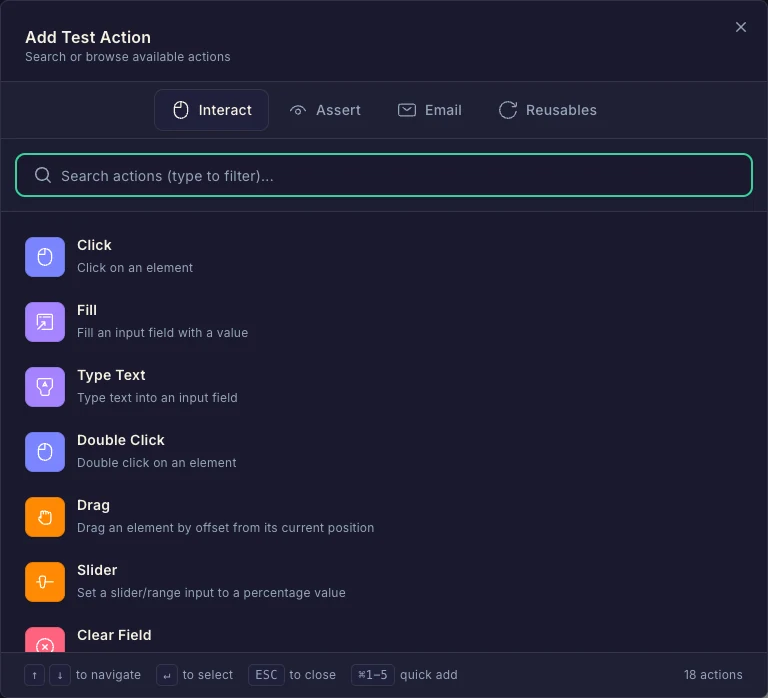
Interaction actions simulate everything a real user does with their mouse, keyboard, or finger. You add them from the Interact tab of the action picker (⌘K in the visual editor), then point at the target element in the live browser preview. This page is the complete reference for every interaction action.
Platform availability
Summary
| Action | What it does | Platforms |
|---|---|---|
| Click | Click on an element | All |
| Fill | Fill an input field with a value | All |
| Type Text | Type text into an input field | All |
| Double Click | Double click on an element | All |
| Drag | Drag an element by an offset | All |
| Box Select | Drag a rectangle to select a region or draw on a canvas | All |
| Slider | Set a slider/range input to a percentage | All |
| Clear Field | Clear an input field or text area | All |
| Press Key | Press a key or key combination | All |
| Upload File | Upload a file to a file input | All |
| Scroll element into view | Scroll until a target element is visible | All |
| Mouse Wheel | Scroll with real wheel events over a target surface | All |
| Wait | Pause the test for a number of seconds | All |
| Swipe | Swipe in a direction | Mobile only (Chromium) |
| Long Press | Press and hold an element | Mobile only (Chromium) |
| Pull to Refresh | Pull down from the top to refresh | Mobile only (Chromium) |
| Right Click | Right click on an element | Desktop only |
| Hover | Hover over an element | Desktop only |
| Move Mouse Away | Move the mouse off the page to clear hover effects | Desktop only |
The Interact tab also contains four browser-control actions — Go Back, Go Forward, Reload Page, and Set Cookie — documented in Actions: Navigation.
Click
Clicks an element on the page.
- Target: the element you click in the live preview.
The workhorse action — buttons, links, menu items, checkboxes. Clicking a link is also how you navigate between pages (see Actions: Navigation).
Fill
Fills an input field with a value from a variable — a saved text snippet, a built-in dynamic value (random name, random email, Stripe test card number, and many more), or custom text.
- Target: the input field.
- Value: select a snippet/variable, or enter custom text.
Use Fill when the value should be reusable or dynamic — e.g. fill the email field with Random email so every run signs up a fresh user. See Variables for managing them (and the full catalog of built-in dynamic values) and Form Testing for patterns.
Type Text
Types a literal string into an input field, character by character.
- Target: the input field.
- Text: the exact string to type.
Use Type Text for fixed values ("hello@example.com") and Fill for variable ones. Typing triggers keyboard events, so it works with inputs that react to keystrokes (autocomplete fields, formatted inputs).
Double Click
Double clicks an element.
- Target: the element.
Use it for UIs that require a double click — opening an item in a file-manager-style list, entering an inline-edit mode.
Drag
Drags an element by a pixel offset from its current position.
- Target: the element to drag.
- Offset: horizontal (x) and vertical (y) distance in pixels.
Use Drag for sortable lists, kanban cards, or moving map/canvas elements. For range inputs, prefer the dedicated Slider action.
Box Select
Drags a rectangle from one corner to the opposite corner — a marquee. Instead of pointing at a single element, you drag out the box itself in the live preview, and that box is the gesture.
- Target: drag the rectangle in the live preview; its two corners are saved as the gesture (no element is matched).
Use Box Select on surfaces that have no single targetable element — selecting objects, text, or a region; drawing on a <canvas>; crop tools, maps, and signature pads. Where Drag anchors to an element and moves it by an offset, Box Select replays the corner-to-corner drag directly, so it works even when there's nothing inside the canvas to point at.
Slider
Sets a slider (<input type="range">) to a percentage of its track.
- Target: the slider element.
- Percentage: 0–100 (default 50).
More reliable than dragging a slider handle by hand — say "set this to 75%" and the runner does the math.
Clear Field
Clears the contents of an input field or text area.
- Target: the field to clear.
Use it before re-filling a field that's pre-populated, e.g. clearing a default search term before typing a new one.
Press Key
Presses a key or key combination — no target element required; keys go to whatever currently has focus.
- Keys: record any key or combination (Enter, Tab, Escape, and so on); common presets are offered.
Use it to submit forms with Enter, dismiss modals with Escape, or tab between fields.
Upload File
Uploads one or more files to a file input.
- Target: the file input (or the button that opens it).
- Files: the file(s) to upload, stored with your test.
Use it to test avatar uploads, document submissions, CSV imports.
Scroll element into view
Scrolls the page until the target element is visible.
- Target: the element to scroll to.
Beyond getting an element on screen, scrolling triggers lazy-loading, intersection observers, and sticky headers — useful before clicking elements far down the page. See Handling Dynamic Content.
Mouse Wheel
Scrolls by dispatching real mouse-wheel events at a point, instead of moving the page programmatically.
- Target (optional): the surface to scroll — a canvas viewer, a map, an embedded pane. Without a target, the wheel events land at the center of the viewport, scrolling the page like a user resting their cursor on it.
- Direction: up, down, left, or right.
- Distance: how far to scroll, in pixels (default 360).
Use it for surfaces that ignore normal scrolling — canvas-based viewers, maps, virtualized lists, and inner panes that only respond to actual input events. Scroll element into view remains the right choice for the common case of getting an element on screen; Mouse Wheel is for when the scrolling itself is the interaction. If a targeted Mouse Wheel step can't find its surface, it fails rather than scrolling somewhere else.
Wait
Pauses the test for a fixed amount of time.
- Time: seconds to wait.
Use Wait sparingly — for animations or known processing delays. If you find yourself adding many Waits, consider raising the per-step delay in Test Settings instead.
Swipe
Swipes across the screen in a direction. Mobile only.
- Direction: left, right, up, or down.
Use it for carousels, image galleries, and swipe-to-reveal UI on your mobile viewport.
Long Press
Presses and holds an element. Mobile only.
- Target: the element to press.
Use it for long-press context menus and touch-and-hold interactions.
Pull to Refresh
Pulls down from the top of the page to trigger a refresh. Mobile only, no target element needed.
Use it to verify pull-to-refresh behavior in mobile web apps.
Right Click
Right clicks an element. Desktop only.
- Target: the element.
Use it to open custom context menus.
Hover
Moves the mouse over an element without clicking. Desktop only.
- Target: the element.
Use it to open hover-triggered dropdown menus or reveal tooltips before asserting on their content.
The element stays hovered on the following steps until the mouse moves somewhere else: a click on another element, a new page loading, or a Move Mouse Away step. So a Hover → Element is Visible → Click sequence keeps the menu open for the click.
Move Mouse Away
Moves the mouse off the page so nothing is hovered. Desktop only, no target element needed.
Use it when you need the page back in its resting state without clicking anything — to check that a hover card flips back or a tooltip disappears, or to close a hover-opened menu that covers the next element you want to click. Clicking empty space instead can close dialogs or trigger "click outside" behavior; Move Mouse Away never clicks.
Related
- Actions: Assertions — verify the page after interacting
- Actions: Navigation — back, forward, reload, cookies
- Email Testing — the Email tab of the action picker
- Reusable Steps — the Reusables tab of the action picker
- Variables — saved snippets and built-in dynamic values for the Fill action