

Slack
Connect DontBreak to your Slack workspace and get test results delivered straight to the channel where your team already works. Instead of checking the dashboard after every run, you'll know within seconds when a suite fails — and you can decide exactly which events are worth a ping.
Connecting your workspace
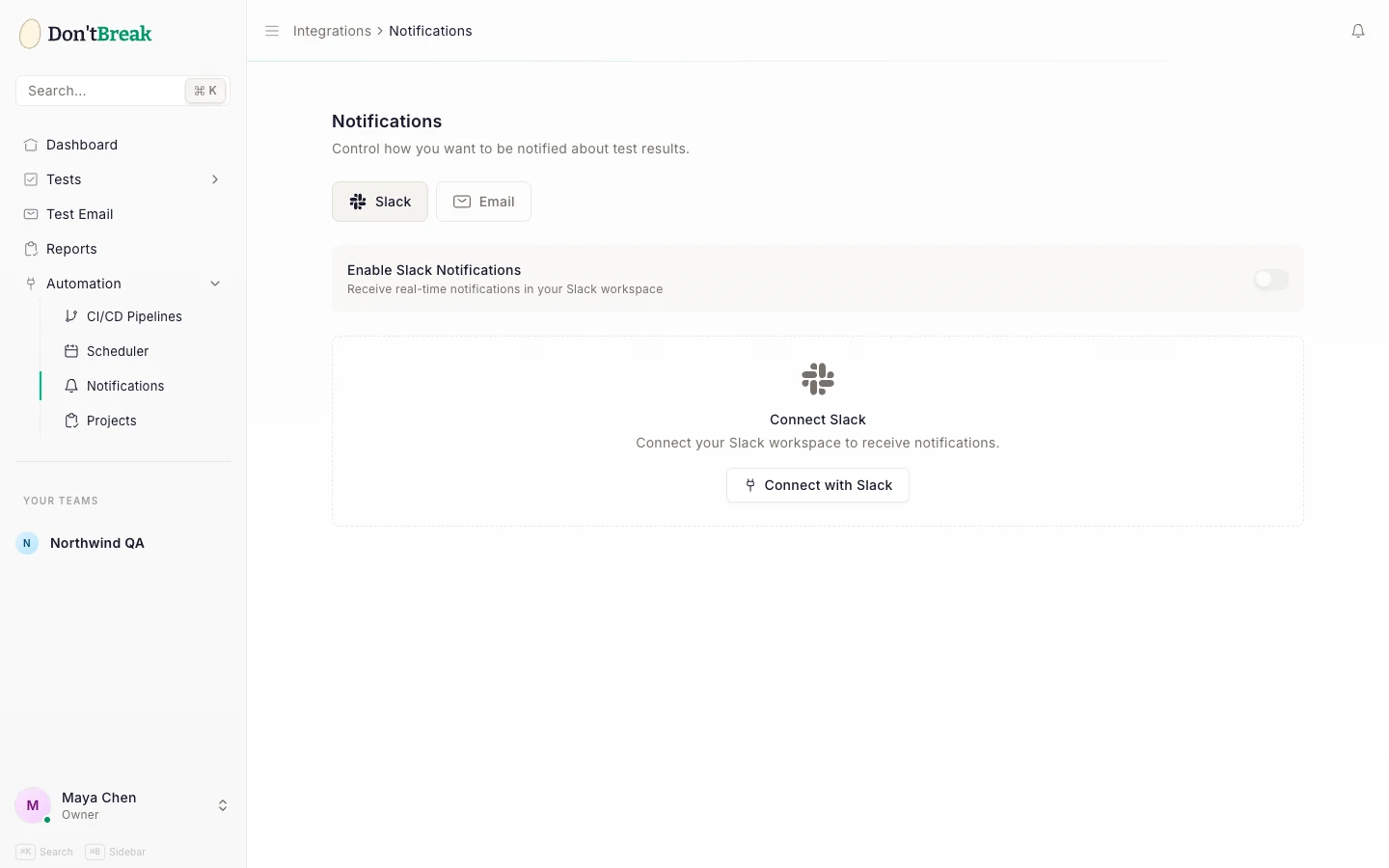
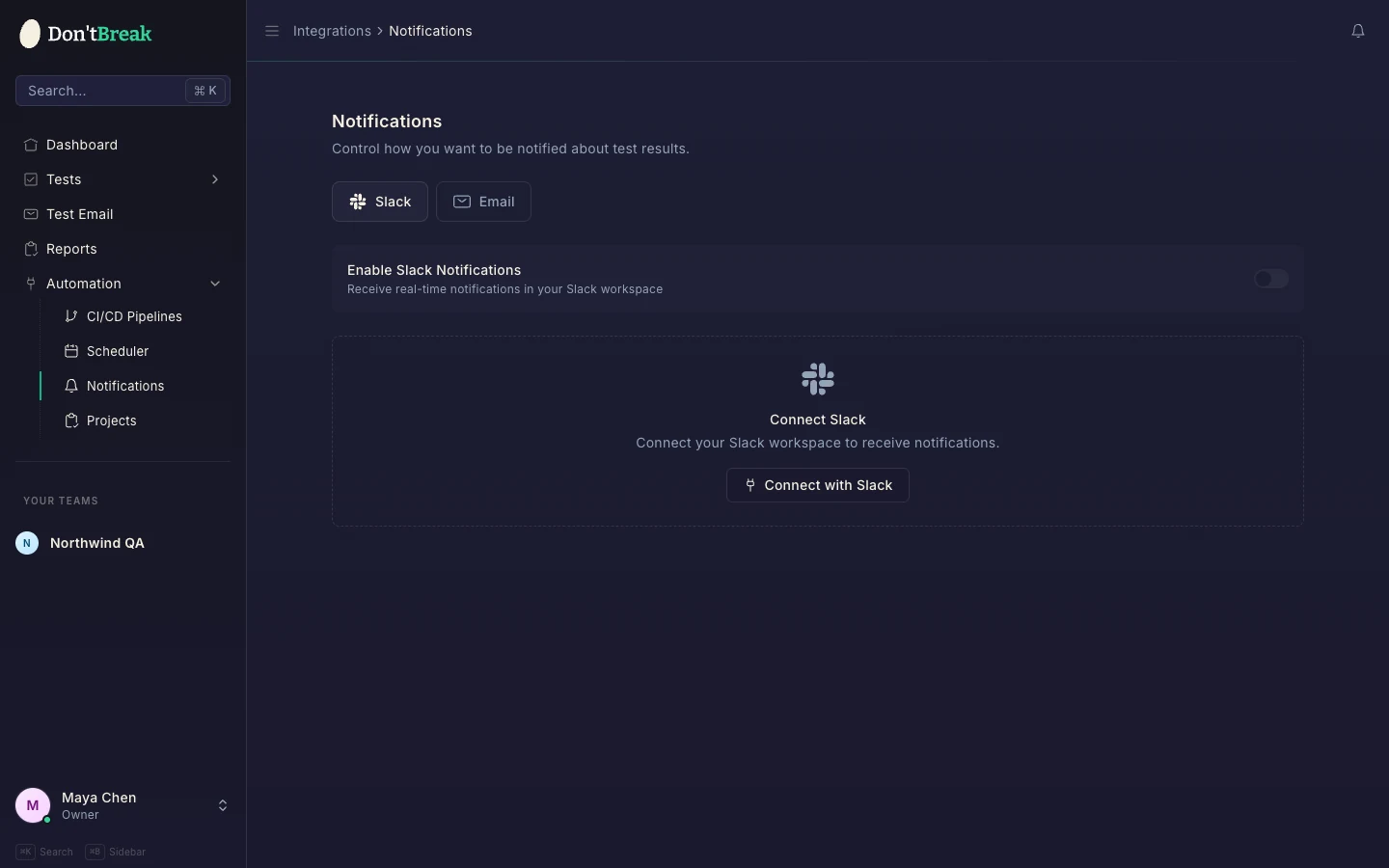
Slack notifications live under Automation > Notifications in the sidebar. Open the page and make sure the Slack tab is selected.
Click Connect with Slack
If your workspace isn't connected yet, you'll see a Connect with Slack button. Clicking it starts Slack's standard OAuth flow.
Authorize DontBreak
DontBreak requests bot permissions to post messages (chat:write, chat:write.public, and chat:write.customize). It can post to public channels without being invited, and it never reads your messages. Approve the request and you'll be redirected back to the Notifications page.
Enable notifications
Flip the Enable Slack Notifications toggle at the top of the panel. The toggle stays disabled until a workspace is connected.
Choosing a channel
In the Slack Channel field, type the channel where messages should be posted — for example #qa-alerts or #general. All notifications for your team go to this one channel.
Tip
Pick a channel your whole team watches. Failure alerts only help if someone acts on them — a dedicated channel that everyone mutes defeats the purpose.
Event triggers
Under Notify me when, check the events you care about:
| Event | When it fires |
|---|---|
| Test suite fails | A suite starts failing, is still failing a day later (one reminder per day), or passes again (Recovered) |
| Test suite passes | Every suite run that finishes with all tests passing |
| Individual test fails | The same for a test run on its own: first failure, daily reminder, recovery |
| Individual test passes | Every single test run that passes |
Click Save Settings to apply your changes. Slack settings are configured once per team on this page, by team admins — there are no separate per-suite notification toggles, so the events you pick apply to every test and suite your team runs.
Note
Most teams enable only the failure events. Pass notifications are useful while you're building confidence in a new suite, but they get noisy fast on scheduled runs.
Sending a test notification
Click Send Test next to the Save button to fire a sample message at your configured channel. Use this to confirm the connection and channel are right before you rely on it — it's much better to find a typo in the channel name now than during a real incident.
If the test message doesn't arrive, check that:
- The channel name is spelled correctly (including the
#). - The channel is public, or the DontBreak bot has been invited to it if it's private.
- The Enable Slack Notifications toggle is on.
Pairing with other alerts
Slack works well alongside other DontBreak notifications:
- Email notifications — a failure backstop for people who aren't watching Slack.
- Trello — automatically create cards for failed tests so alerts turn into tracked work.
- Webhooks & CI/CD — trigger runs from your pipeline and let Slack tell the team how they went.
If a suite fails during a deploy triggered through GitHub Actions, the Slack alert is usually the fastest way your team finds out — the run result lands in the channel while the deploy is still fresh in everyone's mind.