

Common Errors
When a test fails, the report shows exactly which step failed, a screenshot of the page at that moment, the step's error message, and a Debug section with matching details. This page covers the failures you're most likely to hit — ordered by how often they actually happen — with what they look like, why they happen, and how to fix them.
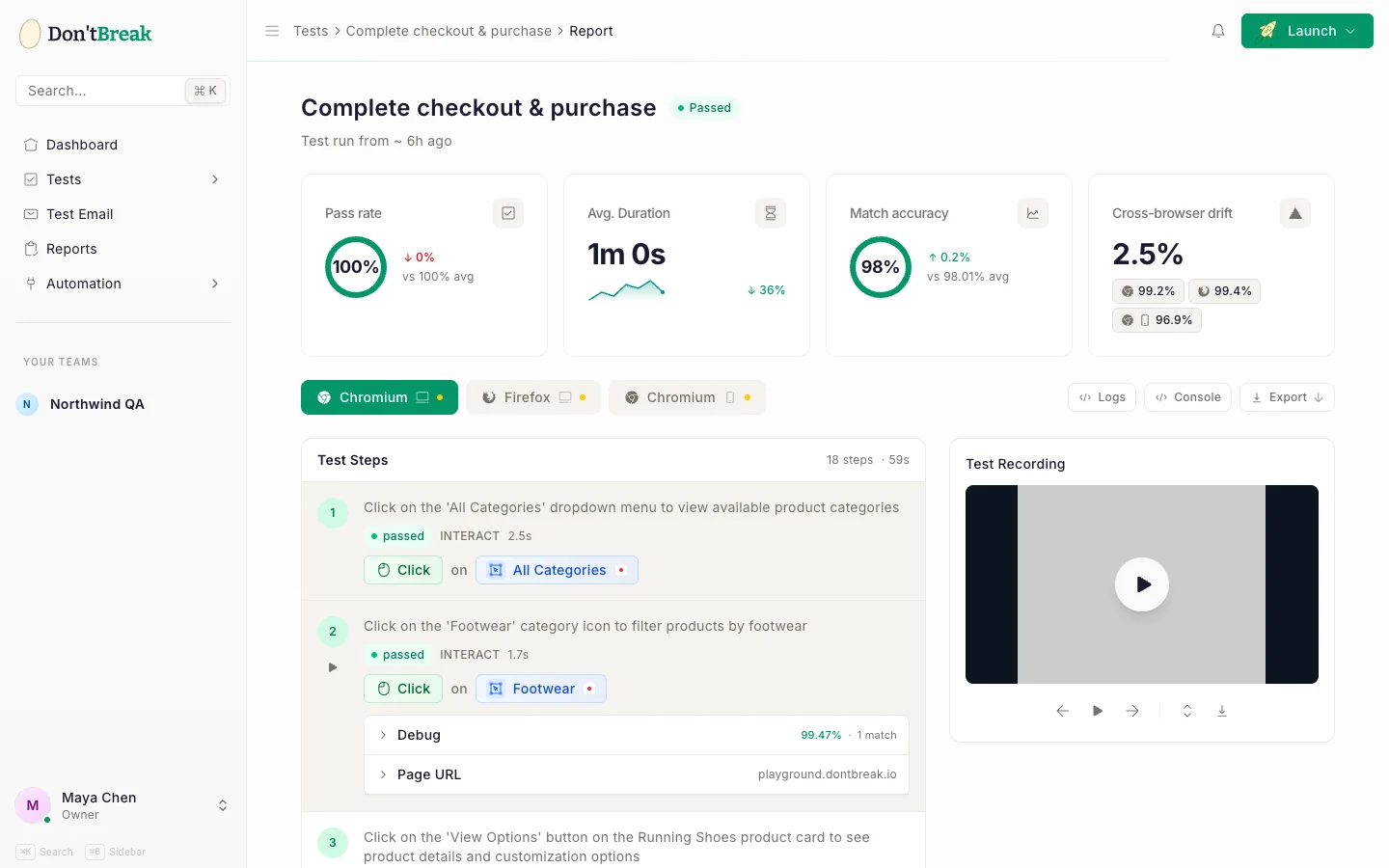
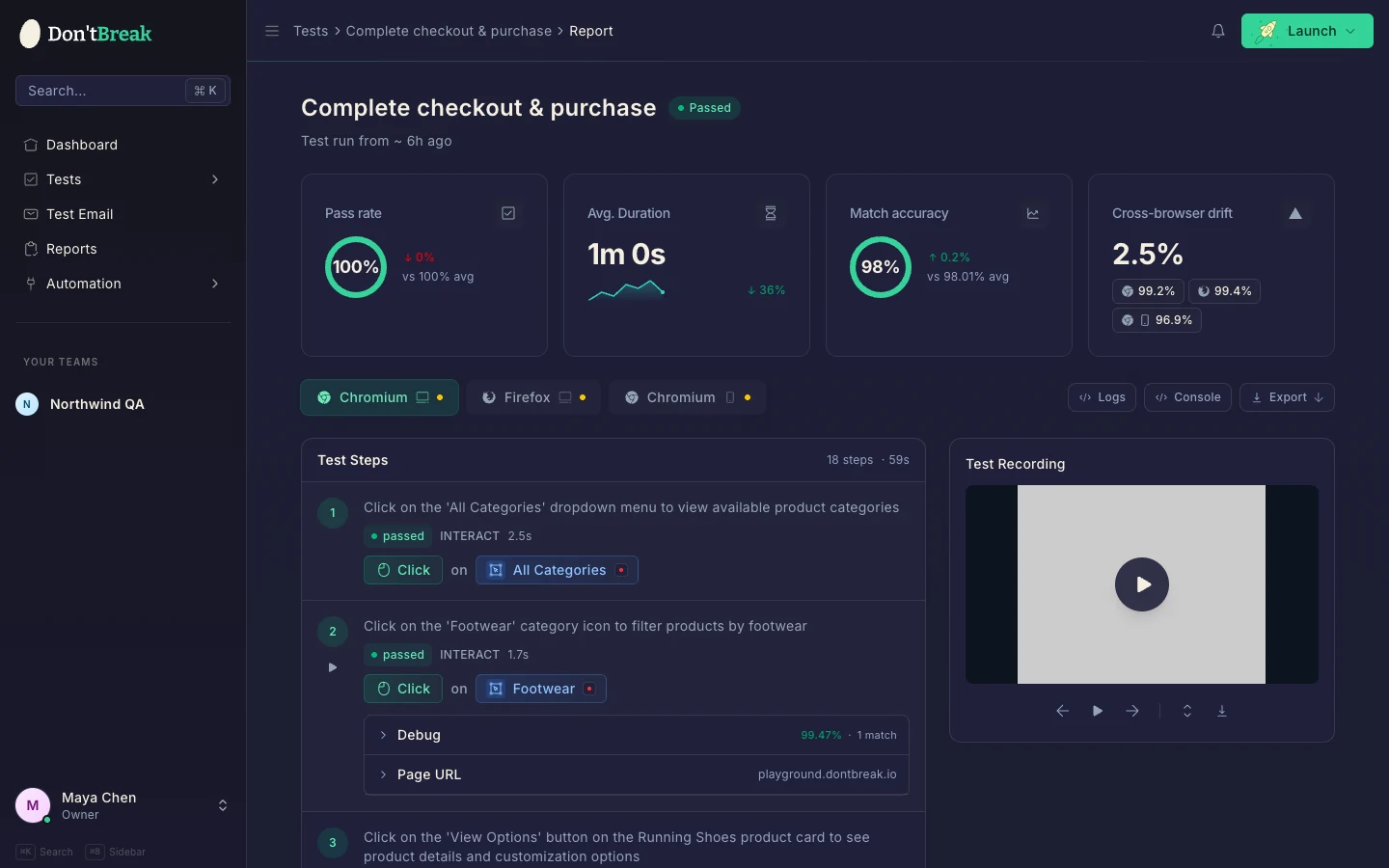
The target element couldn't be located
This is by far the most common failure. It shows up as a step error like "click requires visual match coordinates" (or fill, drag, type-text — the same message for whichever action), a "No element found" error when the step uses DOM locators, or a red Element not found badge in the Debug section.
Cause: the action needs to know where to act, and the visual match returned nothing — DontBreak couldn't find the element you recorded on the page as it looked during the run. Almost always one of:
- The element hadn't rendered yet — it loads after an API call, animation, or lazy-load, and the step ran too early.
- A previous step landed on the wrong page or state, so the element genuinely isn't there.
- The element's appearance changed since you recorded it (redesign, A/B test, different data).
- The element was off-screen and never scrolled into view.
- An overlay (cookie banner, modal, chat widget) is covering it.
Fix: open the failed step's Debug info and compare your recorded target image to the page screenshot from the run — that usually shows the cause at a glance.
- If the page needed more time, add a Page Contains or Element is Visible assertion on something that only appears once the page is ready, before the failing step — assertions wait. See Handling Dynamic Content.
- If the element is below the fold, add a Scroll element into view step first.
- If the element changed, re-capture the target; if it contains dynamic text, mask the changing part. See Element Targeting.
- If a banner is in the way, make sure Auto-dismiss cookie banners is on, or dismiss it with a Click step. See Connecting Your Site.
Tip
Target not found on a site with A/B tests
Symptom: a step fails because its target wasn't found, and the report says This page runs an A/B test and names the tool — for example Shoplift, AB Tasty, or VWO. When you recorded the test, the composer may also have shown a This site runs A/B tests notice.
Cause: A/B testing tools show different visitors different versions of a page: a redesigned section, a new widget, sometimes a different page altogether. Every test run arrives as a new visitor, so a run can get a different version from the one you recorded — and the element you picked isn't on that version. The step isn't broken; it was recorded on the other version.
Fix:
- Re-record the step if the version you recorded is the one that's going away (the experiment ended, or you happened to get the variant).
- Ask whoever runs the A/B test to pause it on the pages you test while you rely on these tests.
- Test a staging or preview environment where experiments are switched off, if you have one.
Note
An assertion didn't pass
Symptom: an Element is Visible, Page Contains, or Page Should Not Contain step fails, or Element Text Contains reports something like Expected "X", got "Y".
Cause: the assertion is doing its job — the page wasn't in the state you expected. Either it's a real bug on your site (great — that's the point of the test), or the assertion ran before the page finished updating, or it's checking against data that changes between runs.
Fix: look at the step screenshot. If the app is genuinely wrong, you've found a bug. If it was a timing issue, assert on a stable signal that the content has loaded before checking the specific value. If you're asserting on data that changes every run (order numbers, timestamps, counts), assert on the stable UI around it instead of the value — see Handling Dynamic Content.
Email didn't arrive in time
Symptom: an email step fails with "Email not received at <address>", "Email link not received at <address>", or No link matching "…".
Cause: the email testing step waits a bounded time for mail to land in the temp inbox. It fails when:
- Your app didn't send the email (or sent it to a different address than the one filled in).
- The email arrived after the wait window — slow mail queues are the usual culprit.
- The link step's link text didn't match — No link matching "RESET PASSWORD →" means no link with that exact text was found in the received email.
Fix: confirm your app actually sends to the temp address (use the same temp-email variable in the fill step and the assertion). For slow senders, the email step already retries within its window — if your mail is consistently slow, send earlier in the flow. For link steps, match on a distinctive substring of the link text rather than the whole label, and check the real email in the Test Email inbox to see the exact wording.
Timeouts
Symptom: a step fails with "Test timeout of … exceeded", often while waiting for an element or a file input; slow pages fail steps that pass when you run them by hand.
Cause: every test has a Test Timeout — the maximum for the whole run (30–1200 s, default 600). Individual targets are retried for a bounded window too. Slow APIs, heavy assets, or a step waiting on something that never appears all run out the clock.
Fix: enable Wait for target (15 sec) on the slow step, or raise the Test Timeout under Test Settings → Advanced. Prefer asserting on a readiness signal over a blind wait — see Handling Dynamic Content. If it's your site that's slow, that's a finding worth fixing.
Navigation failures
Symptom: the run fails on its very first steps — the start URL or a navigation step never loads.
Cause: the site is down, the URL changed, the environment is password-protected, or a firewall is blocking the test browser. DontBreak's cloud browsers can't reach sites on a private network or localhost.
Fix: open the URL in your own browser. If the environment uses HTTP basic auth, configure credentials on the test or suite; make sure the site is reachable from the public internet. See Connecting Your Site.
Test run limit reached
Symptom: launching shows "You have reached your monthly test run limit. Please upgrade your plan." No run starts and nothing is consumed.
Cause: your monthly quota plus any run-pack balance is exhausted. Each enabled browser × device combination is one run — see Run Quotas & Usage.
Fix: buy a one-time run pack or upgrade from the Subscription page — see Plans & Billing. Also trim tests on aggressive schedules or with more browser/device combinations than they need. A related message, "Your subscription is not active", means the subscription lapsed rather than the quota — renew from the Subscription page.
Skipped steps (not a failure)
Symptom: a step shows Skipped with a short reason instead of pass/fail.
Cause: the step doesn't apply to the platform it ran on. Swipe, Long Press, and Pull to Refresh run on Chromium mobile only (skipped on Firefox mobile); Right Click, Hover, and Move Mouse Away are desktop-only.
Fix: nothing — skipped steps are expected and don't fail the run. To stop seeing them, trim the browser/device combinations or the step. See Browser Support.
Reading the Console tab
The Console tab on a report shows DontBreak's execution trace — how the run actually proceeded: navigation events, waits, the visual matcher's progress, and each step's outcome. It's the place to look when a step failed and the screenshot alone doesn't explain why (e.g. you can see the run navigate somewhere unexpected, or the matcher report no candidates).
Note
console.log output. To verify something about your page's own JavaScript, assert on what it renders rather than expecting browser console messages here.Getting help
If a failure doesn't fit any of these, the report's screenshots, video, Debug match info, and Console trace together almost always reveal the cause — see Understanding Test Results and Test Reliability. If the page itself behaves differently in the test browser than on your machine, check Known Limitations. Still stuck? Email support@dontbreak.io with a link to the failed run.