

Profile & Security
Your profile page is where you manage everything tied to your personal account — name, email, photo, password, two-factor authentication, and active browser sessions. It's separate from team settings: profile changes affect only you, across every team you belong to. Open it from the user menu in the top navigation, or go to /user/profile.
Profile information
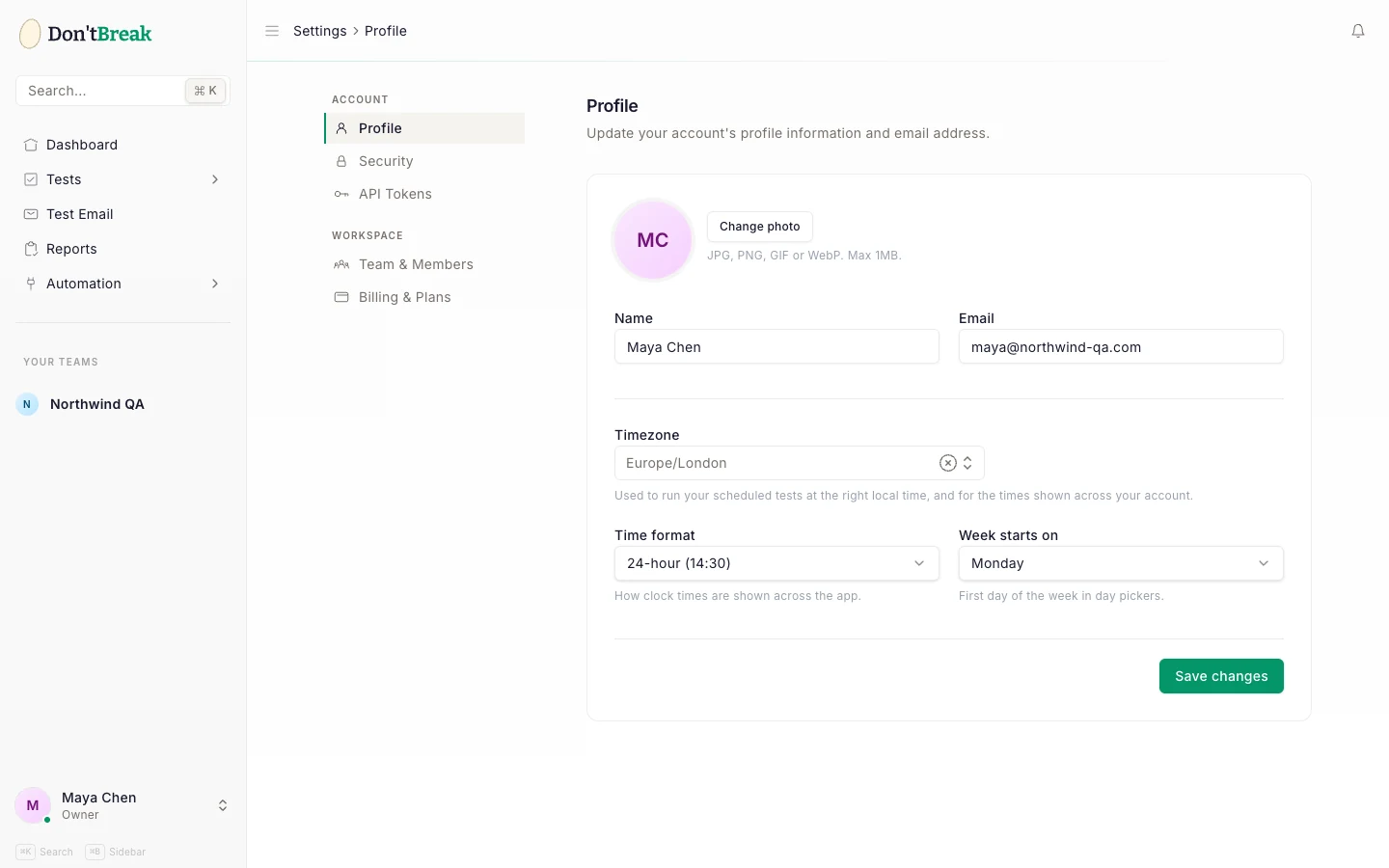
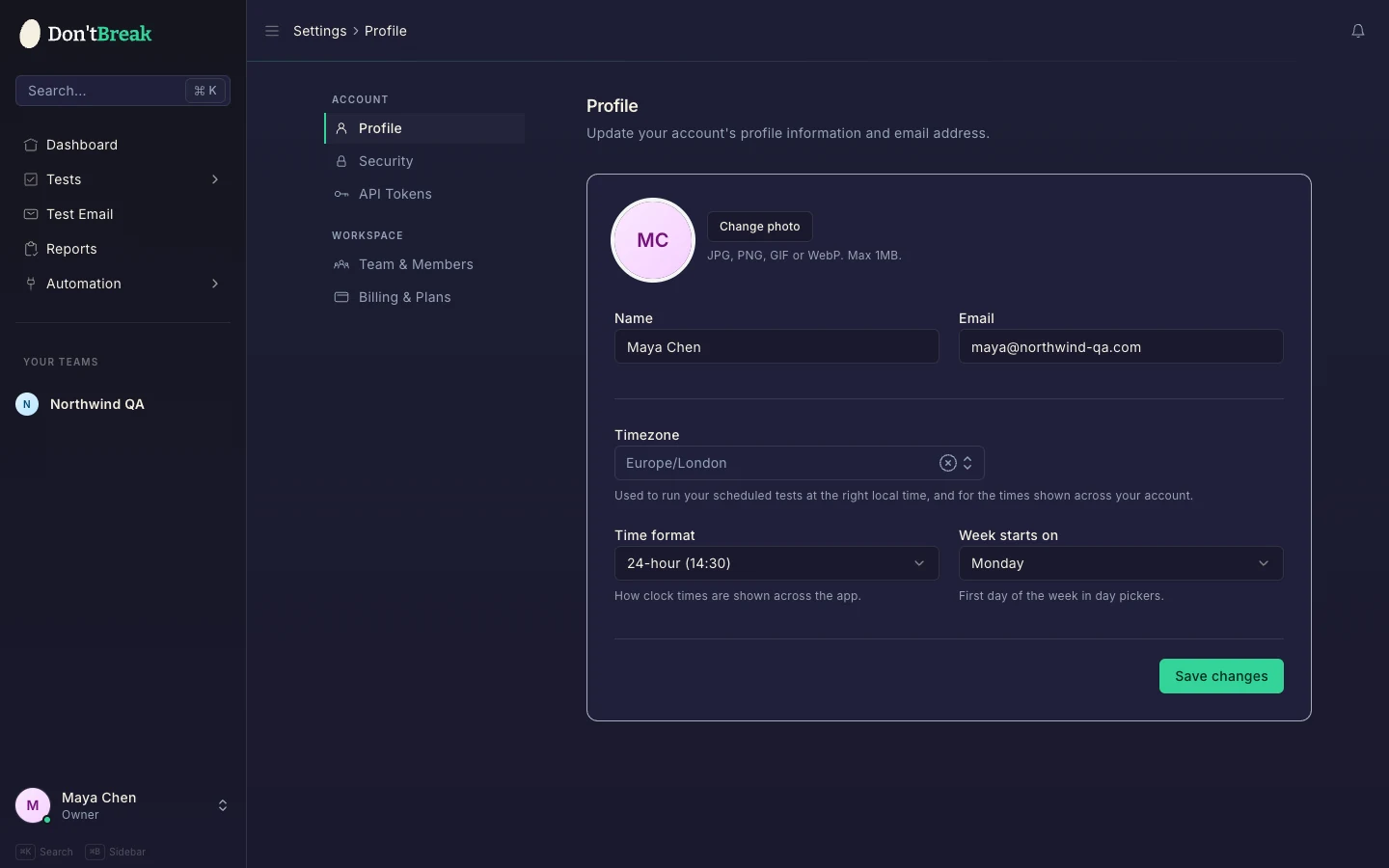
Under Profile Information you can update your name and email address, and upload a profile photo (click Select A New Photo). Your photo shows up in the team member list and anywhere your account is referenced.
Password
Under Update Password, enter your current password and the new one (twice) to change it. Use a long, unique password — ideally from a password manager.
If you've forgotten your password, log out and use the Forgot your password? link on the login page to get a reset email.
Two-factor authentication
Two-factor authentication (2FA) adds a second login step using a code from an authenticator app (Google Authenticator, 1Password, Authy, etc.).
Enable 2FA
In the Two Factor Authentication section, click Enable. You'll be asked to confirm your password first.
Scan the QR code
Scan the QR code with your authenticator app, then enter the generated code to confirm setup. 2FA isn't active until you confirm with a valid code.
Save your recovery codes
DontBreak shows a set of recovery codes — store them somewhere safe. Each one can log you in once if you lose access to your authenticator app. You can regenerate them at any time.
Recommended for Administrators
Anyone with the Administrator role on a team should enable 2FA — admin accounts can delete tests, suites, and team data.
Browser sessions
The Browser Sessions section lists devices currently logged in to your account, including browser, OS, and last activity. If you see a session you don't recognize — or you've logged in on a shared machine — click Log Out Other Browser Sessions to end every session except the current one (password confirmation required).
API tokens
API tokens authenticate programmatic access to DontBreak, for example triggering test runs from CI/CD. They're managed on their own page — see API Tokens for creating and revoking tokens.
Timezone
Your account has a timezone preference (UTC by default). It's used when displaying scheduled run times, so a suite scheduled for "07:00" shows in your local time rather than UTC. See Scheduling for how schedules work.
Deleting your account
At the bottom of the profile page, Delete Account permanently deletes your account.
Account deletion is permanent
Deleting your account permanently removes your data and cannot be undone. Download anything you want to keep first, and hand over ownership of any shared teams before you go.
Related
- Teams & Roles — team membership and permissions
- API Tokens — programmatic access to your account
- Plans & Billing — subscription management