

Trello
Connect DontBreak to Trello and every test failure becomes a card on your board — complete with the failed steps, error messages, screenshots, and a link back to the full report. When the test passes again, the card moves to a "resolved" list automatically. Your bug triage happens where your team already plans work, with no copy-pasting.
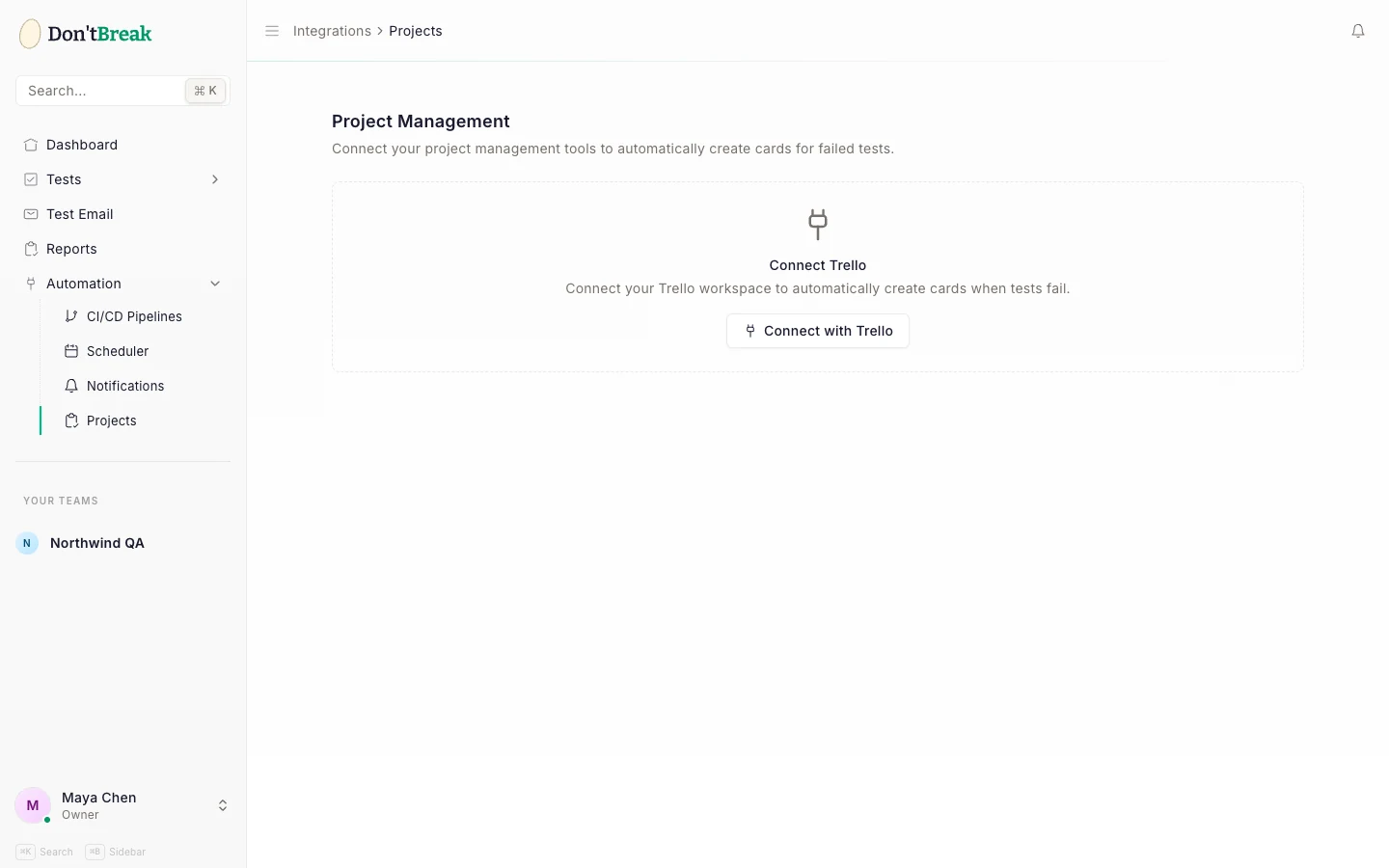
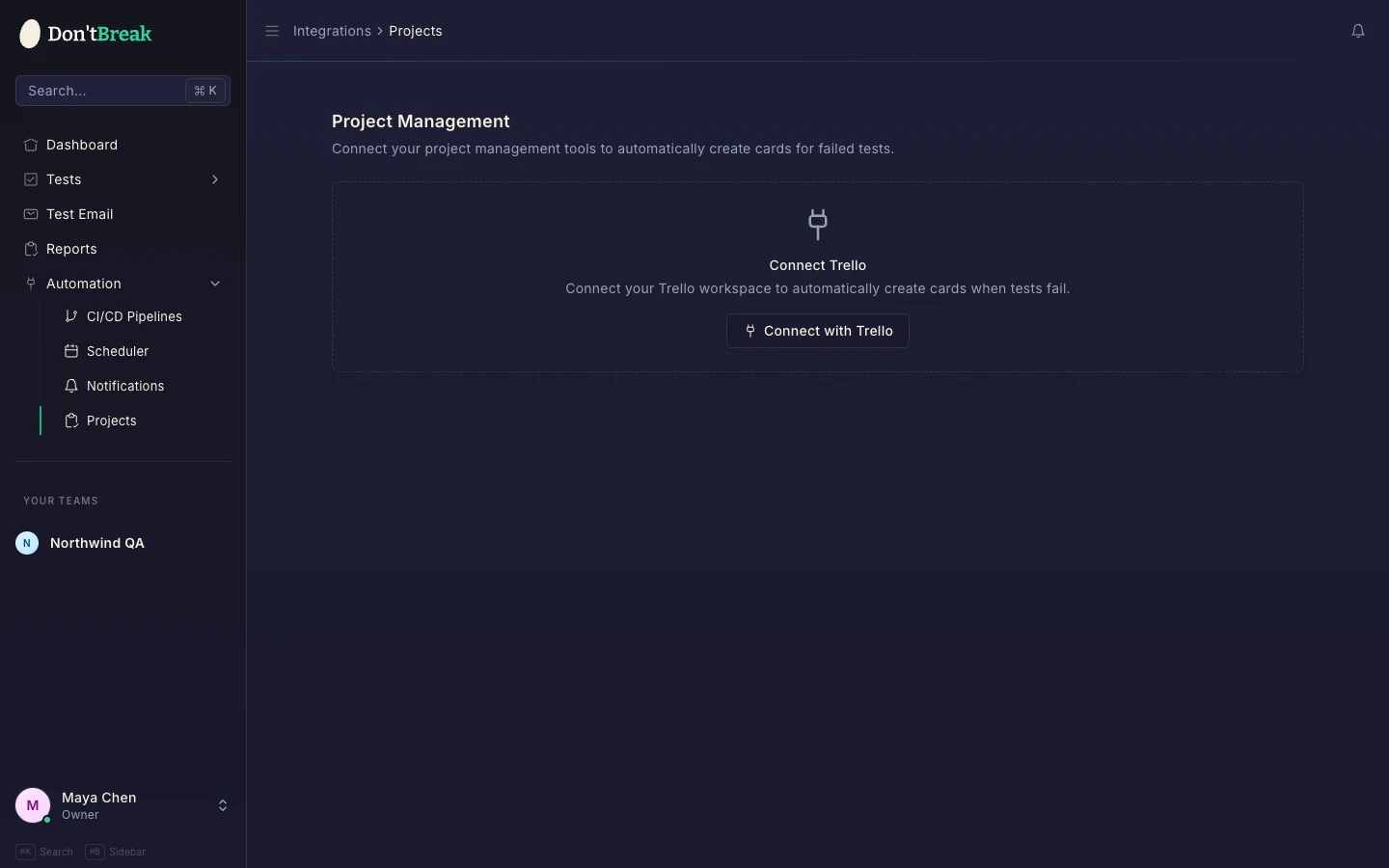
Connecting Trello
Go to Automation > Projects in the sidebar.
Click Connect with Trello
You're sent to Trello's authorization page. DontBreak asks for read and write access so it can list your boards and create cards. The token doesn't expire, so you only do this once.
Choose a board
Back on the Projects page, pick the Trello Board where cards should be created.
Pick a Failure List
Cards for failed tests are created in this list — for example a "Test Failures" or "Bugs" column.
Pick a Resolved List
When a previously failed test passes again, its card is moved here — for example a "Done" or "Resolved" column.
Save and test
Click Save Configuration, then Test Connection to confirm DontBreak can reach your Trello account. You'll see "Connection successful!" if everything is wired up.
What gets created on failure
When a test fails, DontBreak creates a card at the top of your failure list:
- Title:
[FAIL] Test name — browser device, so you can see at a glance what broke and where (e.g. which of your browsers and devices). - Description: the test name and URL, browser, device, and run timestamp, followed by each failed step with its error message, and a View Full Report link to the run in DontBreak.
- Attachments: screenshots captured at each failed step, so you can see exactly what the page looked like.
No duplicate cards
DontBreak keeps one open card per test. If the same test fails again before being fixed, the existing card is updated to point at the latest run instead of cluttering your board with duplicates.
When the test passes again, the open card is moved to your resolved list automatically — your board reflects the real state of your tests without anyone dragging cards around.
Per-test board override
Some tests belong to a different project or team board. Open the test, go to its settings, and find the Trello Override section (it appears once Trello is connected). Enable Use custom Trello board for this test, then pick a board, failure list, and resolved list. Cards for that test go to the override board; everything else keeps using the team default.
Disconnecting
At the bottom of the Projects page, click Disconnect Trello. This removes the integration and stops card creation immediately. Existing cards stay on your board — DontBreak never deletes them.
Warning
If you revoke DontBreak's access from inside Trello (rather than disconnecting here), the integration is automatically disabled the next time a card sync fails. Reconnect from the Projects page to resume.
Works well with
- Slack — get the instant alert in chat while the Trello card tracks the fix.
- Understanding test results — what you'll find behind the card's report link.
- Scheduling — scheduled runs plus Trello means overnight failures are already triaged into your board by morning.