

Teams & Roles
Everything in DontBreak belongs to a team — tests, test suites, reports, schedules, and integrations are all scoped to the team that's currently active. Teams let you share your testing setup with colleagues while controlling who can change what, using three roles: Administrator, Editor, and Viewer.
How teams work
When you sign up, DontBreak creates a personal team for you automatically. You can belong to multiple teams, but you work inside one team at a time: the tests, suites, and reports you see are always the current team's. Members of the same team see the same resources; nobody outside the team can access them.
To switch teams, open the team menu in the navigation and pick another team under Switch Teams. You can also create additional teams from the same menu — for example, one team per client or per product.
Team size depends on your plan
How many members you can invite is set by your subscription plan. See Plans & Billing for plan limits.
Managing your team
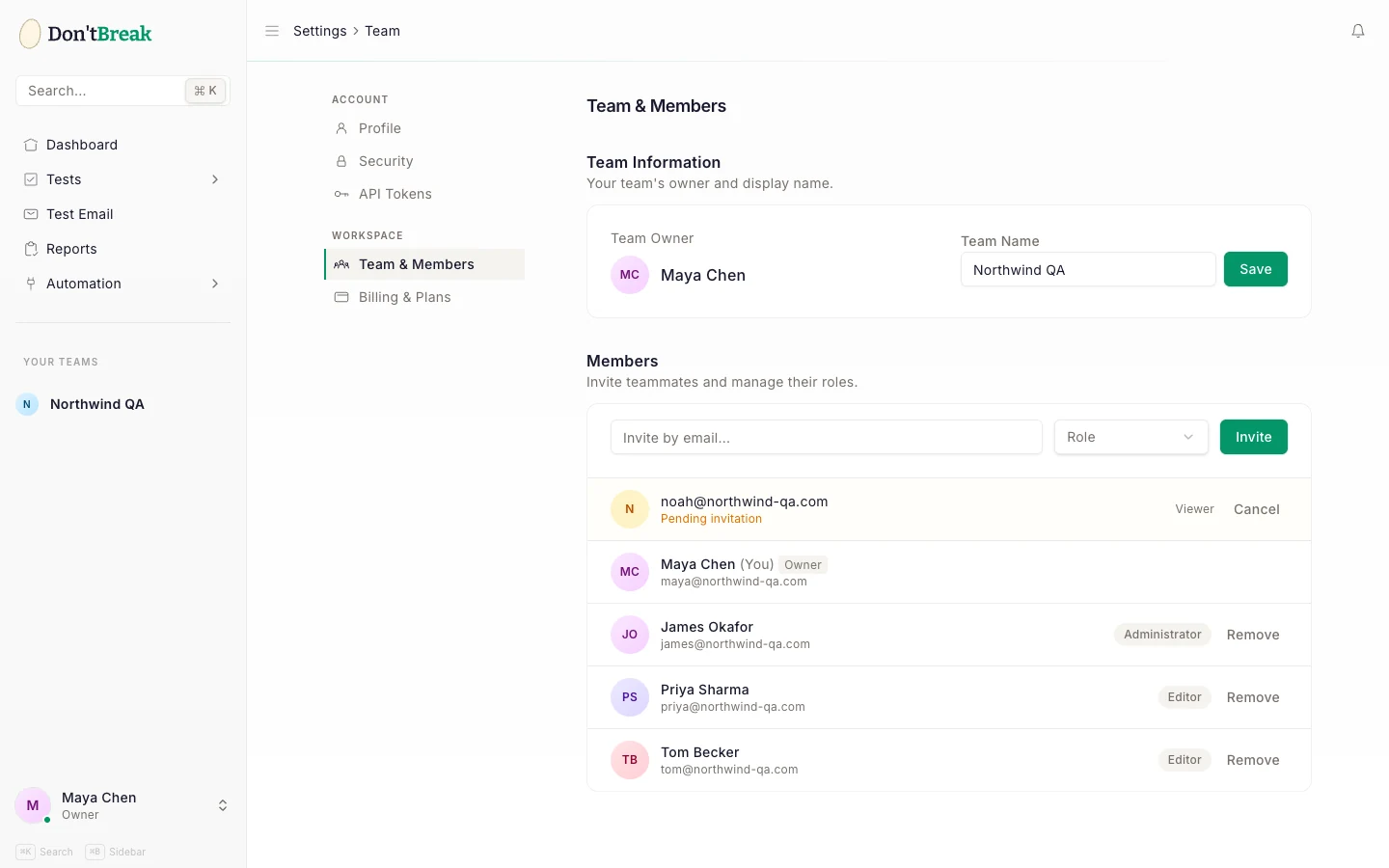
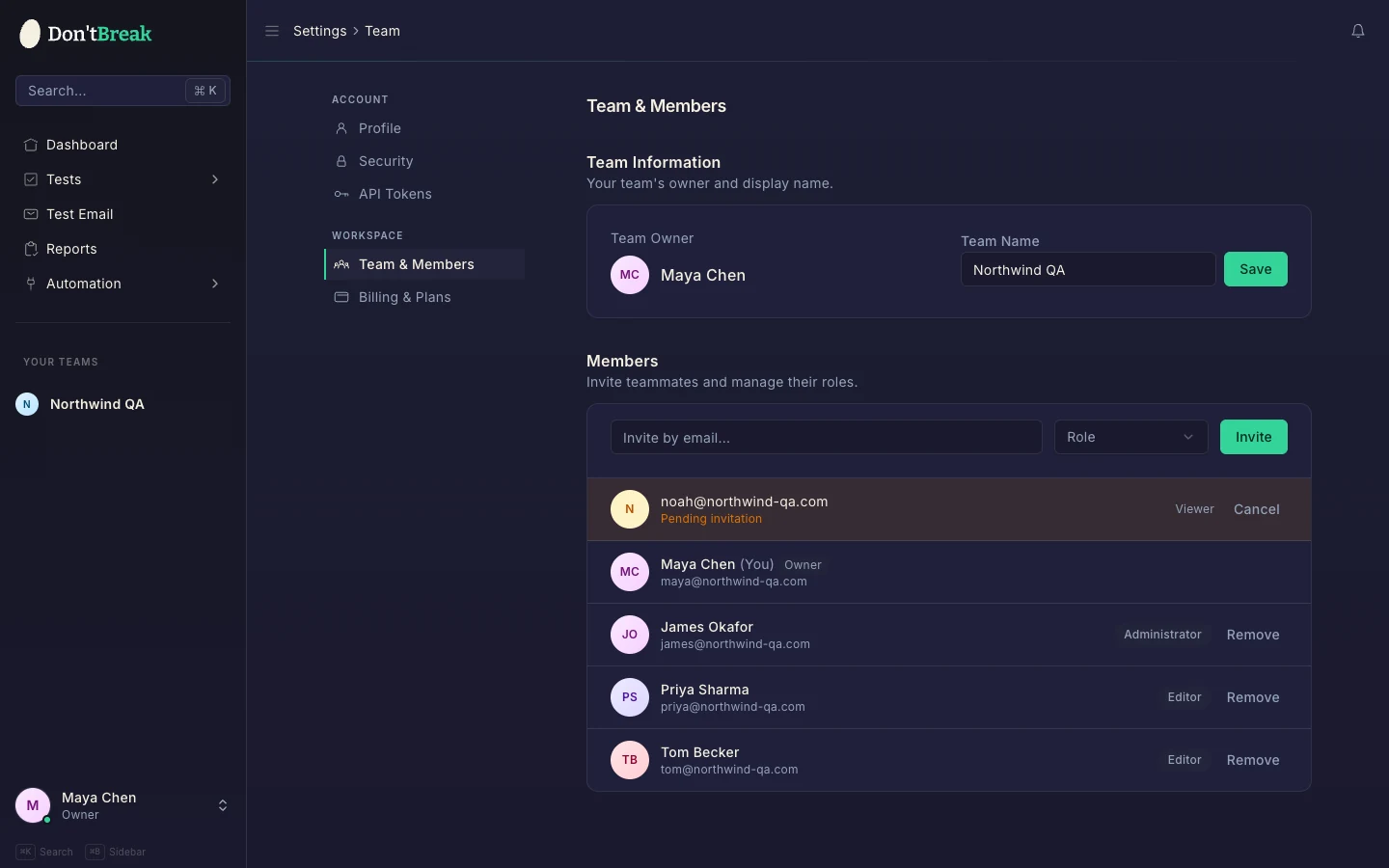
Team management lives on the team settings page (open Team Settings from the team menu). From there you can rename the team, invite members, change roles, and remove members.
Invite a member
In Add Team Member, enter the person's email address and pick a role. They receive an email invitation; the invite shows under Pending Team Invitations until they accept (you can cancel it there too).
Change a role later
In the team members list, click Manage next to a member to switch their role at any time.
Remove a member
Use Remove next to the member. Members can also leave a team themselves with Leave Team.
Role permissions
Each member has exactly one role per team:
| Permission | Administrator | Editor | Viewer |
|---|---|---|---|
| View tests, suites, and reports | Yes | Yes | Yes |
| Create tests and suites | Yes | Yes | No |
| Edit and update resources | Yes | Yes | No |
| Delete resources | Yes | Own resources only | No |
| Manage roles and membership | Team owner | No | No |
- Administrator — can perform any action on team resources: create, read, update, and delete.
- Editor — can view, create, and update resources, and delete only resources they created themselves.
- Viewer — read-only access: they can open tests and review results, but can't create, update, or delete anything.
Pick Viewer for stakeholders who just need to check results, Editor for teammates who build and maintain tests, and Administrator for people who should manage everything.
Editing tests together
Two people editing the same test at once would overwrite each other's steps, so DontBreak locks a test while someone has it open in the test composer:
- In the test list, a locked test shows a red badge with the editor's name — hover it to see who's working on it.
- On the test's page, a banner names the editor and the Test composer button is disabled until they finish.
The lock lifts as soon as the editor leaves the composer. If they never leave cleanly — closed laptop, crashed browser, dropped connection — the lock expires on its own within a couple of minutes, so a test can't stay stuck.
Administrators can unlock immediately
The team owner and administrators see a Revoke access option in the banner on a locked test. Revoking ends the editor's session right away — their unsaved changes are discarded, and they're notified that access was revoked.
Deleting a team
At the bottom of the team settings page you'll find Delete Team.
Deleting a team is permanent
Deleting a team permanently removes its resources and data. This cannot be undone — export or migrate anything you need first.
Related
- Plans & Billing — team size limits per plan
- Profile & Security — your personal account settings
- API Tokens — tokens for CI/CD and API access