

Tests & Test States
A test is the core unit of work in DontBreak: an ordered list of steps — clicks, form fills, navigation, assertions — that runs in a real browser against your site. This page explains what a test is made of, what its statuses mean, and how to manage tests from the tests list and the test detail page.
Anatomy of a test
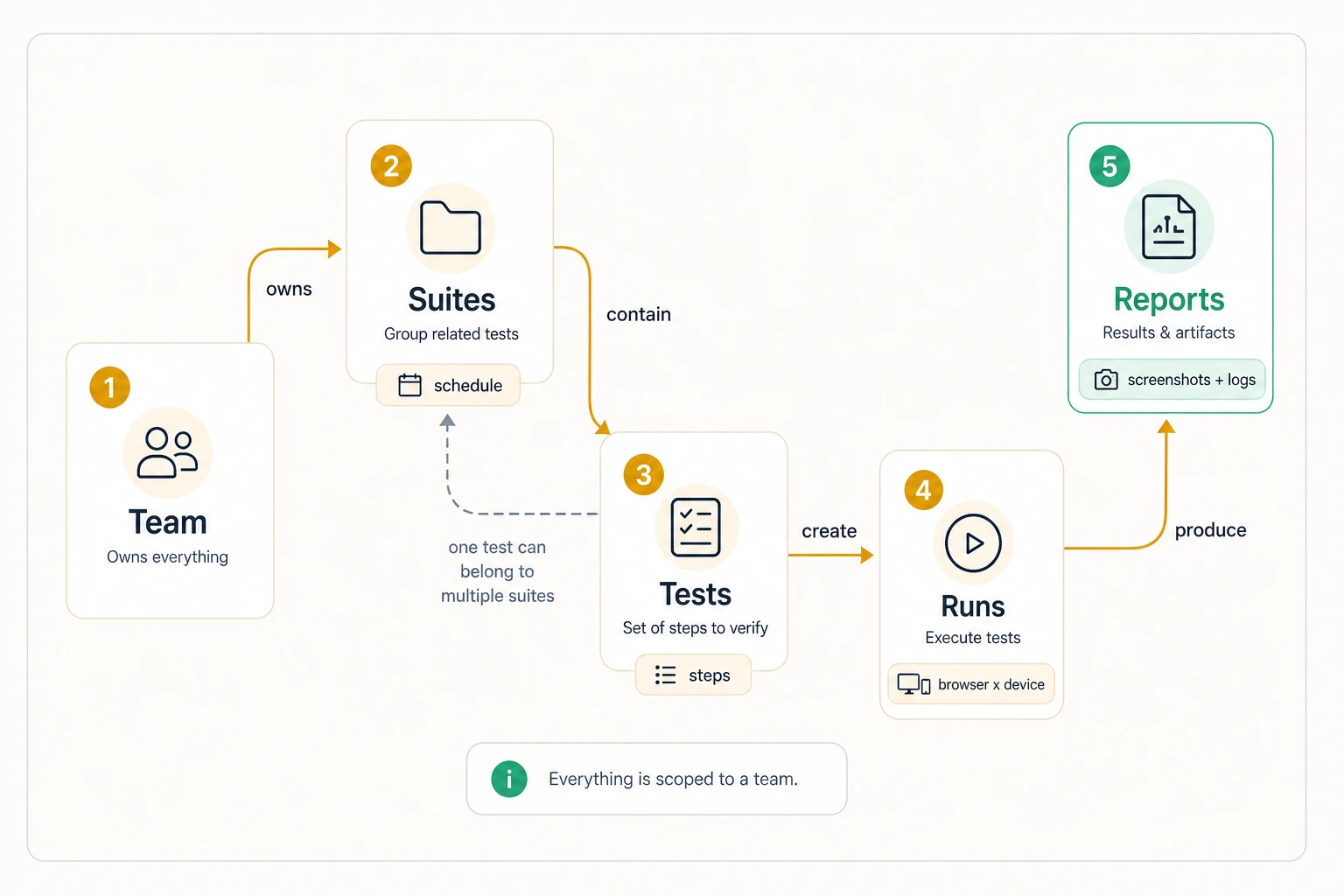
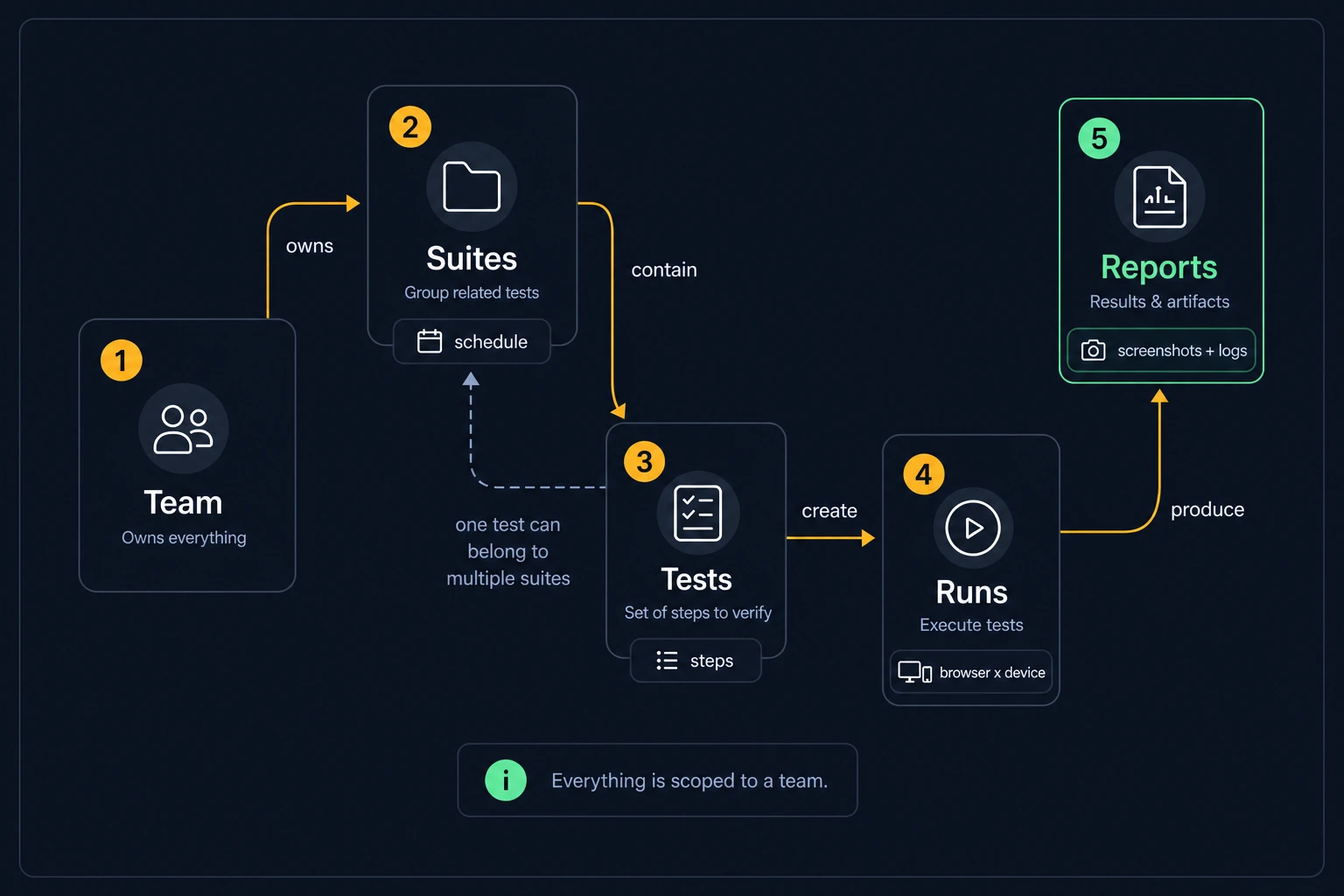
Every test has:
- A starting URL — the page the browser opens before the first step runs.
- Steps — the actions executed in order. You build them in the visual editor by interacting with a live browser; desktop and mobile keep separate step lists so each viewport can have its own flow.
- A platform matrix — which browser/device combinations the test runs on: Chrome and Firefox, each on Desktop and Mobile. Every enabled combination counts as one run, so a test with all four cells enabled consumes 4 runs per execution. See Browsers and Devices and Run Quotas.
- Settings — timeout, step delay, basic auth, and more. See Test Settings.
Tests can belong to one or more test suites, run on a schedule, or be triggered from CI/CD.
Test statuses
A test's status reflects its run history:
| Status | Meaning |
|---|---|
| Draft | The test has never been run. |
| Queued | A run is waiting for capacity — it's accepted but not dispatched yet. |
| Pending | The run has been dispatched and is starting up, but hasn't begun executing steps. |
| Running | At least one run is currently executing. |
| Passed | The most recent run completed with every step succeeding. |
| Failed | The most recent run had a failing step or error. |
Status always follows the latest run — a test that failed yesterday but passed an hour ago shows Passed.
The tests list
The Tests page lists every test in your team with its status, platforms, step count, and last run.
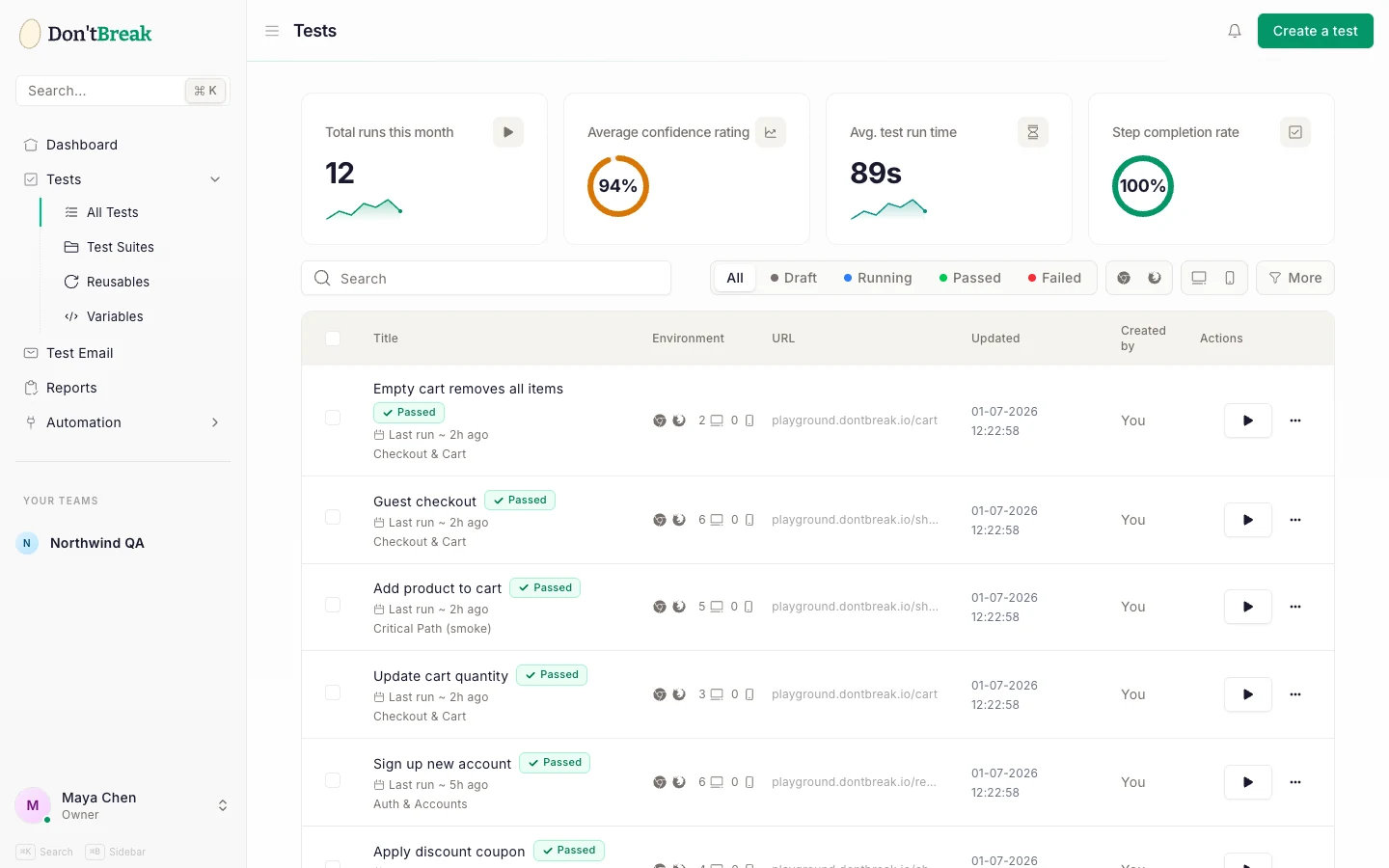
From the toolbar you can:
- Search by test name.
- Filter by status (Draft, Running, Passed, Failed), browser (Chrome, Firefox), device (Desktop, Mobile), test suite, or URL.
- Create a new test — see Creating Your First Test.
Row actions let you open, run, duplicate, or delete tests.
Duplicating a test
Duplicate creates a full copy of a test — steps, settings, and platform matrix — so you can branch a variant without rebuilding it. The copy starts as a Draft with no run history.
Deleting a test
Deleting requires the team admin role (see Teams and Roles) and is a soft delete — the test is removed from your lists but its data isn't destroyed immediately.
Warning
The test detail page
Open any test to see its health at a glance.
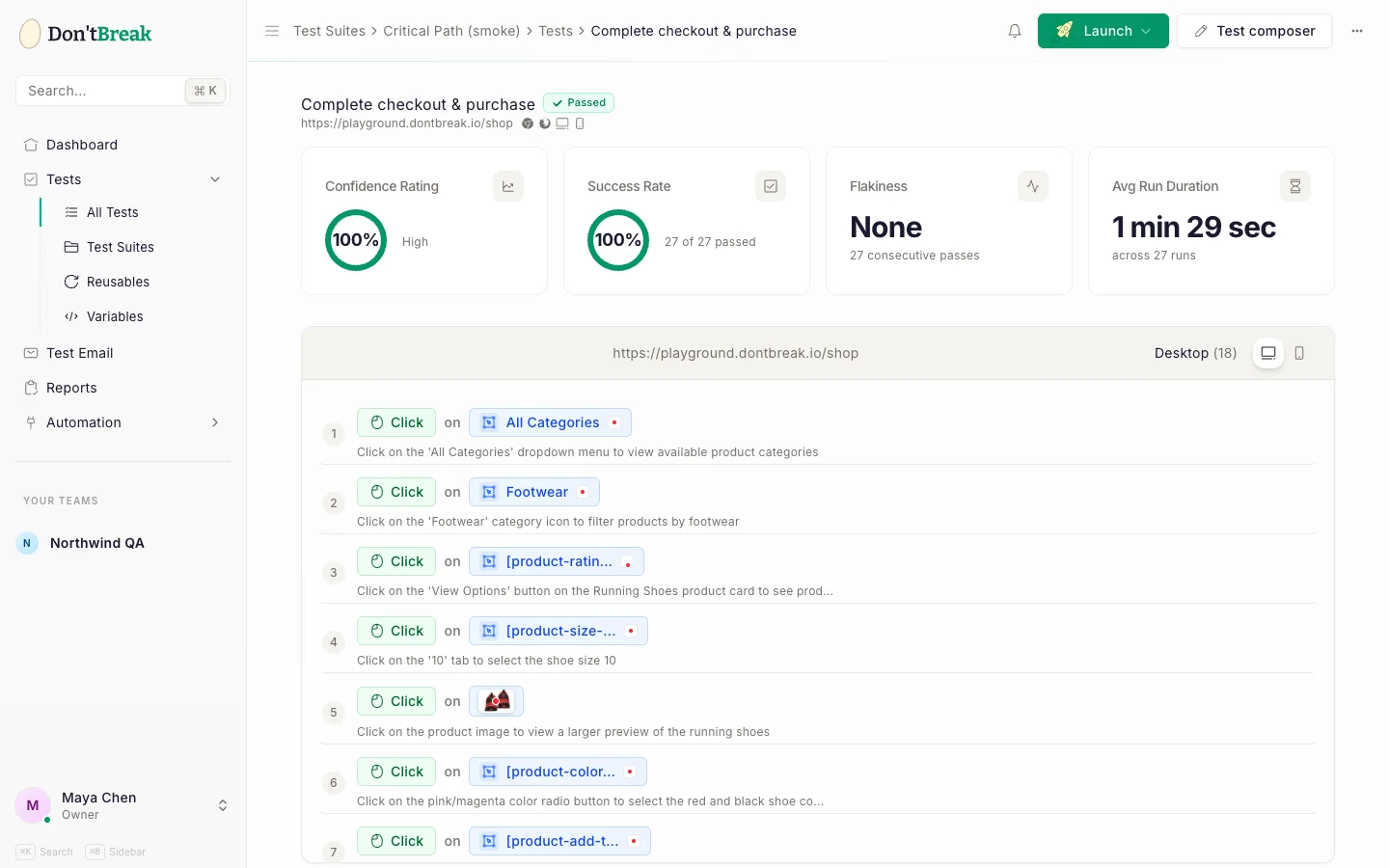
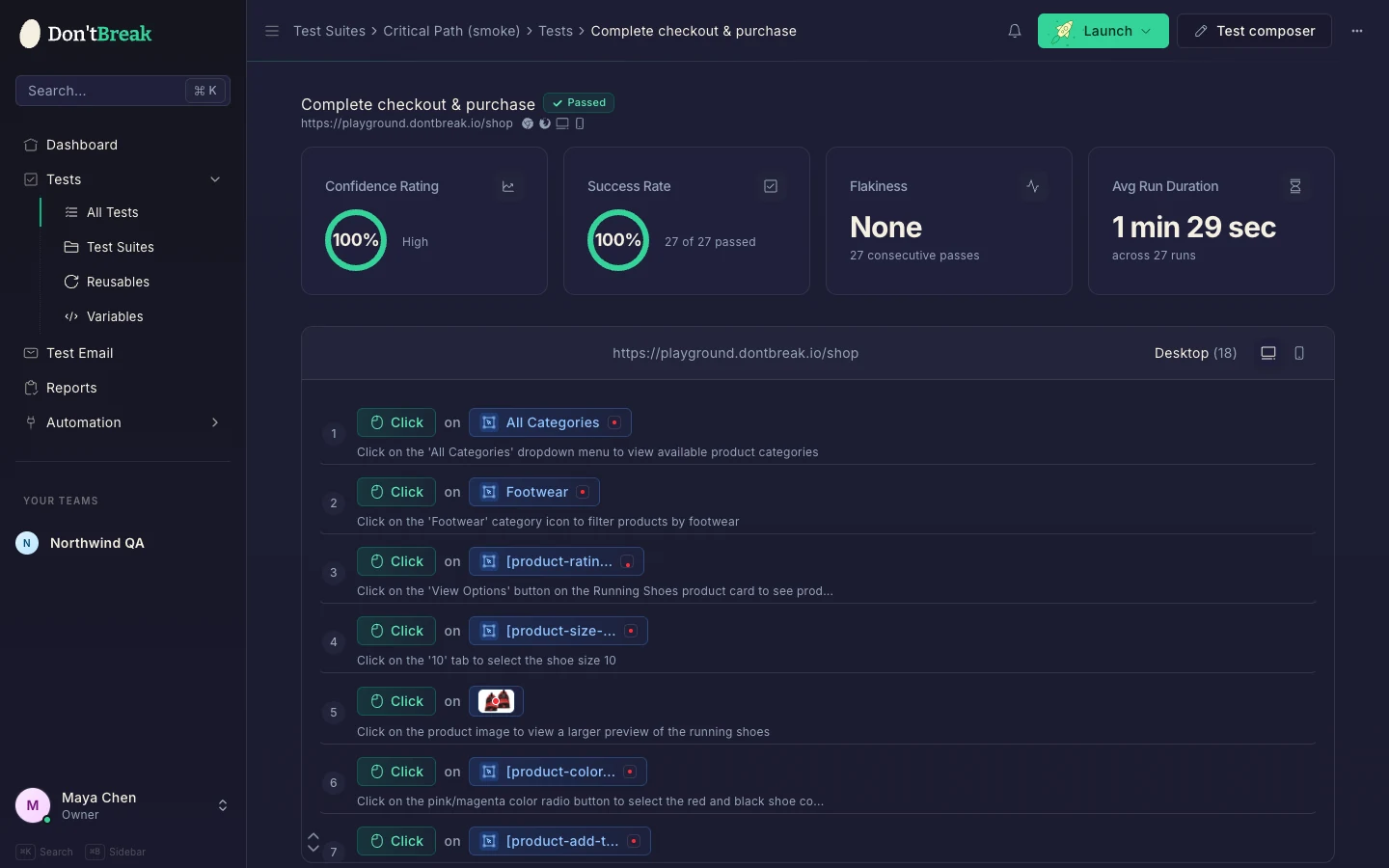
Four stat cards summarize the test:
- Confidence Rating — the percentage of all finished runs that passed, boosted when the test is on a streak of 5+ consecutive passes (a stabilized test earns back trust quickly).
- Success Rate — passed runs out of total finished runs (e.g. "18 of 20 passed").
- Flakiness — how often the last 30 runs flipped between pass and fail. A test that alternates is flaky; one that fails consistently is broken, not flaky. Shown as None / Low / Medium / High once at least 5 runs exist. See Test Reliability.
- Avg Run Duration — average duration across runs, with a trend comparing your 5 most recent runs to the 10 before them so slowdowns are visible early.
Below the stats, Recent test runs lists every execution with its status, platforms, and a link to the full report. You can also export the run history as PDF or JSON.
Next steps
- Build steps in The Visual Editor
- Browse the action catalog: Interactions, Assertions, Navigation
- Group related tests with Test Suites