

Variables
Variables are named values your team defines once and fills into forms across any test. Instead of hard-coding "acme-coupon-2026" into ten tests, you save it as a variable and reference it — change the value in one place and every test picks it up on its next run.
There are two kinds, and they live side by side in the same picker:
- Your variables — values you save: test-account passwords, coupon codes, known product names, a shared address. Static text (with an optional dynamic token, see below).
- Built-in dynamic values — generators DontBreak ships with: random names, emails, passwords, addresses, dates, Stripe test cards, and dozens more, each producing a fresh value every run.
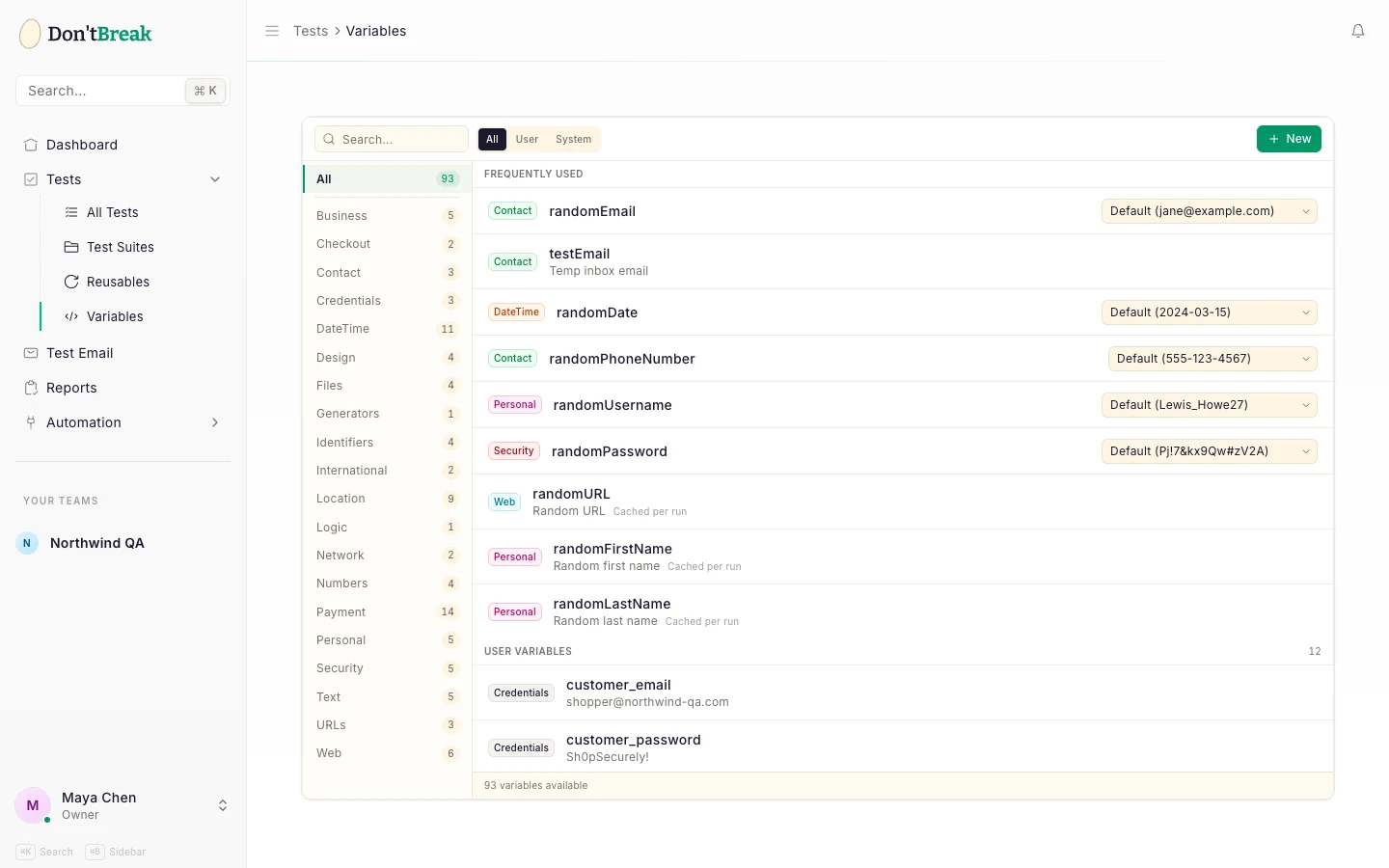
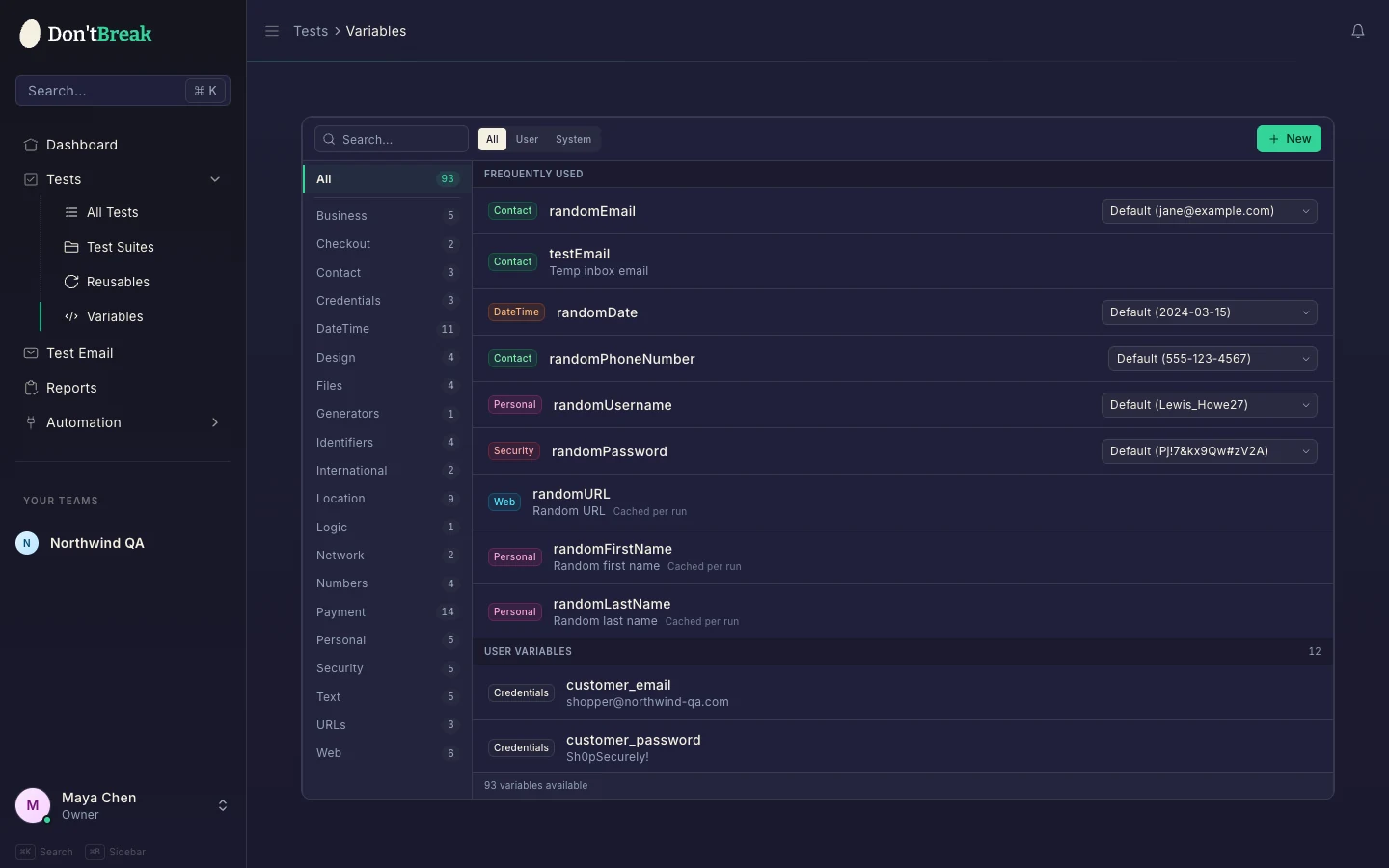
The Variables page
Find it under Variables in the app navigation. It's where you manage your own variables and browse the built-in ones:
- Search across every variable by name.
- Source filter — toggle between User (the ones you created) and System (built-in dynamic values), or show all.
- Groups — both your variables and the built-in ones are organized into groups (Personal, Contact, Security, DateTime, Location, Numbers, Payment, and more) in the sidebar.
- When opened from the editor, a Used in this test section surfaces the variables the current test already references, so you can reuse them in a click.
Who can do what follows your team roles: members with edit access can create and update variables; deleting is admin-only.
Creating your own variable
Click New and fill in:
-
Variable Key — a camelCase name like
companyNameoruserEmail. This is what you'll recognize in the picker. -
Default Value — the text that gets filled in. Usually a fixed string, but you can drop in dynamic tokens that resolve at run time:
Token Inserts {randnumeric}A random number {randalphanum}A random alphanumeric string {randnum}A single random digit {date}The current date {time}The current time So a value like
order-{randalphanum}produces a different order reference each run while keeping your prefix. -
Group (optional) — pick an existing group or create one to keep related variables together.
Edit a variable's value later and every test that uses it fills the new value on its next run — rotating a test-account password becomes a one-field edit instead of a test-by-test hunt.
Note
Using a variable in a test
Add a Fill step, target the input field in the live preview, and pick the variable from the snippet selector. The step displays the variable's name; at run time the current value is filled in. (If you add Fill before any Create Temp Email step exists and pick the temp inbox, DontBreak inserts the create step for you.)
Tip
Built-in dynamic values
Built-in values (the System source) generate a fresh, realistic value on every run — no setup, nothing to save. Pick them from the same selector as your own variables. A representative slice of what's available:
| Group | Examples |
|---|---|
| Personal | Random name, username, first/last name |
| Contact | Random email, phone number, and Temp inbox email (a real receivable address — see Email Testing) |
| Security | Random password |
| DateTime | Random date, time, and date-time — plus past/future variants |
| Location | Country, city, street, postal code, latitude/longitude, timezone |
| Business | Company, job title |
| Numbers | Number, integer, digit, float, price |
| Payment | Stripe test card, credit card, expiration date |
| Text & Web | Random string, URL, IP/MAC address, UUID, color, file name |
Most generators have format options so the value matches what your form expects — for example:
- Email: default, Gmail, Outlook, Yahoo, corporate, or a plus-tag address (
j.doe+promo@acme.com). - Password: simple, alphanumeric, strong (all character classes), a 4-digit PIN, long (32+), or a deliberately weak one for negative tests.
- Postal code: US, UK, Canada, Germany, or Japan formats.
- Price: USD, EUR, GBP, or plain.
Stripe test cards
For checkout testing, the Stripe test card value provides Stripe's official test numbers, selectable by the outcome you want to exercise:
| Format | Card | Simulates |
|---|---|---|
| Success | 4242 4242 4242 4242 | A successful charge |
| Decline | 4000 0000 0000 0002 | A generic decline |
| Insufficient funds | 4000 0000 0000 9995 | A funds decline |
| 3D Secure | 4000 0000 0000 3220 | A card requiring authentication |
| Expired card | 4000 0000 0000 0069 | An expired-card error |
| CVC check fail | 4000 0000 0000 0127 | A failed CVC check |
Pair it with a random expiration date and CVC to fill a full payment form.
How values are reused within a run
This is the part that trips people up, so it's worth being precise:
A built-in dynamic value is generated once per run and then cached for the rest of that run. Every step that uses the same built-in variable receives the same value. That's what makes signup flows work — fill the signup form with Random email, and the later "log in" step that also uses Random email gets the very same address, not a new one.
When you genuinely need two different values of the same kind in one test (say, two distinct emails), choose a different format/variation for the second one — each variation caches separately.
Your own variables behave the same way: a value containing a dynamic token (order-{randnum}) is generated once per run and reused; a purely static value is just the same literal text every time, so there's nothing to cache.
Related
- Actions: Interactions — the Fill action that uses variables
- Form Testing — patterns for signups, payments, and uploads
- Email Testing — the temp inbox email value, end to end
- Test Settings — per-test configuration