

Reusable Steps
Reusables are step sequences you define once and drop into any number of tests — log in, accept terms, open the account menu. When the shared flow changes, you update the reusable in one place and every test that uses it picks up the change automatically. If ten tests start by logging in, that's one reusable, not ten copies of the same three steps.
Creating a reusable
Open Tests → Reusables
Create a new reusable
Record the steps
Save
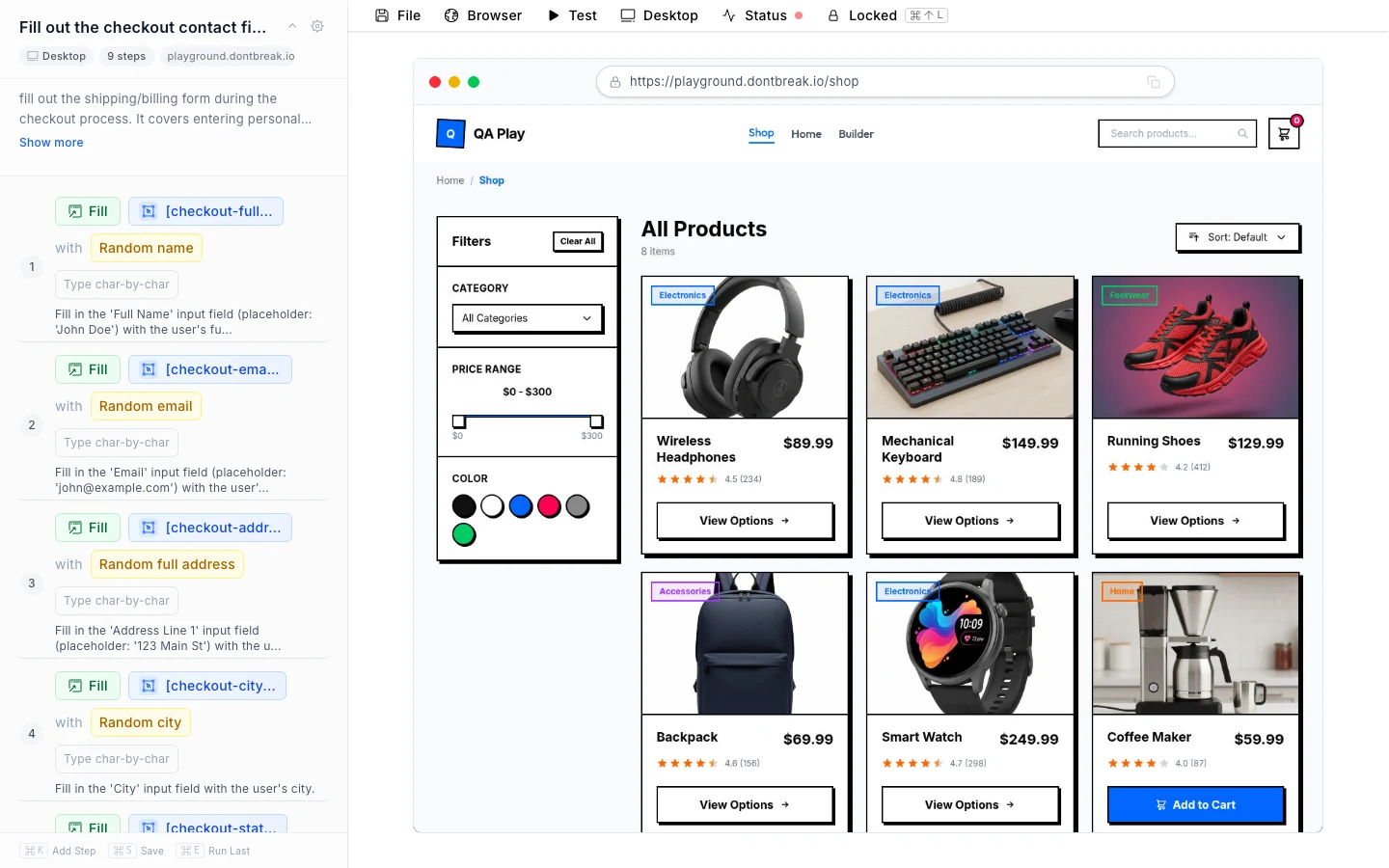
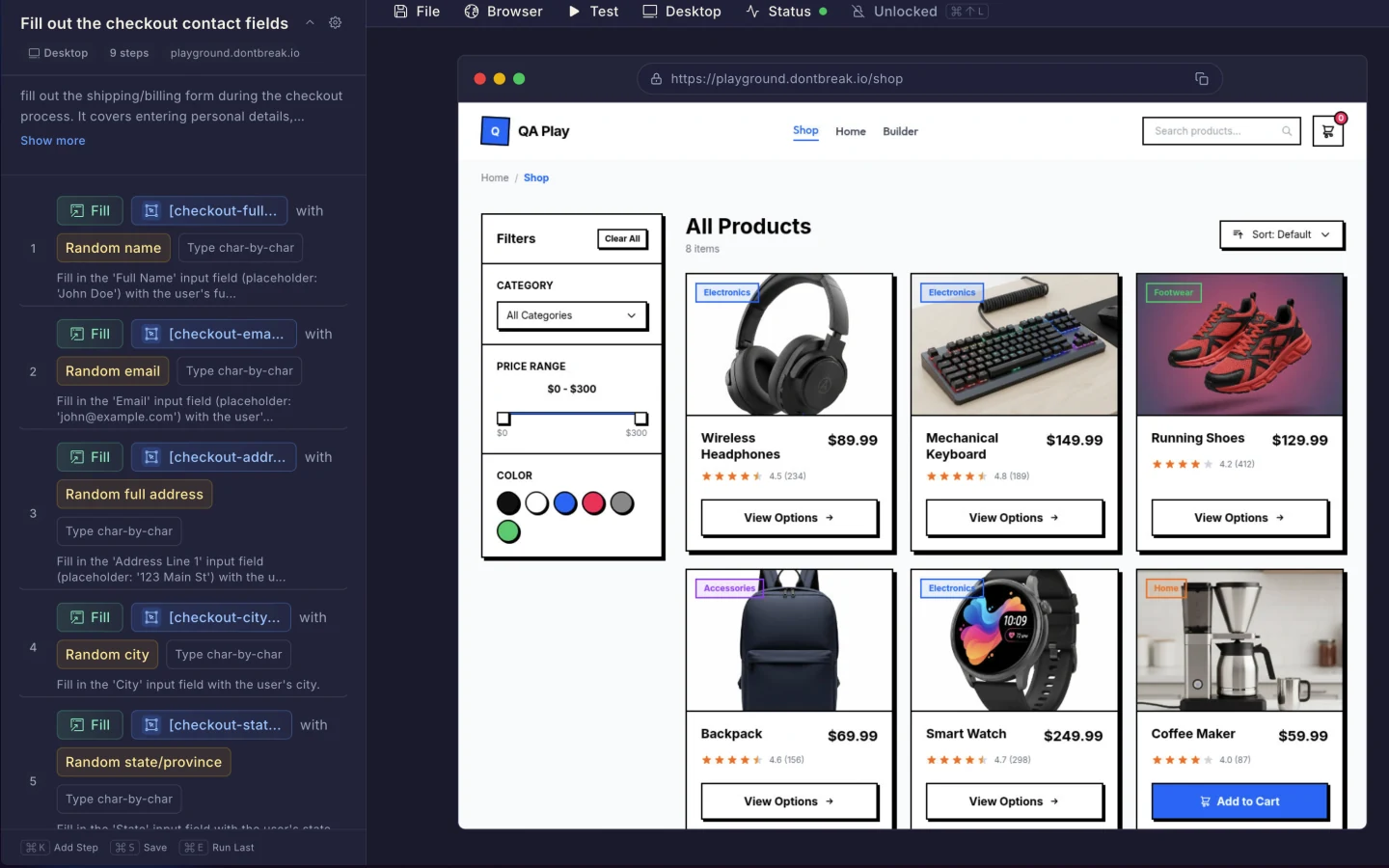
Note
Extract a reusable from an existing test
The easiest way to create a reusable is from steps you've already recorded. On a test's detail page, tick the checkboxes next to a run of consecutive steps — a floating toolbar appears showing how many steps are selected:
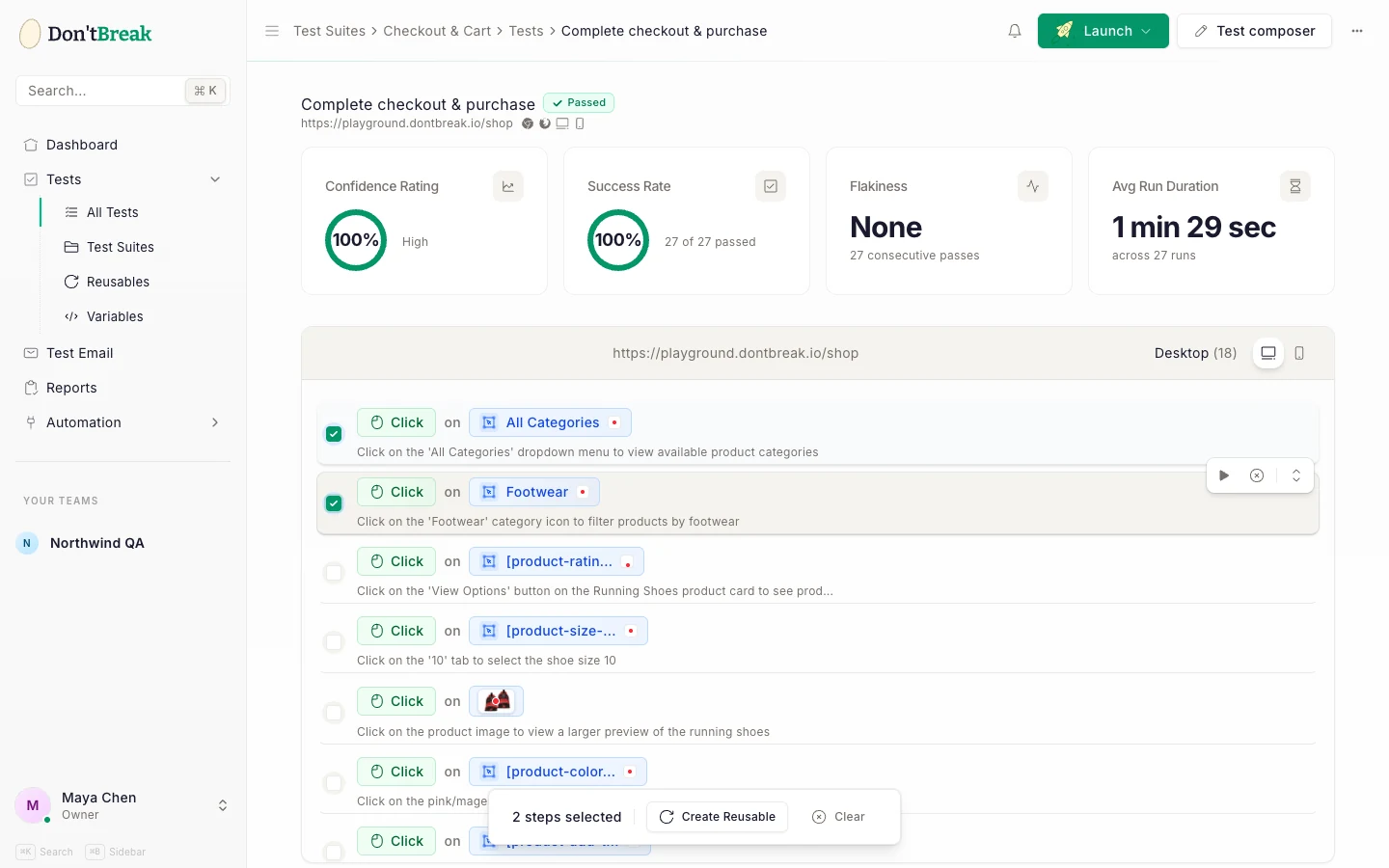
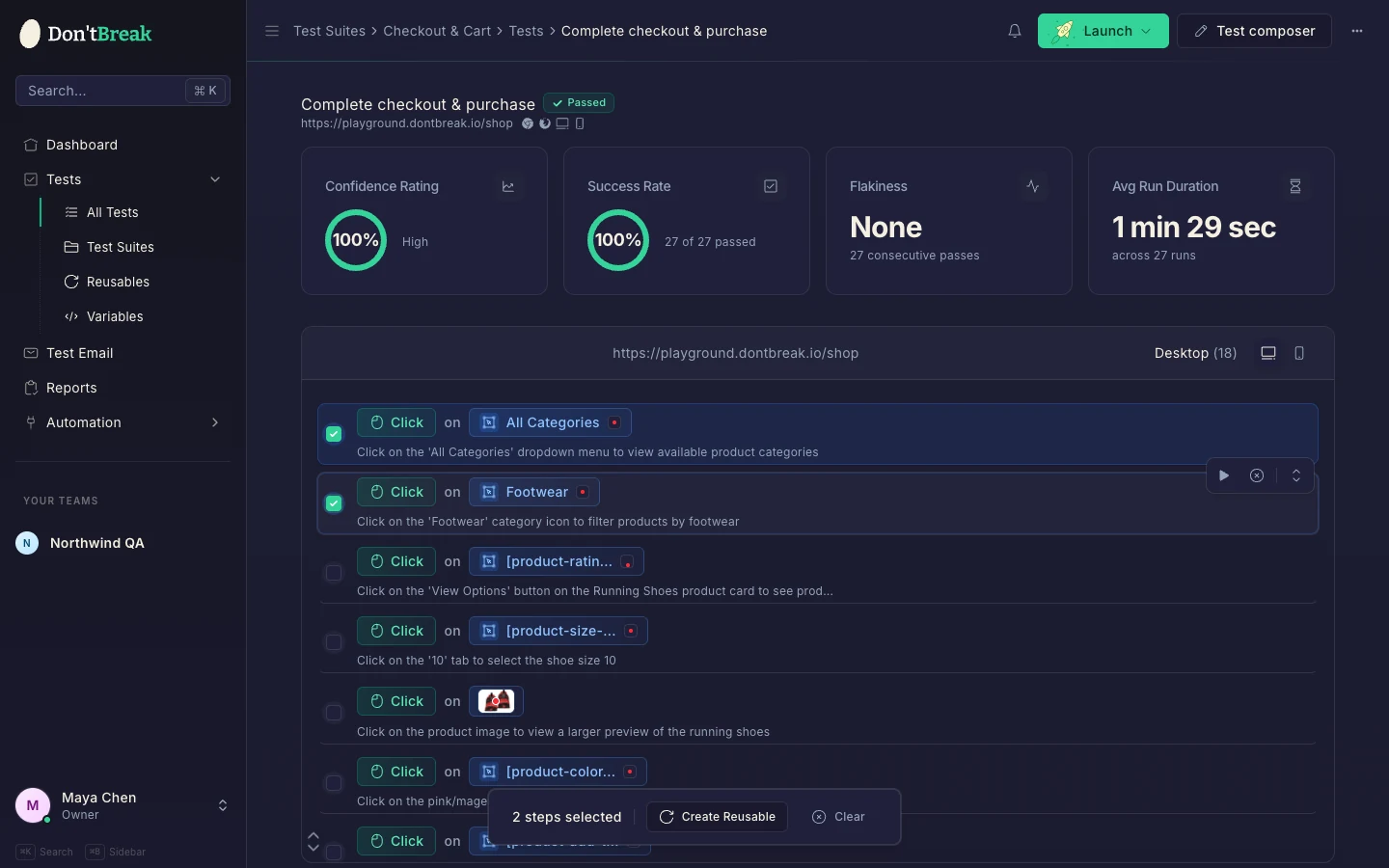
Click Create Reusable, give it a name and an optional description, and DontBreak creates the reusable and swaps the selected steps in your test for a single reference to it — the test behaves exactly as before, but that sequence is now shared. Steps must be consecutive; if your selection has gaps, you'll be asked to adjust it.
This is the natural workflow when you notice mid-build that a sequence you just recorded — a login, a navigation ritual — belongs in other tests too.
Inserting a reusable into a test
In the test editor, open the action picker (⌘K) and switch to the Reusables tab. Your team's reusables load with their step counts — pick one and it's inserted into the test as a single block at the current position.
The reusable appears as one collapsed step in your test, but at run time all of its steps execute in order, exactly as if you'd recorded them in the test itself.
Edits propagate everywhere
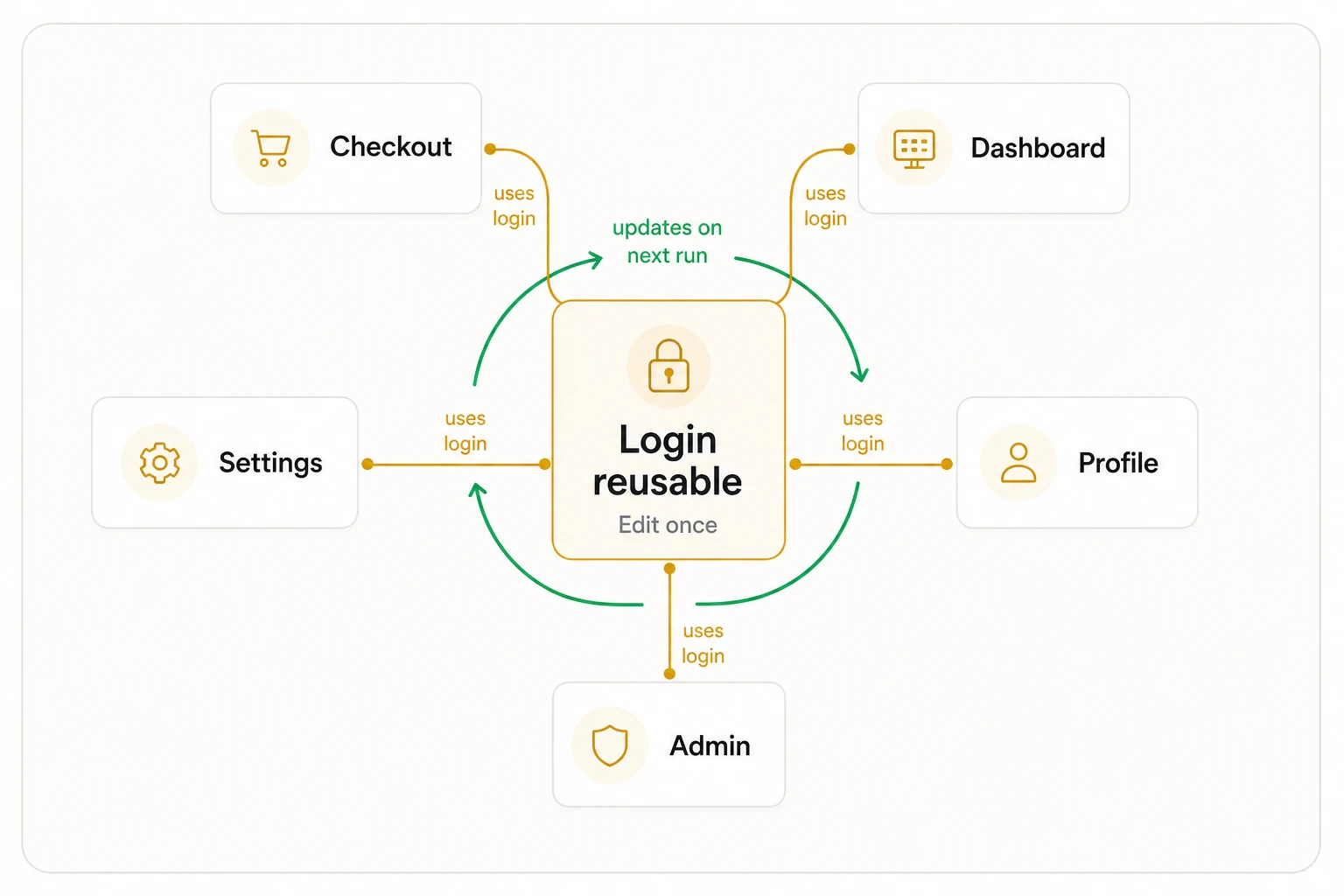
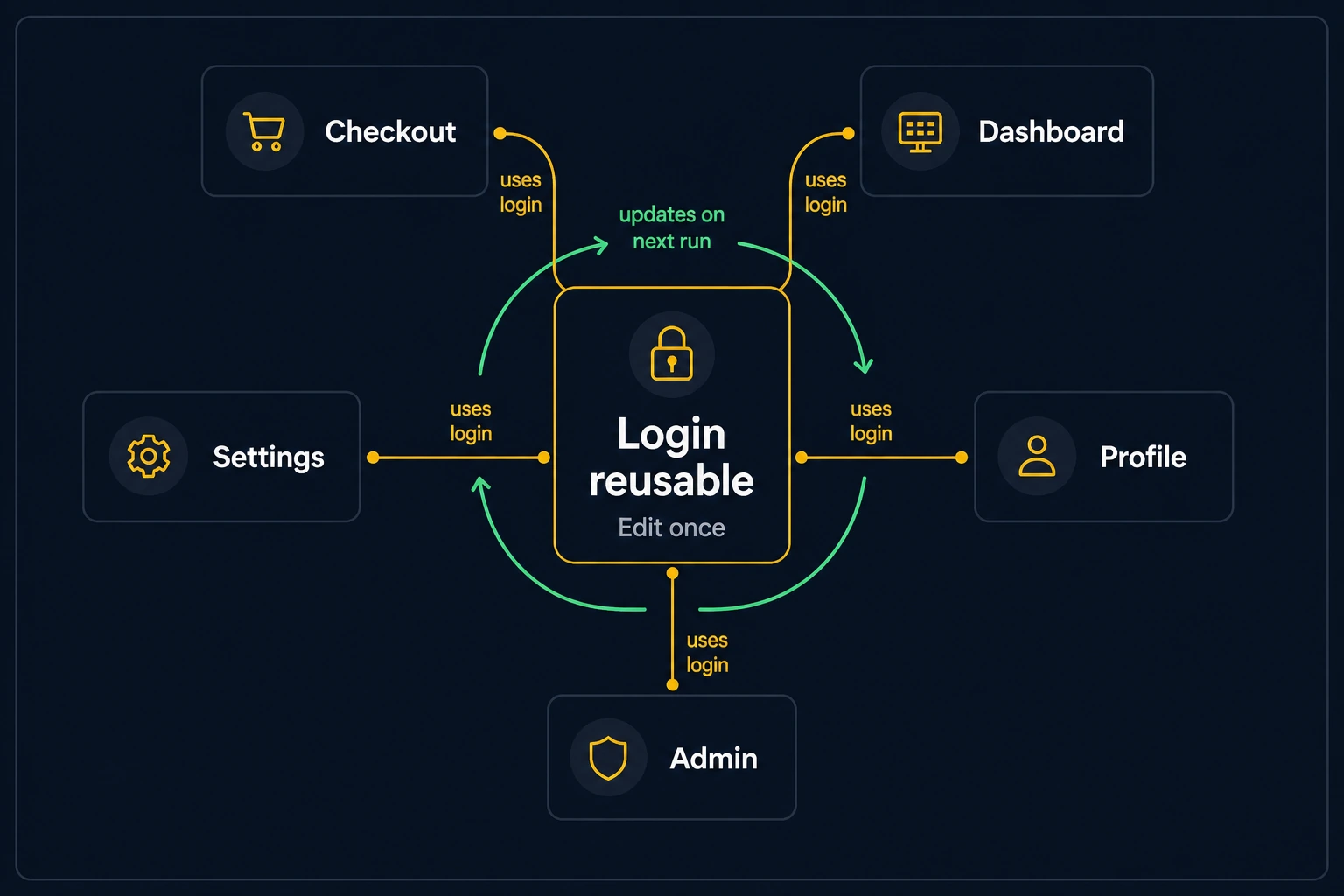
A reusable is stored once and referenced by tests — tests don't keep their own copy of its steps. When you edit a reusable:
- Every test that uses it runs the updated steps on its next execution.
- No test needs to be re-saved or touched.
This is the whole point: when your login form gains a 2FA step, you fix one reusable instead of every login-dependent test in your suite. It also means edits are high-leverage in both directions — a mistake in a popular reusable breaks every test using it, so after editing one, run a test that uses it.
Usage tracking
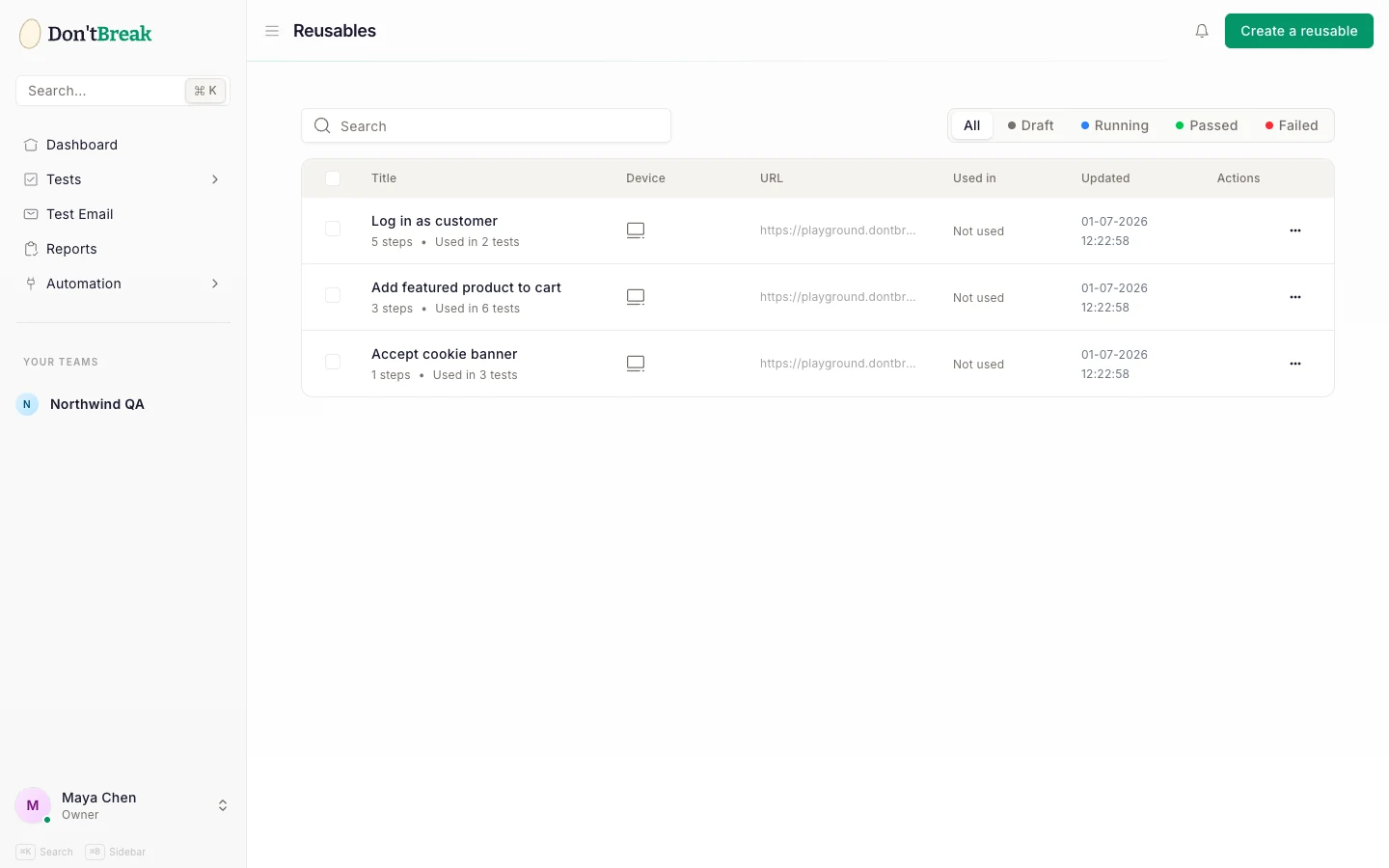
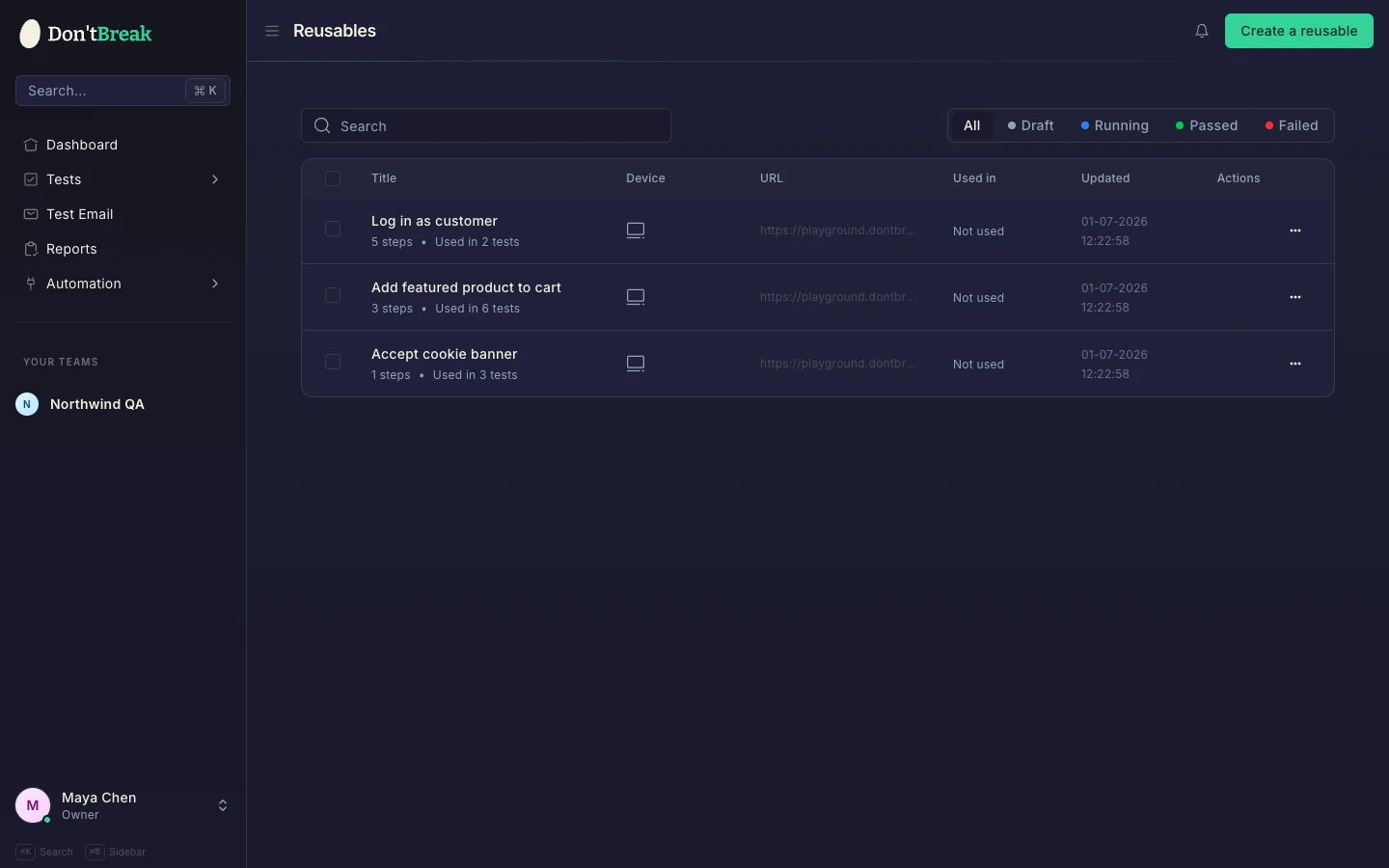
The Reusables list shows Total steps and Used in N tests for each reusable, so you can see at a glance which ones are load-bearing and which are unused.
Deleting and restoring
Deleting a reusable requires the team admin role (see Teams and Roles) and is a soft delete — recently deleted reusables can be restored. Check the usage count before deleting: tests that reference a deleted reusable lose those steps.
Good candidates for reusables
- Login — by far the most common. See Testing Login Flows.
- Cookie/consent dismissal beyond what auto-dismiss handles.
- Navigation rituals — opening a particular menu or workspace before the real test begins.
- Test data setup — creating the record the rest of the test operates on.