

Test Reliability
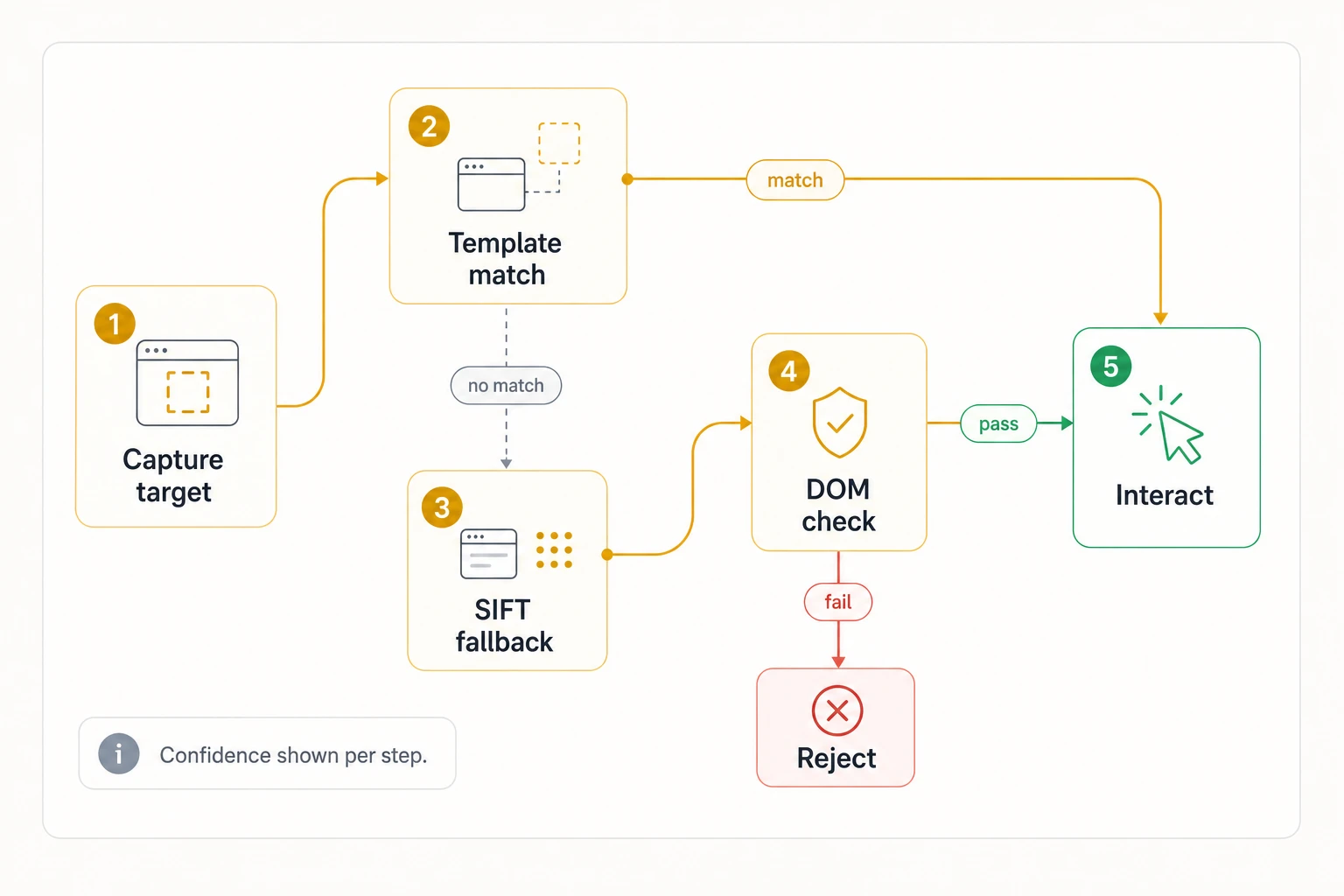
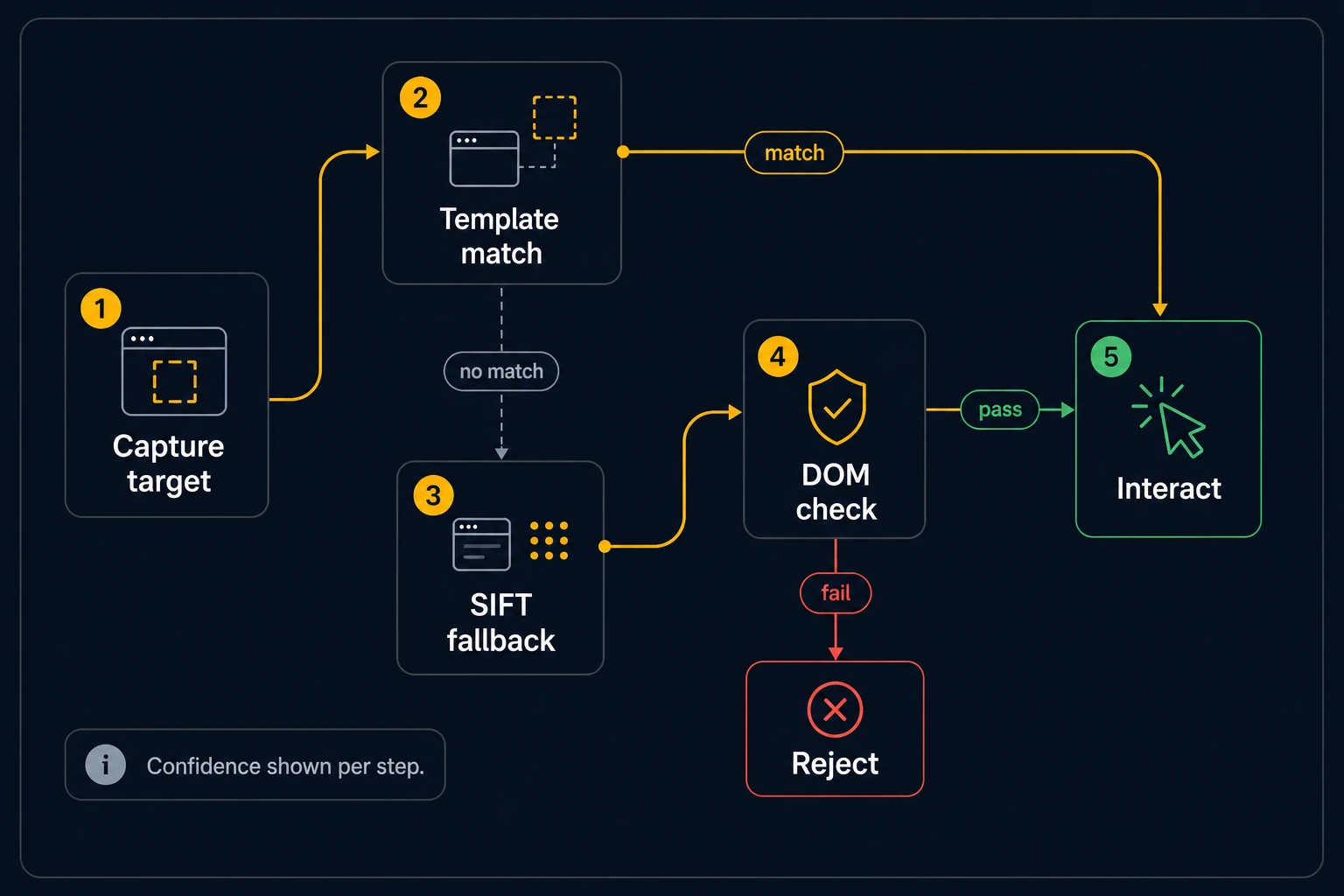
DontBreak uses visual targeting as its primary method for finding elements on the page — it captures a screenshot of the target element during recording and uses computer vision to find it during execution. Each step's match result, including a confidence percentage, is visible in the run report's Debug section. Here are tips for making visual targets reliable:
Select Unique-Looking Areas
When selecting a target, choose an area that looks visually distinct from the rest of the page. A small generic icon might match multiple places, but a button with its surrounding label is unique.
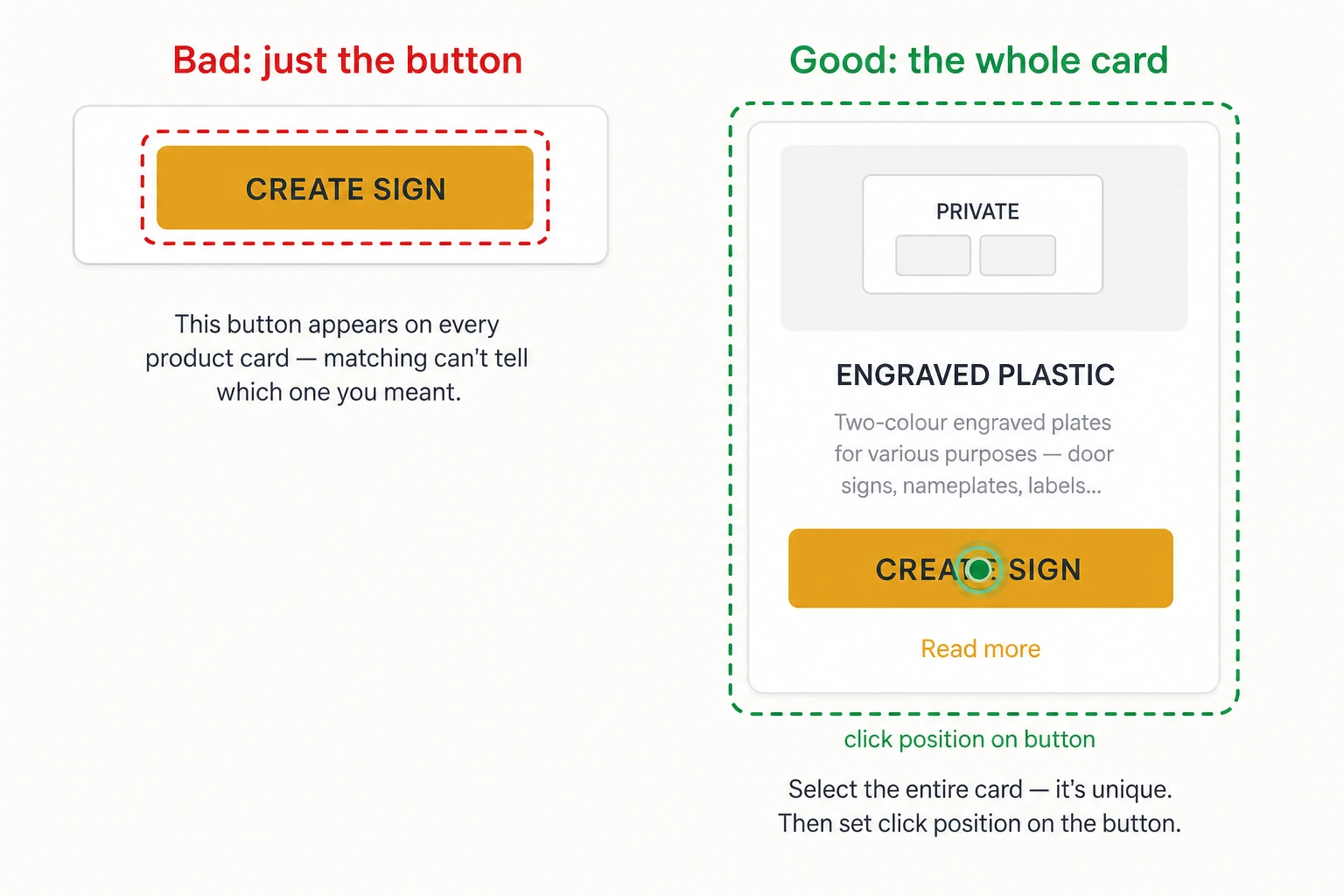
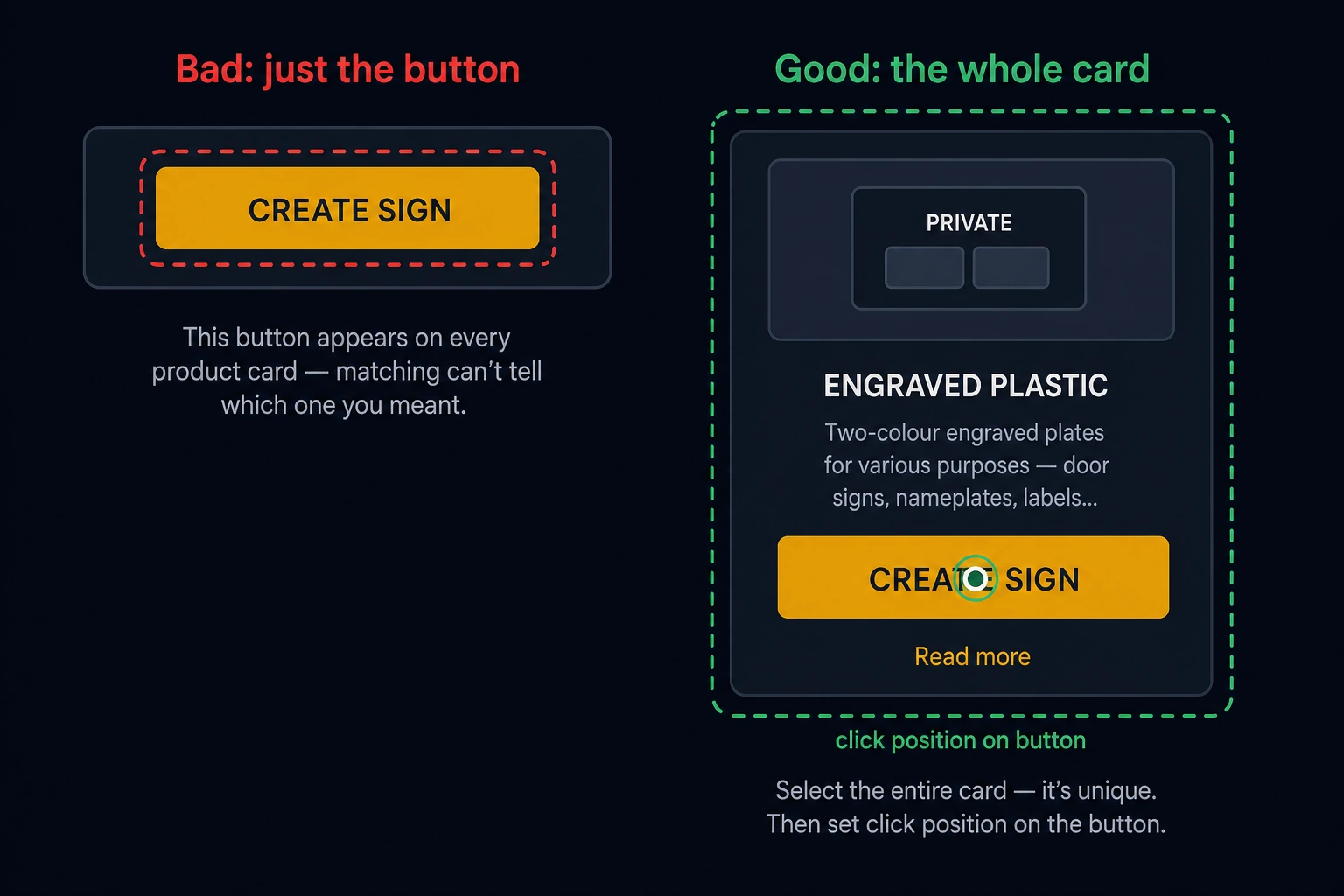
Tip: You can select a larger area around the element to include more visual context. DontBreak will still click the right spot — you can adjust the click position within the selected area using the click position editor in the expanded target view.
Avoid Targeting Dynamic Content
Elements that change appearance between runs will cause test failures:
- Timestamps, dates, counters — These change on every visit. If your target area includes them, use the mask feature to paint over the dynamic parts. The matching algorithm will ignore the masked areas.
- User-specific content — Avatars, usernames, personalized greetings. Either mask them or target a different element nearby.
- Animations — Elements mid-animation may look different each time. Add a short wait before targeting animated elements.
See Handling Dynamic Content for more strategies.
Use Masks for Partial Dynamic Content
If your target element is mostly static but contains a small dynamic area (e.g., a price that changes, a date field), open the expanded target view, switch to Mask mode, and paint over the dynamic portion. The masked area will be excluded from visual matching. See Element targeting for the full tour of the targeting panel and mask editor.
Give Slow Elements Time
If an element appears after an animation, API call, or lazy load, enable Wait for target (15 sec) in the step's target options. DontBreak will retry the visual match for up to 15 seconds instead of failing on the first screenshot.
Pin Down Look-Alike Elements
When the visual match isn't pixel-exact, DontBreak falls back to feature detection to tolerate small rendering differences — and as a safety net it verifies that the matched element's stable identifiers (id, data-testid) agree with what was recorded, so a confident-looking match on the wrong element is rejected. If your page has several visually similar elements and you need the exact one, enable Strict visual matching in the step's target options: the step will then only match the exact template, with no feature-detection fallback.
Runs where a step matched with low confidence or via the feature-detection fallback are flagged in the report, so you can review them before they become failures.
When Visual Targeting Doesn't Work
For elements that are too generic or change appearance frequently, switch the step to DOM-based targeting:
- Click the target widget on the step
- Open the advanced options and toggle Use DOM locators
- DontBreak will find the element by its DOM properties (
data-testid, role, label) instead of visual matching
This is useful for simple text links, generic buttons, or elements with reliable data-testid attributes.
Element is Visible Assertions
The Element is Visible action verifies that an element both exists on the page and looks the same as when you recorded it. It uses pixel-level comparison (SSIM) to detect visual changes — including text changes, color differences, and missing content. The report shows the SSIM score and a diff overlay highlighting exactly what changed.
If the comparison keeps tripping on a small dynamic region (a counter, a date), mask that region in the target — masked areas are excluded from the comparison. For text specifically, the Verify text contains option in the target's advanced settings asserts on the element's visible text instead of its pixels.
When a step still fails after these adjustments, see Common Errors for reading the Debug output.