

Handling Dynamic Content
This guide shows you how to write DontBreak tests that stay reliable on pages where content loads asynchronously, renders lazily, or changes between runs — the number one cause of flaky end-to-end tests on modern sites.
Why dynamic content breaks tests
A test is a sequence of steps that assumes the page is in a known state. Dynamic pages violate that assumption: a product grid arrives 800ms after the page does, a spinner covers the button you want to click, a dashboard shows different numbers every day. The fix is never "hope it loaded" — it's making the test observe the page state before acting on it.
How DontBreak finds elements
When you target an element, you pick it visually in the live preview. At run time, DontBreak locates it by pixel-accurate visual matching, falling back to feature detection (cross-checked against the element's stable DOM identifiers) when rendering differs slightly — see Element targeting for the full pipeline. This makes targeting resilient to markup refactors.
You also rarely have to scroll by hand. DontBreak replays the scroll position from when you recorded the step — the window scroll and the scroll inside any container the element lived in — then matches there. If the element isn't in place, it searches by scrolling: near the recorded spot first, inside inner scrollable containers, and finally across the whole page. So a below-the-fold element you target is reached automatically, and the lazy images and sections it scrolls past load on the way. The techniques below are for what that automatic search doesn't cover: content that hasn't loaded yet, and content that only appears as a deliberate side effect of scrolling.
Lazy-loaded content: Scroll element into view
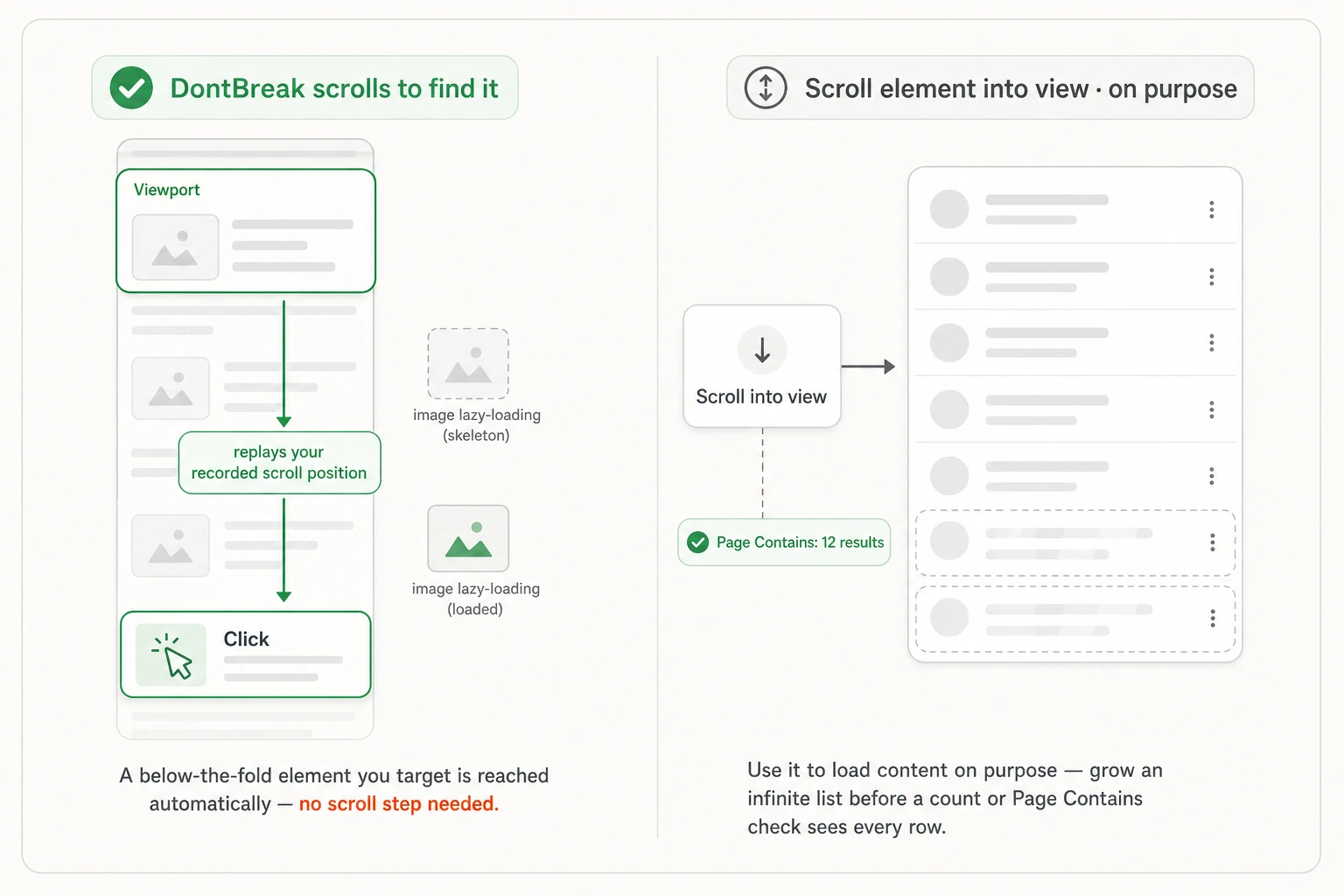
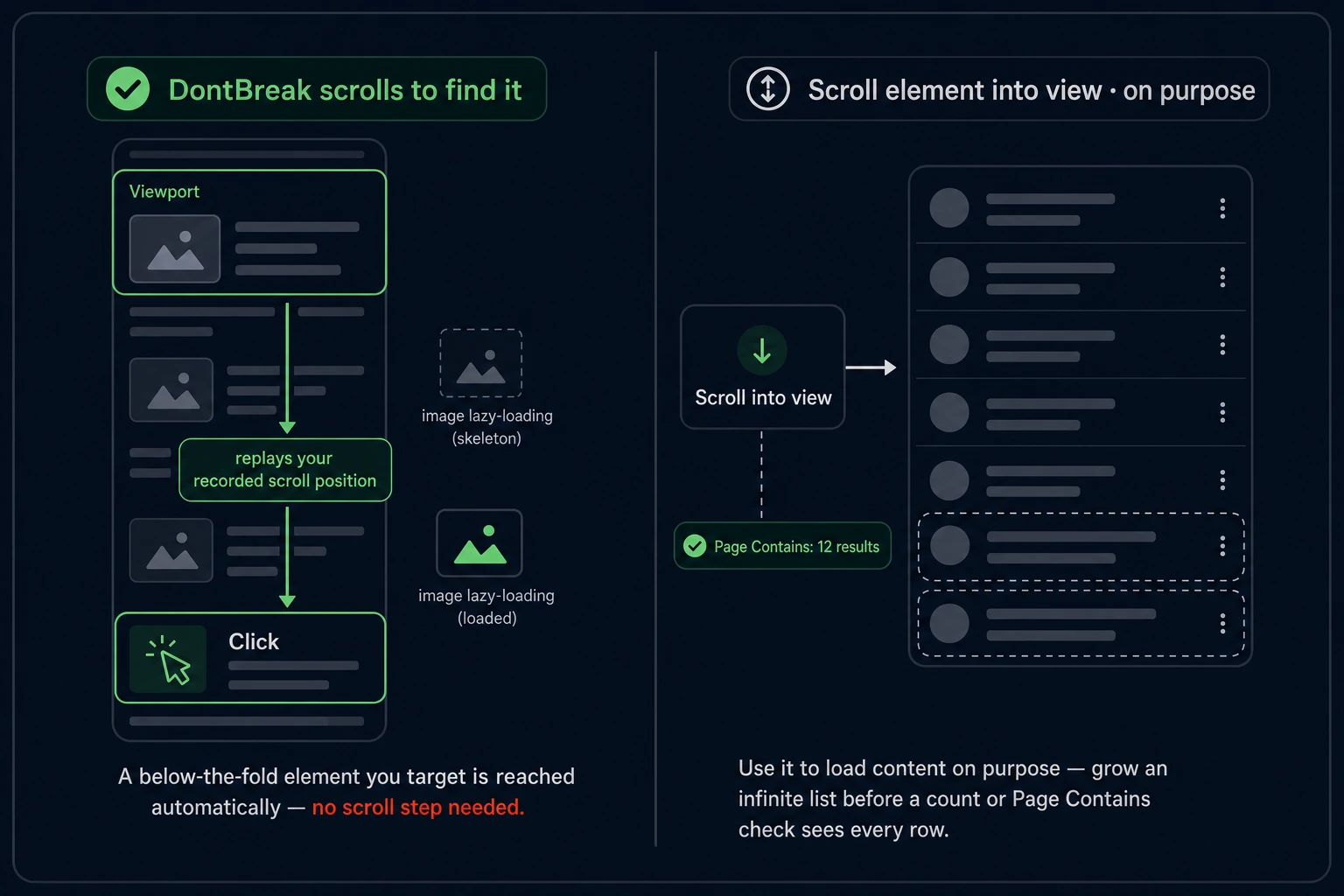
Because DontBreak replays your recorded scroll and will scroll to hunt for a target it can't find in place, a below-the-fold element you target directly — click, type, Element is Visible — is usually reached without any extra step, and the lazy images and intersection-observer sections it scrolls past load on the way.
Reach for the Scroll element into view action when you need that loading to happen on purpose, decoupled from matching one specific element:
- Grow content before an assertion — scroll an infinite list or lazy section into view so a later Page Contains or count check sees rows that only mount on scroll. The automatic search scrolls only while looking for a recorded target; it won't expand a list you're about to assert about.
- Force a section to render for a visual check — when you care that the real content is actually on screen, not merely findable.
It scrolls the target into the viewport — triggering lazy loads and observers — and leaves it ready for the next step. (Dropping the target into view up front also lets the match land in place immediately instead of the engine searching for it.)
Waiting: assert on content, don't sleep
When content arrives asynchronously, prefer assertions over fixed pauses:
Assert that the content arrived
Add a Page Contains assertion on text that only exists once loading finishes ("12 results found"), or Element is Visible on the loaded element. Assertions retry until they pass or time out, so they wait exactly as long as needed — no more, no less.
Assert that the loading state is gone
Use Page Should Not Contain on the loading text ("Loading…", "Please wait") to confirm a spinner or skeleton has disappeared before the next interaction. This is the cleanest way to handle overlays that block clicks.
Only then reach for Wait
Wait pauses for a fixed time regardless of page state. Keep it for the rare case with no observable signal — a CSS animation mid-flight, a debounce timer. Every fixed Wait is a guess that will eventually be wrong on a slow run.
Rule of thumb
If you can describe what "ready" looks like, assert it. A Wait only belongs where "ready" is invisible.
Pages with changing data
Dashboards, feeds, and order lists show different data every run. Don't assert on the data — assert on the stable UI around it:
| Fragile | Stable |
|---|---|
| Page Contains "1,284 visitors" | Element is Visible on the visitors stat card |
| Element Text Contains "Order #5512" | Page Contains "Your orders" heading |
| Clicking a specific list row by its text | Clicking the first row's fixed action button |
Target labels, headings, buttons, and containers — things that exist regardless of what the data says. If you must check data, check a value your test created earlier in the same run (a form value you typed, an email you sent).
Mask out dynamic regions inside an element
Sometimes the element you target is itself partly dynamic — a stat card with a changing number, a button with a live counter, a header showing the signed-in user's name. Instead of avoiding the element, mask the changing part: click the element image on the step to open Edit Visual Matching, switch to the Mask tab, and paint over the dynamic region with the brush or rectangle tool. Masked areas are ignored during visual matching, so the element keeps matching no matter what the masked content says.
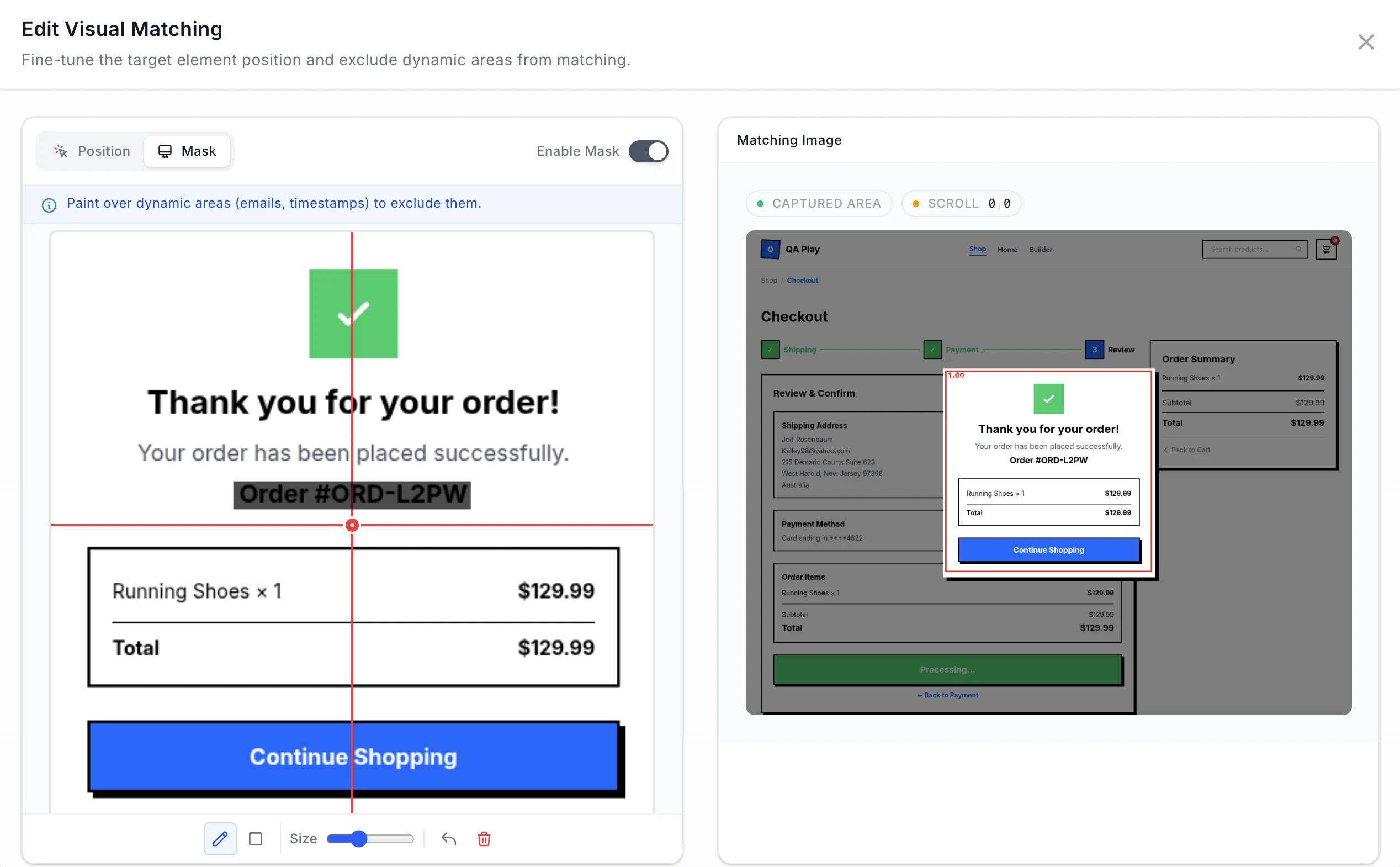
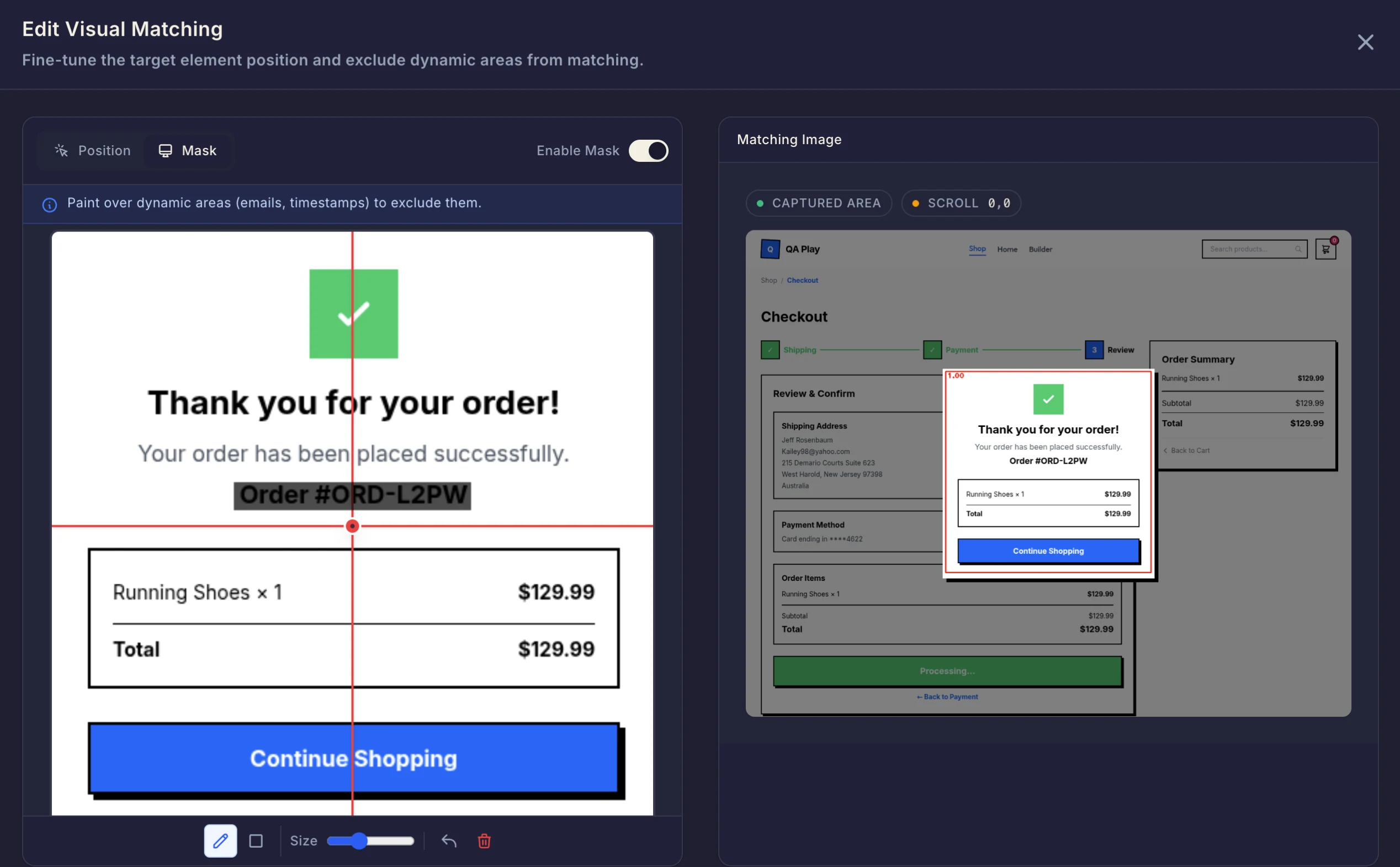
Masks work for interactions and for Element is Visible checks alike. See Element targeting for everything else the targeting panel can do.
Popups and prompts that only sometimes appear
Some UI is genuinely unpredictable: a save-before-exit prompt that only shows when there are unsaved changes, a newsletter popup on the first visit, a one-time announcement banner. A normal step fails when its target isn't there — but you can't know in advance whether it will be.
Mark the step that handles it as Optional step (targeting panel → Advanced). The runner checks for the target for about 3 seconds; if it appears, the step runs normally, and if not, the step is marked Skipped in the report and the test moves on. Record the dismissing action (clicking "Save", closing the popup) as an optional step right where the popup tends to appear.
If the popup can show up at any point of the run rather than at one known step (most newsletter, discount and upsell popups), use a background step instead. It isn't tied to a position: DontBreak runs it whenever the popup is in the way, then retries the step it was blocking.
One caveat: because an optional step silently tolerates "not found", it can also mask a real regression — if the popup should have appeared and didn't, the run still passes. Check the report's skipped markers when the surrounding behavior changes, and keep optional steps for genuinely unpredictable UI rather than as a general escape hatch.
The skip DOM verification escape hatch
Each test has a Skip DOM verification option in test settings. DOM verification is a safety check applied to feature-detection fallback matches: the matched element must carry the same stable id/data-test* identifier that was recorded (exact pixel matches are trusted without it). Skipping it helps when your app generates random ids on every deploy, causing correct fallback matches to be rejected — but it removes a safety net, making it likelier a fallback match lands on something that merely looks right. Leave it off unless DOM verification is demonstrably the thing failing. Details in Element targeting.
Going further
Flakiness usually has more than one cause. See Test Reliability for the broader playbook, and Multi-Step Workflows for keeping long journeys stable across pages.