

Email Testing
DontBreak gives every test access to real, disposable email inboxes on @dontbreakemail.com — no Mailtrap account, no IMAP setup, no code. Your test creates an address, signs up with it on your site, waits for the verification email, clicks the link or extracts the code, and asserts the email arrived. The entire signup-with-verification flow becomes testable end to end.
How it works
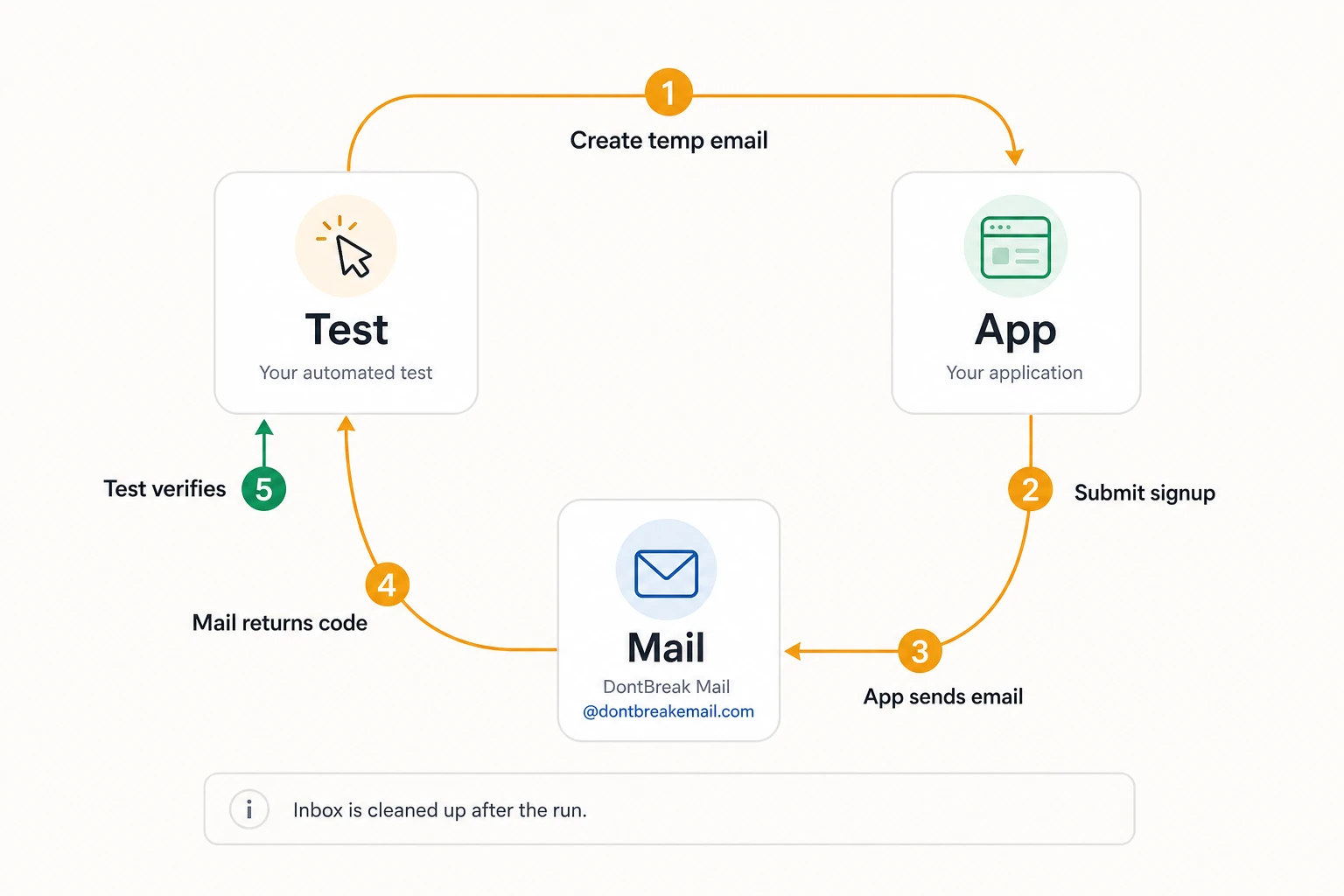
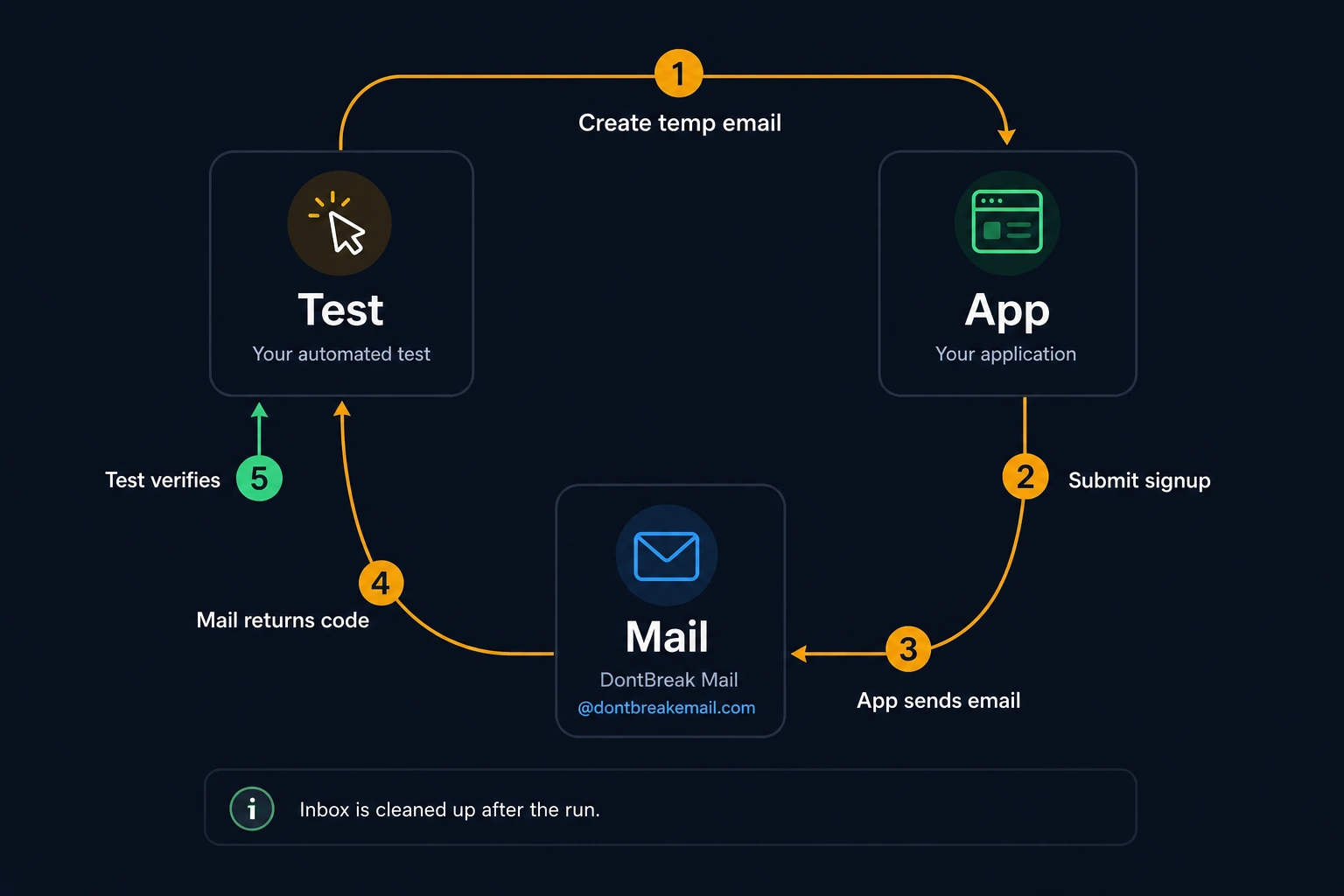
When a test runs a Create Temp Email step, DontBreak allocates a unique address like f3a9…@dontbreakemail.com for that run. Anything your application sends to it is received by DontBreak within seconds and becomes available to the email steps later in the test. By default, inboxes created by a run are cleaned up when the run finishes, so tests never leak addresses — but you can opt to keep one around for a few hours to inspect what your app sent (see Create Temp Email).
The Test Email page
The Test Email page is your manual inbox manager — useful for exploring what your app sends before you automate it, and for keeping pinned addresses around.
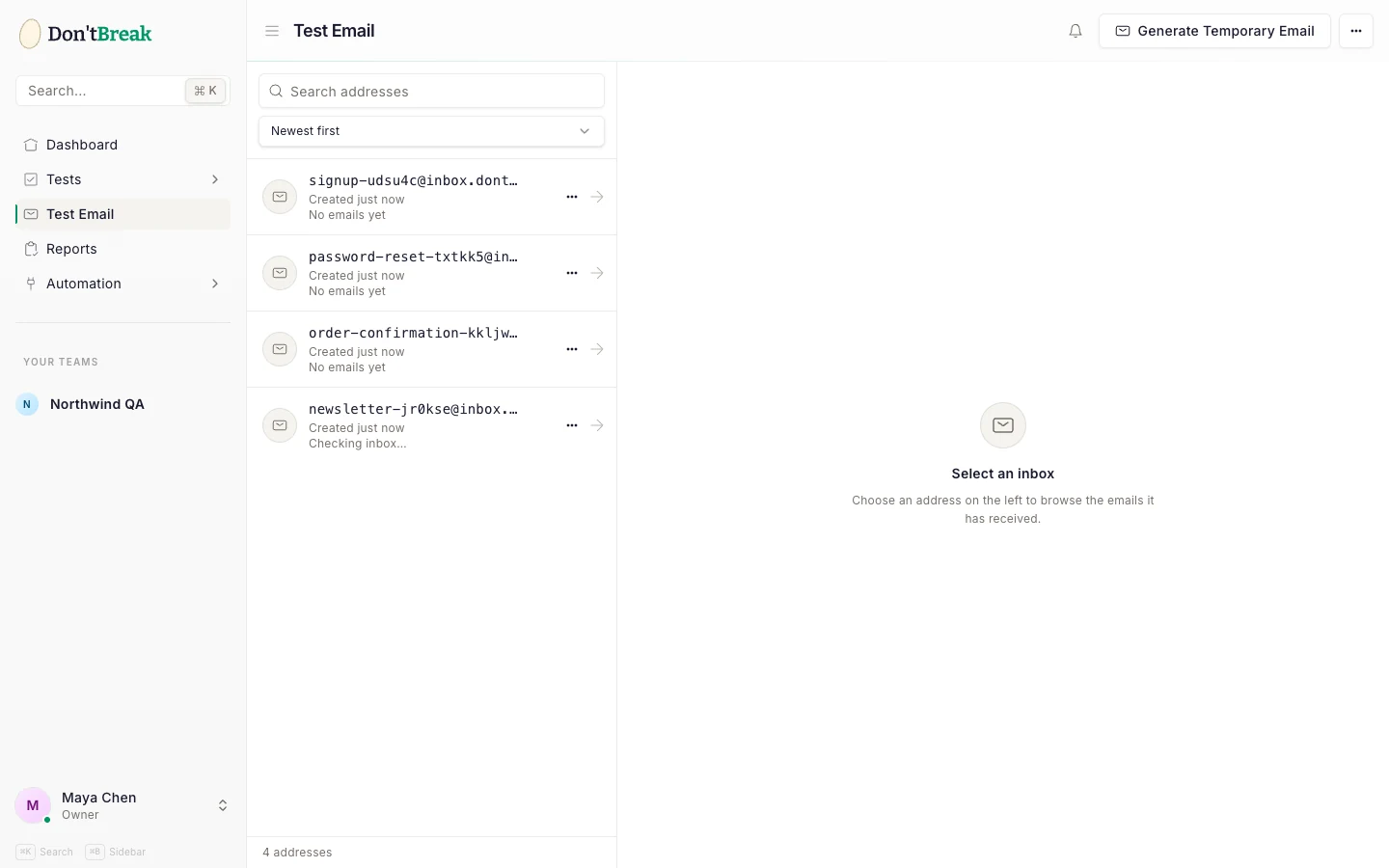
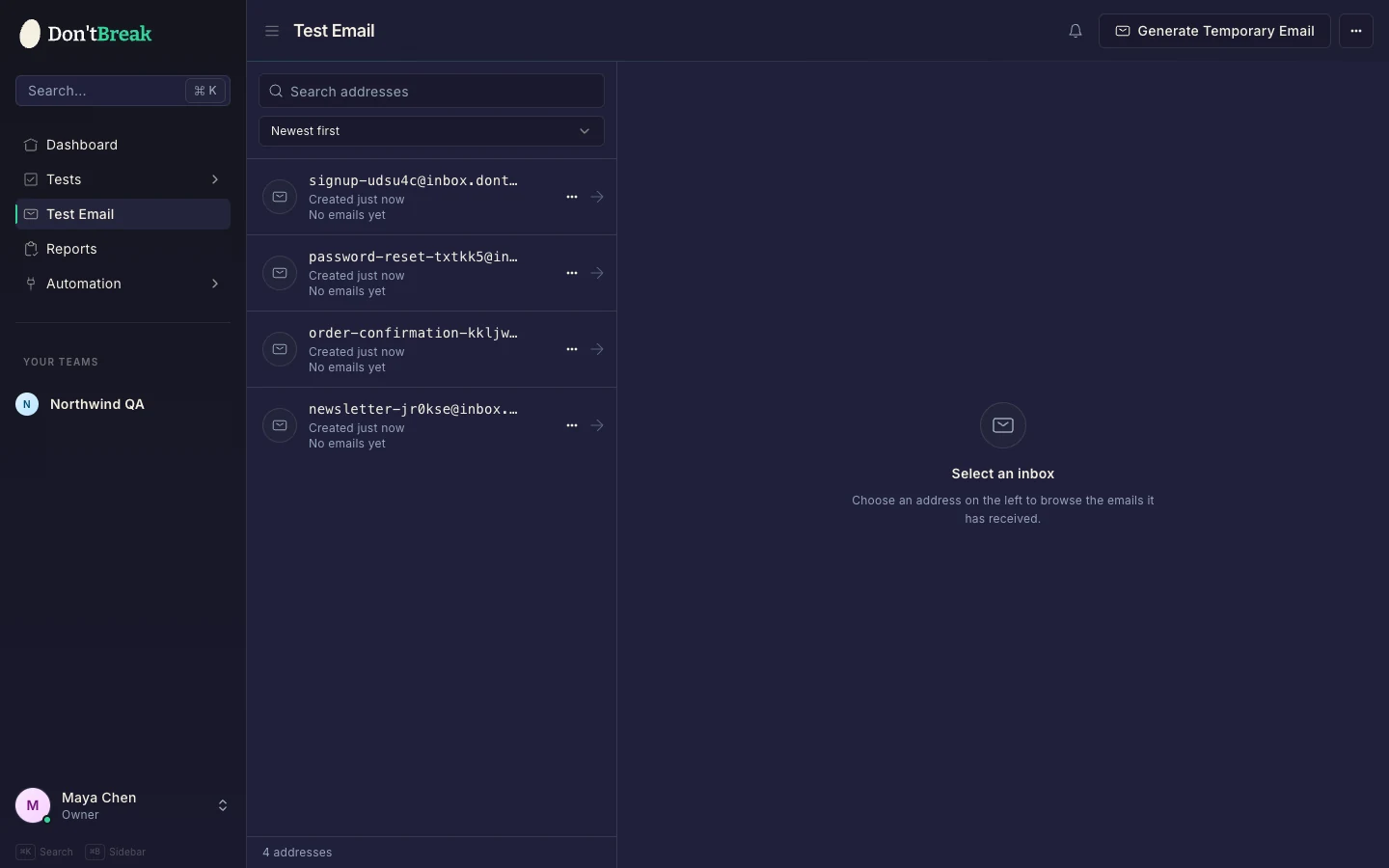
- Generate Temporary Email creates a new address instantly.
- The address list is searchable and sortable (newest, oldest, A–Z); each row shows how many emails it has received, with one-click copy of the address.
- Click an address to drill into its inbox and open any received email — rendered content, links, and codes included. The page refreshes itself while open, so new mail appears without reloading.
- Delete a single received email, delete an address, or use the ⋮ menu to Delete all emails.
Note
Email actions
The Email tab of the action picker (⌘K in the editor) contains:
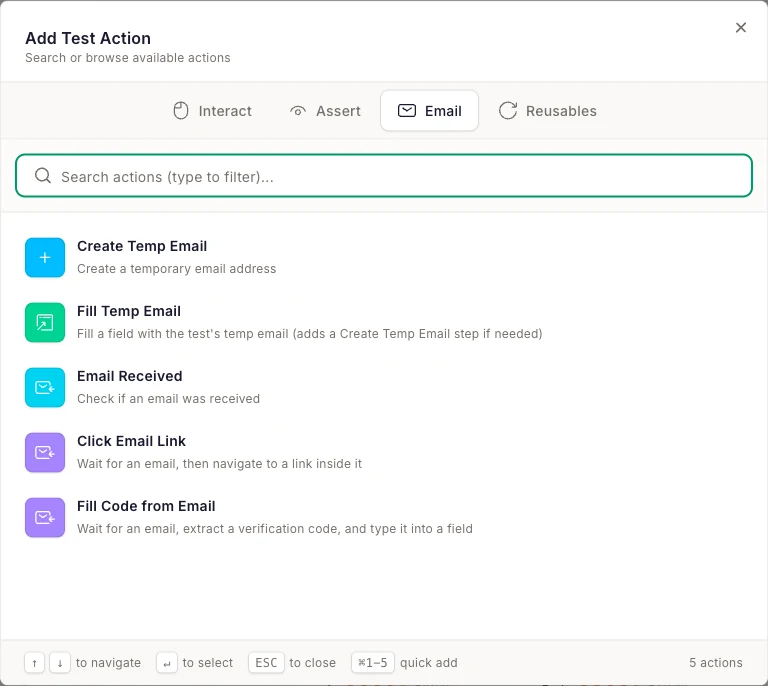
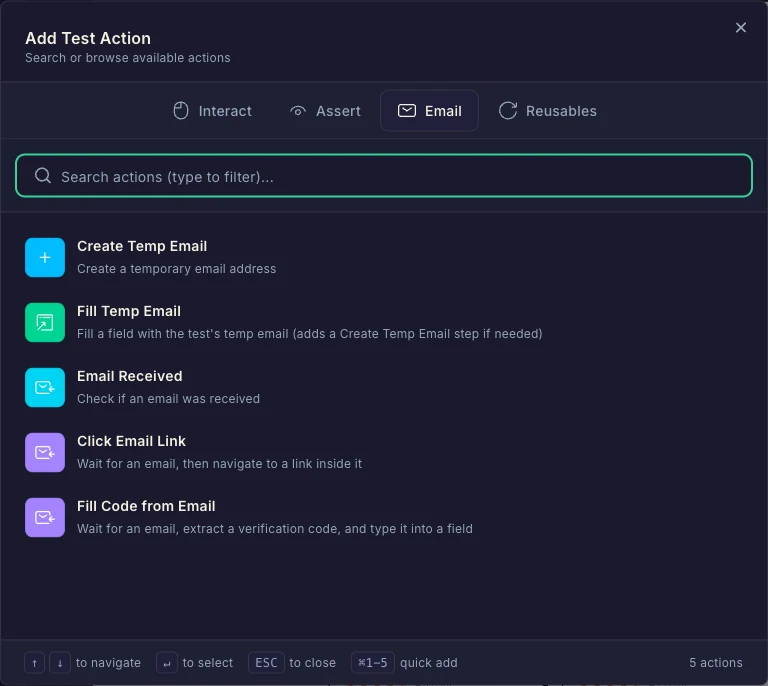
| Action | What it does |
|---|---|
| Create Temp Email | Create a temporary email address for this run |
| Fill Temp Email | Fill a field with the test's temp email address |
| Email Received | Assert that an email arrived (optionally containing specific text) |
| Click Email Link | Wait for an email, then navigate to a link inside it |
| Fill Code from Email | Wait for an email, extract a verification code, and type it into a field |
Create Temp Email
Allocates a fresh @dontbreakemail.com address for the run. Later email steps reference this address. No target element needed.
By default the run's inbox is deleted the moment the run finishes. Toggle Keep inbox after run on the step to hold it for a few hours instead — useful when a run fails and you want to open the actual emails your app sent and see what really arrived. The inbox is still pruned automatically afterward, so nothing accumulates.
Fill Temp Email
Fills the selected input field with the test's temp email address — and if your test doesn't have a Create Temp Email step yet, adding this action inserts one automatically. This is usually the only email setup you need: point it at your signup form's email field.
Email Received
Asserts an email arrived at the temp address. Optionally provide content text that must appear in the email body — "Welcome to", an order number prefix, anything that identifies the right message. Also available on the Assert tab; see Actions: Assertions.
Click Email Link
Waits for an email, finds a link inside it, and navigates the browser to it. Provide link text to pick the right link (e.g. "Verify email") when the message contains several. Perfect for verification links, magic-login links, and password reset URLs.
Fill Code from Email
Waits for an email, extracts a one-time code from it, and types it into the field you target. You tell it what the code looks like:
- Format: numeric, letters, or alphanumeric, with an expected length (e.g. 6-digit).
- Anchor (optional): text the code appears after, e.g. "Your code is".
- Regex override (optional): a custom pattern for unusual code formats.
Worked example: signup with email verification
A complete test of a signup flow that emails a 6-digit confirmation code:
Fill the signup form
Submit
Assert the email arrived
Enter the verification code
Confirm and assert success
Run it with Quick Run and watch the whole loop — signup, real email delivery, code extraction — execute in the live preview. Because every run gets a fresh address, the test never collides with previous signups.