

Scheduling
Schedules run your test suites automatically — hourly, daily, weekly, or monthly — so regressions surface on their own instead of waiting for someone to click Launch. You manage every schedule from one place: Automation → Scheduler in the sidebar.
Schedules attach to suites
You schedule test suites, not individual tests. To run a single test automatically, put it in a suite of one.
The Scheduler page
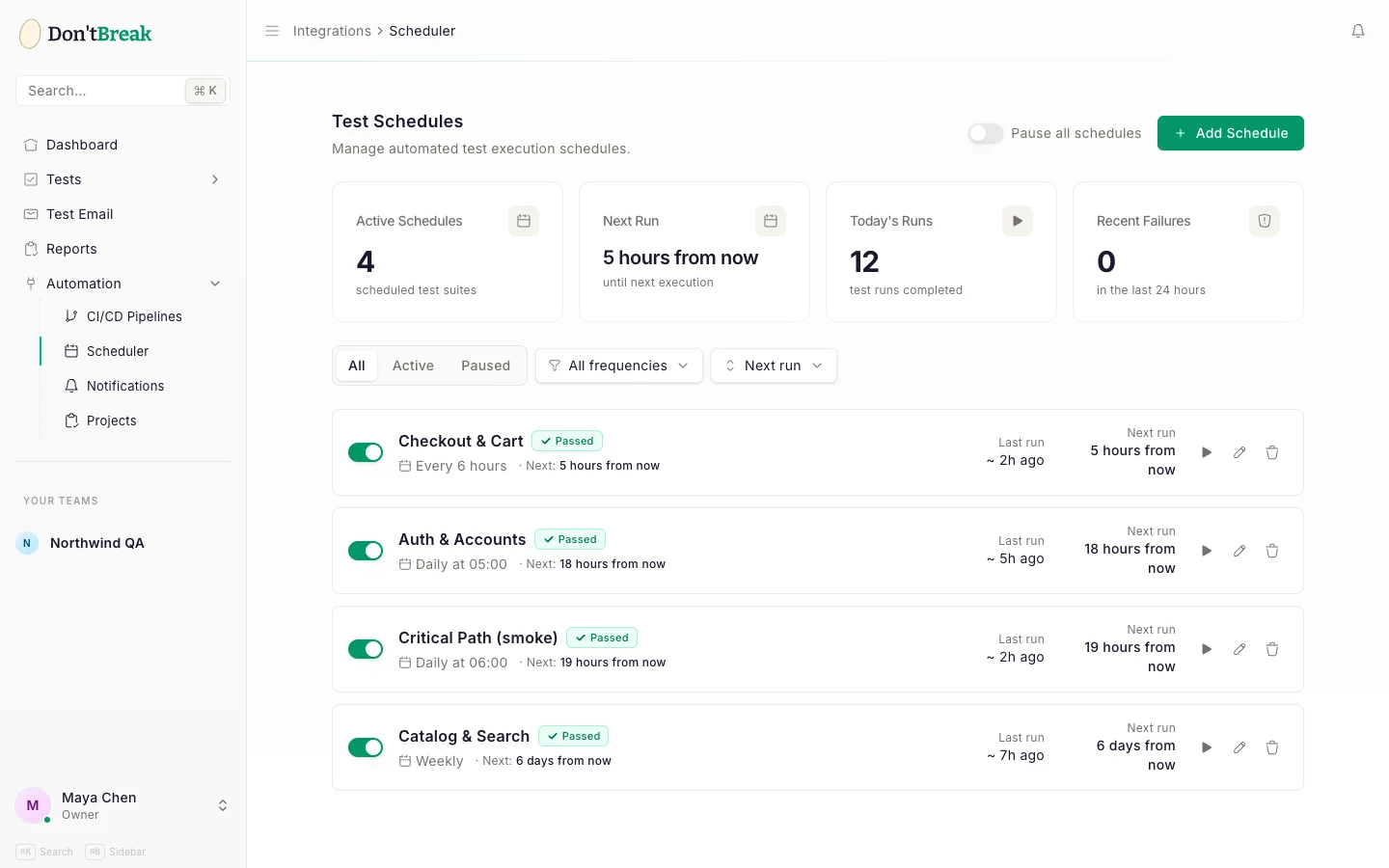
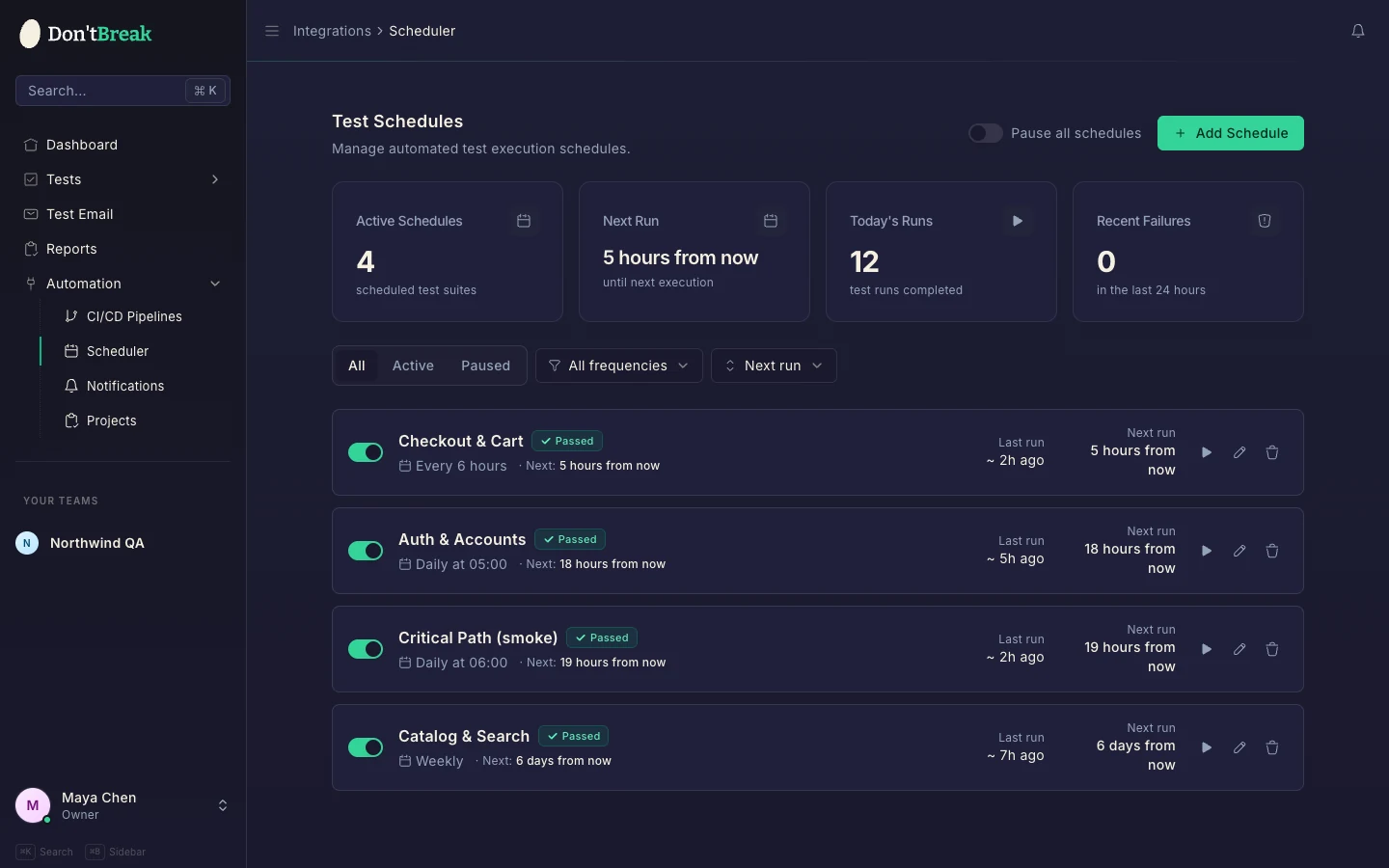
The Scheduler shows four stat cards at the top:
- Active Schedules — how many suites currently have an enabled schedule.
- Next Run — time until the next scheduled execution.
- Today's Runs — test runs completed today.
- Recent Failures — failures in the last 24 hours.
Below the stats is your schedule list. Each row shows the suite name, its last run status, its frequency, and the next run time. You can filter by status (all / active / paused) and frequency (interval / daily / weekly / monthly), and sort by next run, name, or creation date. The page refreshes itself every 30 seconds so run times and statuses stay current.
Creating a schedule
Add a schedule
Click Add Schedule on the Scheduler page and pick a test suite. Suites that already have a schedule are marked — each suite has one schedule.
Choose a frequency
Pick Interval, Daily, Weekly, or Monthly, then fill in the details (interval, time, or day). A live preview sentence — e.g. "Runs every Monday at 09:00" — confirms what you've configured.
Save
The schedule appears in the list with its computed next run time.
You can also configure the same schedule from the suite's own Settings panel — both edit the same thing.
Frequency options
DontBreak uses simple frequency settings rather than cron expressions:
| You want | Frequency | Settings |
|---|---|---|
| Every 15 minutes | Interval | Run every: 15 minutes |
| Every hour | Interval | Run every: 1 hour |
| Every 4 hours | Interval | Run every: 2, 4, 6, or 12 hours |
| Daily at 9:00 | Daily | Time: 09:00 |
| Every Monday at 9:00 | Weekly | Day of week: Monday, Time: 09:00 |
| The 1st of each month at 6:00 | Monthly | Day of month: 1, Time: 06:00 |
Each scheduled run starts within 2 minutes of its slot, always at the same offset for a given suite, so checks from every account don't all start in the same second. Intervals are 15 or 30 minutes, or 1, 2, 4, 6, or 12 hours. Weekly schedules pick any day of the week; monthly schedules pick day 1–31 (months with fewer days run on their last day).
Timezones
Each schedule runs in your profile timezone — the one set under Settings → Profile (UTC until you set one). "Daily at 09:00" both shows as, and runs at, 9 AM your time, with daylight-saving shifts handled automatically — no manual UTC conversion needed. A schedule's timezone is captured from whoever creates or last edits it, so set yours before scheduling.
Managing schedules
Each row in the schedule list gives you direct controls:
- Pause / resume — the toggle switch enables or pauses the schedule without deleting it. Paused schedules stay in the list (dimmed) so you can re-enable them later.
- Run now — launches the suite immediately, outside its schedule. This is a real launch: it consumes run quota like any other execution.
- Edit — change frequency, time, or day.
- Delete — removes the schedule only. The test suite and its tests are untouched.
Quota and notifications
Scheduled runs count against your monthly quota exactly like manual launches — one run per enabled browser × device combination per test (see Browsers & Devices). A suite of 5 tests with 2 combinations each, scheduled hourly, burns 240 runs a day; every 15 minutes, 960 — check the math before enabling aggressive frequencies.
To hear about scheduled failures without watching the dashboard, set up Slack or email notifications. Results from scheduled runs appear in Reports like any other run.