

Test Settings
Every test carries its own configuration — URL, platforms, authentication, timing — managed in the Test Settings dialog (Test → Settings in the visual editor). This page walks through every setting, tab by tab. For reusable values your tests fill into forms, see Variables.
General
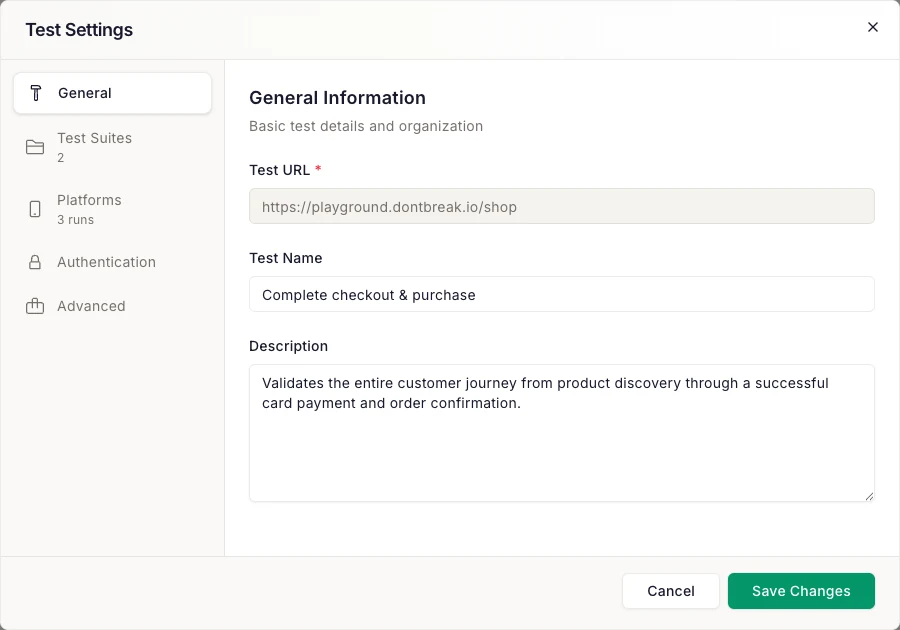
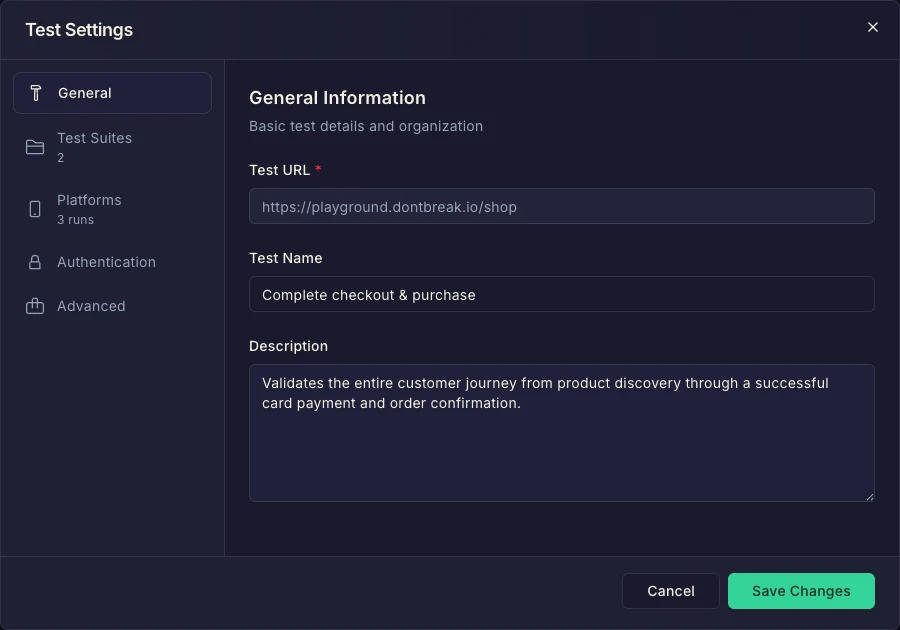
- Test URL (required) — where the browser starts. Set when you create the test and locked afterwards; if the test belongs to a suite with a default URL, the domain is fixed to the suite's and you edit only the path.
- Test Name — shown in lists, reports, and notifications.
- Description — what the test covers and why. AI Descriptions can write this for you.
- Test Suite (when creating) — optionally create the test inside a suite; the suite's default URL and basic auth credentials are inherited.
Test Suites
Lists every suite in your team with a toggle per suite — flip them to add or remove this test from suites without leaving the dialog. Changes apply immediately. See Test Suites.
Platforms
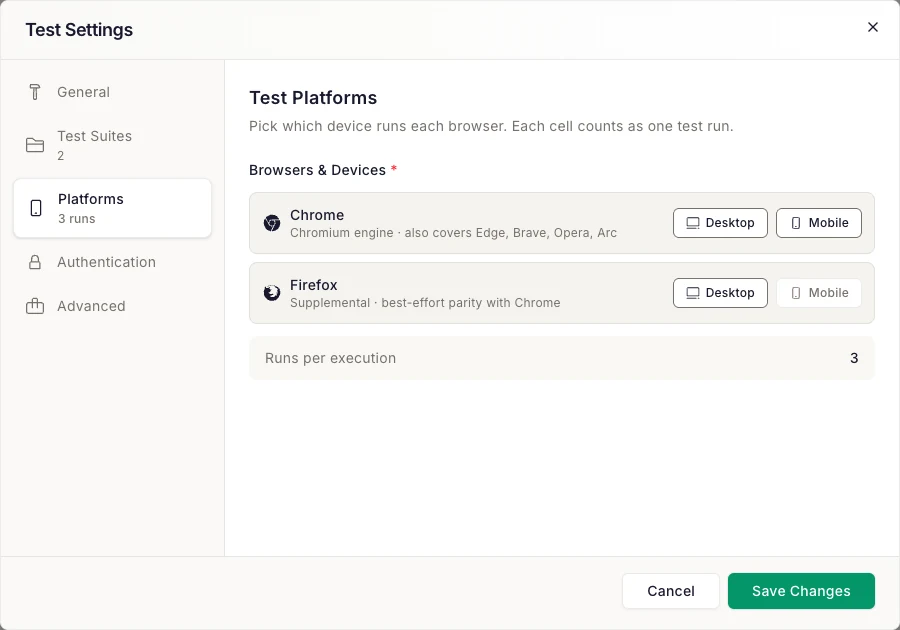
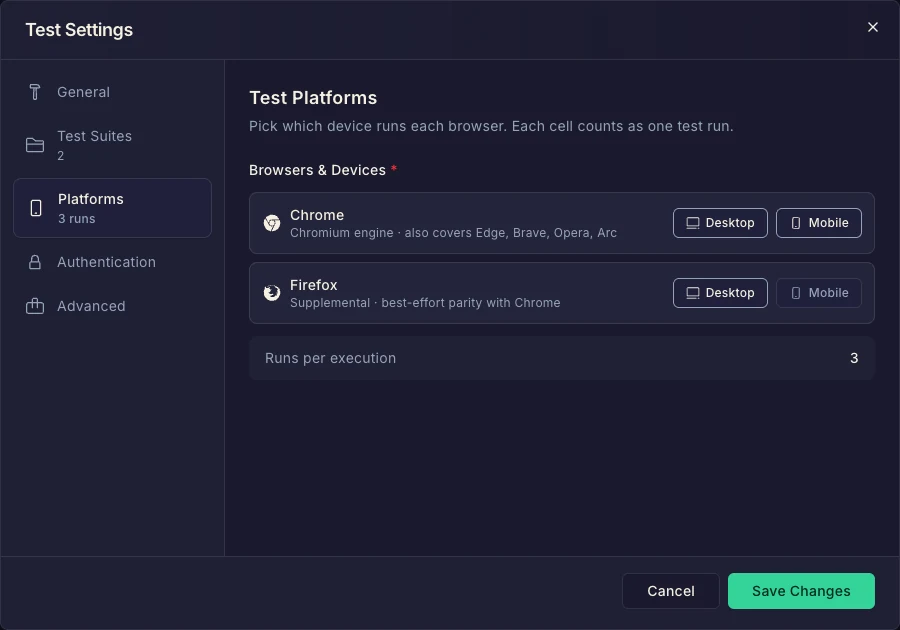
Pick which device runs each browser:
- Chrome — Chromium engine; also representative of Edge, Brave, Opera, and Arc. Desktop and Mobile cells.
- Firefox — supplemental coverage with best-effort parity with Chrome. Desktop and Mobile cells.
Each enabled cell counts as one run per execution — the tab shows the total ("Runs per execution"), and the sidebar badge shows "N runs". All four cells enabled means every execution consumes 4 runs from your quota.
Firefox mobile and gestures
Authentication
For sites behind HTTP basic auth (commonly staging environments):
- Enable Basic Authentication — toggle on, then enter the username and password. Credentials are encrypted at rest.
- When creating a test inside a suite that already has basic auth configured, the suite's credentials are applied automatically.
This is HTTP-level auth only — for testing your application's own login form, see Testing Login Flows.
Custom request headers
- Custom Request Headers — toggle on, then add up to 20 name/value pairs. Test runs send these headers with every request on every browser and device.
- Values are encrypted at rest and never shown again after saving — a blank value on later edits keeps the stored one, and removing a row deletes that header.
- Browser-managed and connection-level names (
Host,Cookie,Content-Length, …) can't be overridden; to pre-set a cookie use the Set Cookie step.
Headers can also be set at the suite level — new tests in the suite inherit them, and an Apply headers to all existing tests checkbox propagates changes to every member test.
The main use case is a secret bypass header for sites behind Cloudflare, AWS WAF, or similar — see Testing Behind Bot Protection for the matching skip-rule recipes. It also covers bearer-token staging environments and tunnel headers like ngrok-skip-browser-warning.
Trello
This tab appears only when your team has the Trello integration connected. Toggle Use custom Trello board for this test to override your team's default Trello board for just this test, then pick:
- Board — the Trello board for this test's cards.
- Failure List — cards are created here when the test fails.
- Resolved List — cards are moved here when the test passes again.
Advanced
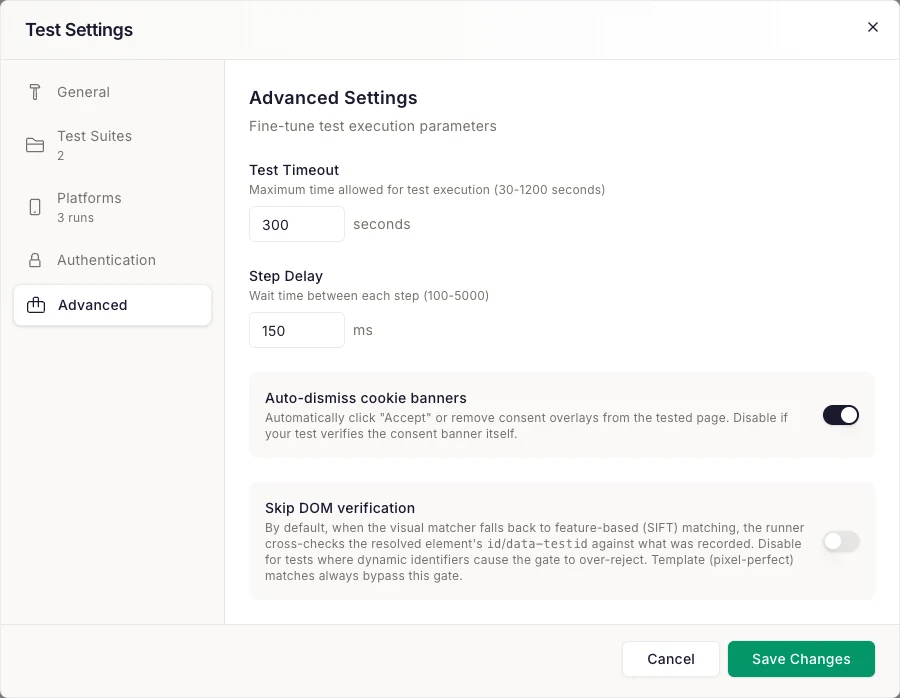
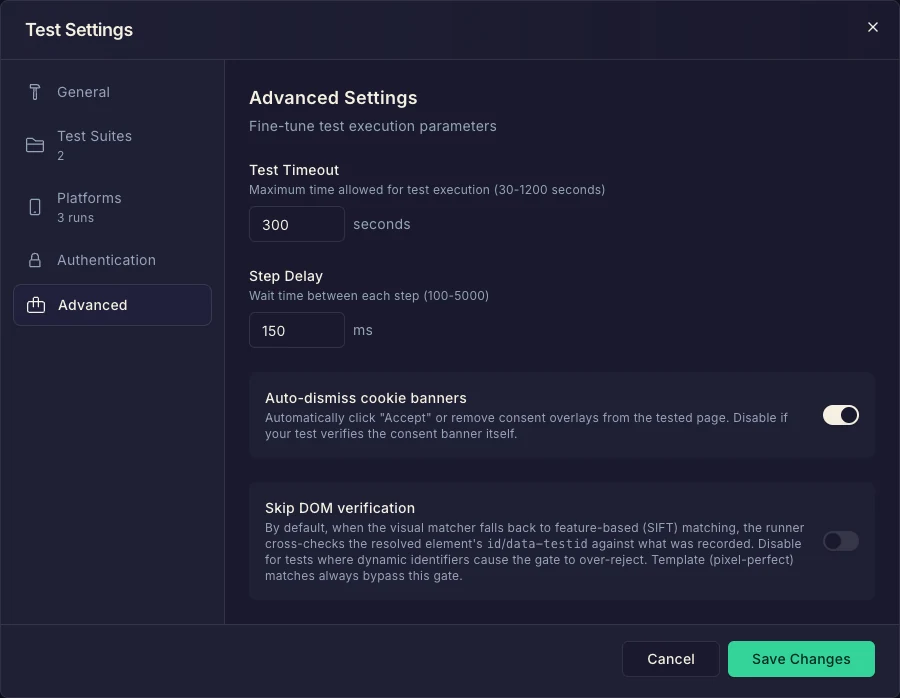
- Test Timeout — maximum time for the whole run, 30–1200 seconds (default 600). Runs exceeding it are stopped and reported as failed.
- Step Delay — wait between steps, 100–5000 ms. The editor pre-fills 500 ms; tests created outside the editor (via the API or an import) fall back to 150 ms until a delay is saved explicitly. Raise it for slow or animation-heavy sites instead of sprinkling Wait steps; lower it to speed up runs on snappy pages.
- Auto-dismiss cookie banners (default on) — automatically accepts or removes consent overlays on the tested page. It recognizes most common consent banners, but fully custom ones may need an explicit Click step instead. Turn it off if your test verifies the consent banner itself.
- Skip DOM verification (default off) — DontBreak finds elements visually. When the pixel-perfect (template) match fails and the runner falls back to feature-based (SIFT) matching, it cross-checks the resolved element's
id/data-testidattributes against what was recorded — that cross-check is DOM verification, a safety gate against clicking the wrong element. If your site generates dynamic identifiers on every load (common with some frameworks), the gate can over-reject correct matches; enable this setting to skip it. Pixel-perfect matches always bypass the gate regardless. See Test Reliability.
Related
- Variables — reusable values and built-in dynamic data your tests fill into forms
- Test Suites — shared URL, auth, and grouping across tests
- Browsers & Devices — the platform matrix in detail