

Email Notifications
Email notifications keep you informed about test results without requiring you to keep the DontBreak dashboard open. You can get immediate alerts when something fails and confirmations when runs pass — handy when you're not in Slack all day or want a record in your inbox.
Where to configure
Email notifications are on out of the box. Every account is created with the email channel enabled and a sensible default event selection — Test suite fails and Individual test fails are checked; the two "passes" events are not. There is nothing to opt into; this page is where you narrow it down or turn it off.
Go to Automation > Notifications in the sidebar and select the Email tab, or use the Manage notifications link at the bottom of any alert email. The panel has two parts: a master enable toggle and a list of event checkboxes.
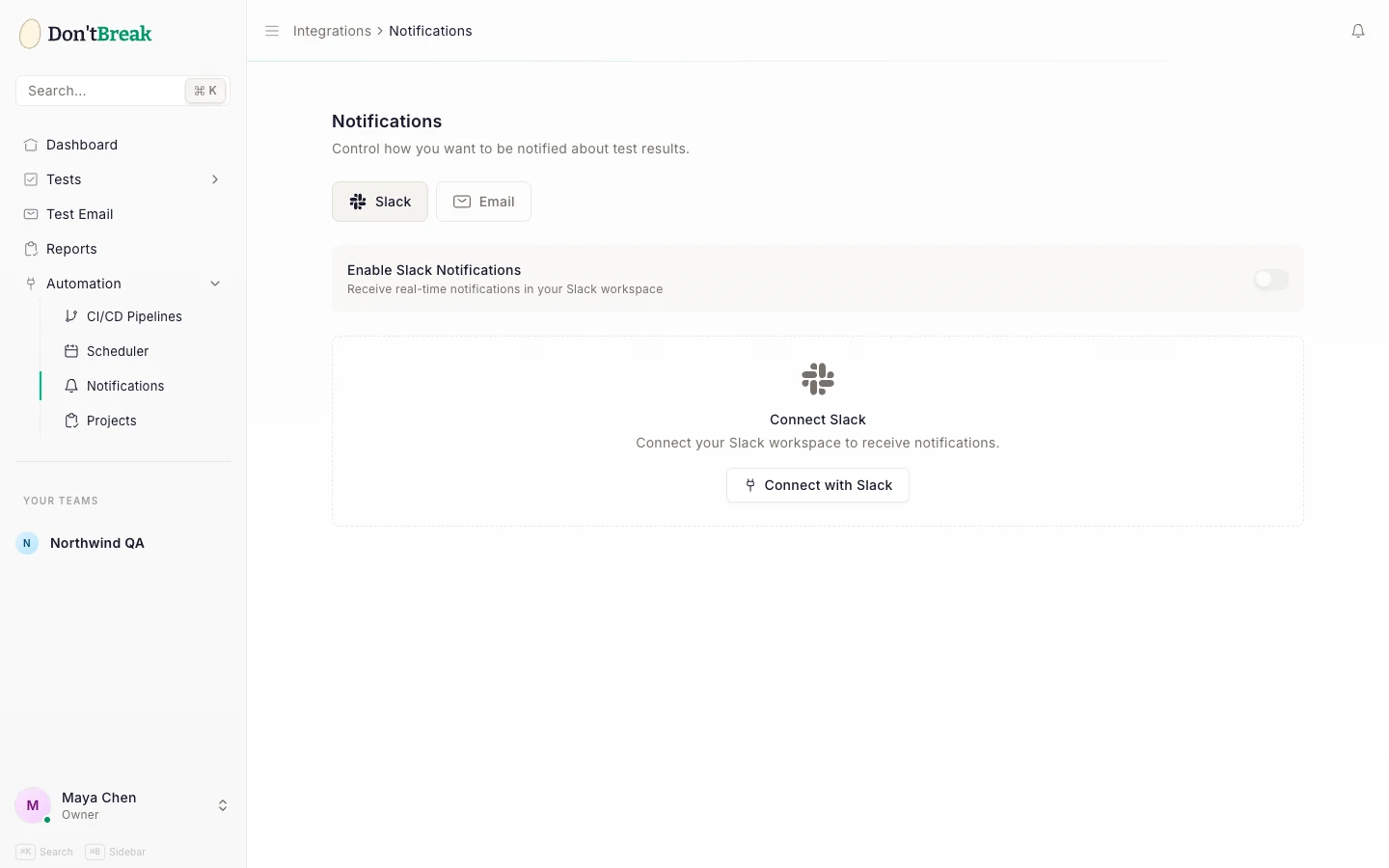
Check the master toggle
Email notifications are on by default — every account starts with the email channel enabled, so you'll receive alerts without setting anything up. The Enable Email Notifications toggle at the top of the panel is how you turn them off; while it's off, no emails are sent regardless of which events are checked.
Adjust your events
Under Send me emails for, check or uncheck events to change what lands in your inbox.
Save
Click Save Settings. A confirmation appears when your changes are stored.
Event types
| Event | What you get |
|---|---|
| Test suite fails | An alert when a suite starts failing, a reminder once a day while it keeps failing, and a Recovered email when it passes again |
| Test suite passes | A confirmation every time a suite run finishes clean |
| Individual test fails | The same for a test run on its own: first failure, daily reminder, recovery |
| Individual test passes | A confirmation every time a single test passes |
Tip
A common setup: Test suite fails only. You get an immediate email when something breaks, without an inbox full of pass confirmations.
How settings apply
Email settings are personal: every team member picks their own events, whatever their role. There are no per-suite or per-test email toggles — the events you check here apply to all tests and suites your team runs, including scheduled runs and runs triggered from CI/CD pipelines.
That makes scheduled monitoring a particularly good fit: if your suites run overnight on a schedule, the failure alerts tell you whether anything needs attention before your team starts the day.
Note
Failure alerts don't repeat for every failing run. A suite that fails every 15 minutes emails you once when it breaks, once a day while it stays broken, and once when it's fixed. Pass events do fire per run: with "Test suite passes" on, an hourly schedule sends an email every hour, so for frequent schedules stick to failure events.
Failure alerts also list what failed: up to five failing tests, each with the step that broke and its error.
If a check can't run because of a problem on our side (a test browser that stopped or never started), you get a Couldn't run notice instead of a failure alert, at most once every six hours. That run doesn't count against your test runs, and the next scheduled run tries again.
Email vs. Slack
Both channels share the same suite and test events, so you can mirror your setup or split responsibilities:
- Email is better for people who aren't in Slack and for keeping an audit trail of failures in your inbox.
- Slack is better for real-time team response, since the alert lands in a shared channel where anyone can pick it up.
Many teams enable failure events on both: Slack for immediate triage, email as the backstop. If you also want failures turned into actionable work items automatically, connect Trello, GitHub Issues, or Jira and DontBreak will create a card or issue for each failing test.